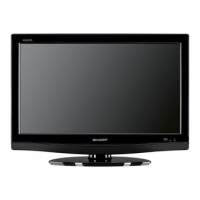
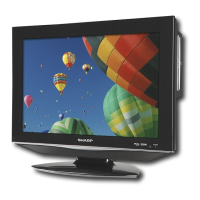
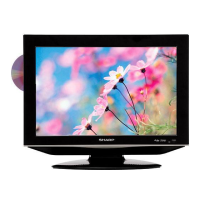
OPERATION MANUAL
Contents
The illustrations and on-screen displays in this operation manual are for explanation purposes and may vary slightly from •
the actual operations.
ENGLISH
Contents ................................................................ 1
Introduction ........................................................... 2
Dear SHARP customer ................................... 2
Important Safety Precautions .......................... 2
Important Warning .......................................... 3
Trademarks ..................................................... 3
Remote control unit ........................................ 4
TV (Front view) ................................................ 5
TV (Rear view) ................................................. 5
Preparation............................................................ 7
Supplied accessories ...................................... 7
Mount the TV stand ........................................ 7
Wall mounting ................................................. 8
Installation of batteries .................................... 8
Using the remote control ................................ 8
Display the Menu Screen .......................... 8
Select an item by the remote control ......... 8
Exit the Menu Screen ................................ 8
Quick guide ........................................................... 9
Initial installation overview................................ 9
Watching TV ........................................................ 10
Daily operation .............................................. 10
Turning on/off the power ......................... 10
Changing channels ................................. 10
Selecting external video source ............... 10
Operation without a remote control ......... 10
EPG (Electronic Programme Guide) .............. 11
Teletext ......................................................... 12
Select a Teletext language ....................... 12
Using the MHEG5 application (UK only) .. 12
TV menu .............................................................. 13
Picture .......................................................... 13
Adjust picture settings ............................. 13
Use smart picture .................................... 13
HDMI overscan ....................................... 13
Audio ............................................................ 14
Adjust Audio settings .............................. 14
TV ................................................................. 14
Select a digital audio language ................ 14
Automatically install channels .................. 14
Update Scan ........................................... 15
Single RF Scan ....................................... 15
Channel Skip .......................................... 15
Channel Sort ........................................... 16
Channel Edit ........................................... 16
Analogue Ch Fine Tune ........................... 17
Features ....................................................... 17
Change picture format ............................ 17
Power Management ................................ 18
Change the time zone ............................. 18
Set the clock .......................................... 18
Automatically switch the TV on or off (On /
Off time) ............................................... 18
Automatically switch the TV to standby
(Sleep timer) ......................................... 18
No Operation Power Off ......................... 18
AV Input (Only shown in AV mode) ......... 19
Use subtitles ............................................. 19
Auto 4 : 3 Mode ........................................ 19
Reset Default ............................................ 19
Parental .......................................................... 20
Access Parental menu .............................. 20
Lock one or more channels ....................... 20
To set parental ratings ............................... 20
Set / Change password ............................ 20
DVD Operation ...................................................... 21
Disc ................................................................ 21
Playing Audio files ..................................... 22
Playing a disc .................................................. 23
Zooming (DVD/VCD) ....................................... 24
Locating desired scene (DVD/VCD/Audio CD) . 24
Changing Soundtrack Language (DVD/VCD)... 24
Subtitles (DVD) ................................................ 24
Changing angles (DVD) ................................... 25
Title selection (DVD) ........................................ 25
DVD menu (DVD) ............................................ 25
Disc status ...................................................... 25
Using HOME MENU ........................................ 25
Play mode ...................................................... 26
A-B repeat playback ................................. 26
Repeat playback ....................................... 26
Random playback ..................................... 26
Program playback ..................................... 26
Locating desired scene ............................. 27
Audio Settings menu ....................................... 27
Video Adjust menu .......................................... 28
Customizing The Function Settings ................. 28
Parental Control .............................................. 30
Language Code List ........................................ 31
Country/Area Code List .................................. 31
Connecting external devices ............................... 32
HDMI connection ............................................ 32
YPbPr (Component connection) ...................... 32
SCART connection ......................................... 33
S-Video connection ........................................ 33
Speaker / Amplifier connection ....................... 34
Inserting a CA Card ........................................ 34
Access CI Module service ......................... 34
Connecting a PC ............................................ 35
Digital connection ..................................... 35
Analogue connection ................................ 35
Supported display resolutions ................... 35
Appendix ............................................................... 36
Troubleshooting .............................................. 36
Troubleshooting-PC mode .............................. 36
Troubleshooting-DVD ...................................... 37
Specification ................................................... 38
ENGLISH
1
54B0101A_English.indd 154B0101A_English.indd 1 2/27/2010 17:23:062/27/2010 17:23:06


 To Next Page

 General