After the settings are completed, tap and [Back] keys in sequence.
Check the preview image in the preview screen.
Check whether or not settings produce the required results.
Tap the [Start] key to start copying.
When making only one set of copies, you do not need to specify the number of
copies.
To change the cover input tray:
Tap the [Paper Tray] key to display the tray selection screen.
Tap the cover input tray on the tray selection screen.
For more information, see "SELECTING THE PAPER TRAY FOR COPYING".
If the cover will be copied on, label sheets, transparency film, and tab paper cannot be
used.
To cancel all settings:
Tap the [CA] key.
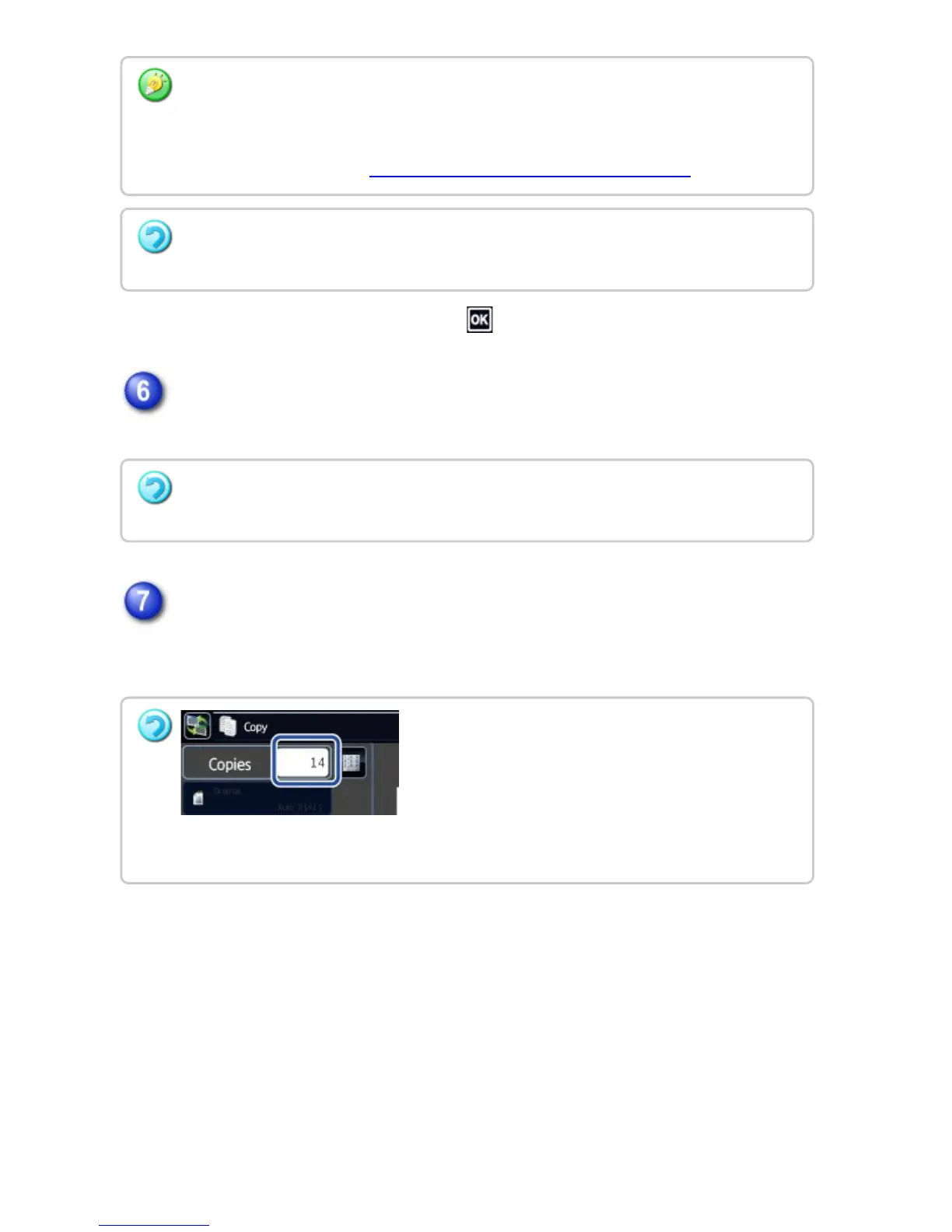
To make two or more sets of copies:
Tap the copies display key to specify the number of copies.
USER'S MANUAL | MX-M365N/MX-M465N/MX-M565N USER'S ... http://siica.sharpusa.com/portals/0/downloads/Manuals/MX-M365N-M...
283 of 1441 3/17/2016 7:14 AM


 To Next Page