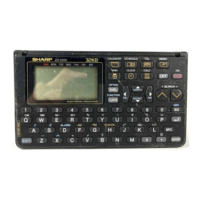
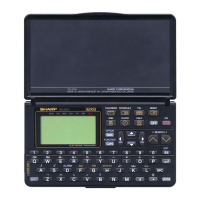
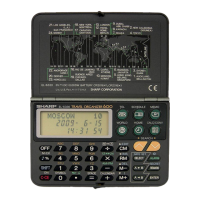
Creating a New Entry
In Index or View mode, pressing [NEW] opens a blank form
for creating a new entry.
Make the following new Tel entry:
CATEGORY
PERSONAL
FIRST NAME Pat
LAST NAME
Jones
COMPANY
SHARP CORPORATION
TITLE
SUPERVISOR
OFFICE#
201-529-8200
FAX#
201-529-9695
1.
Press [TEL] to open the application.
The application opens in Index mode.
2.
Press [NEW] on the keyboard.
A blank form opens in Edit mode.
3.
Type in the last name Jones.
4.
Press
[v’]
or [NEXT] to move to the FIRST NAME field.
5. Type in Pat.
6.
Press
[v]
or [NEXT] to move to the COMPANY field.
7.
Type in SHARP CORPORATION.
8.
Press
[v]
or [NEXT] to move to the TITLE field.
9.
Type in SUPERVISOR.
10.
Press
[v]
or [NEXT] to move to the
OFFICE#
field.
11. Type in 201-529-8200.
12.
Press
[v]
or [NEXT] to move to
the
FAX#field.
13. Type in 201-529-9695.
14.
Press
[A]
or [PREV] to move to the CATEGORY field.
Press
[I
]
to open the pop-up menu. Press
[l]
-
[8]
to
select the appropriate option.
15.
Press [ENTER] to store the entry.
The message “Stored!” appears briefly. The entry is now stored
in the Organizer’s memory and displayed in View mode.
*
For other useful methods available in Edit mode, see
below.
*
Press
[2nd]
[ENTER] to store an edited entry as new,
leaving the original unchanged.



 To Next Page