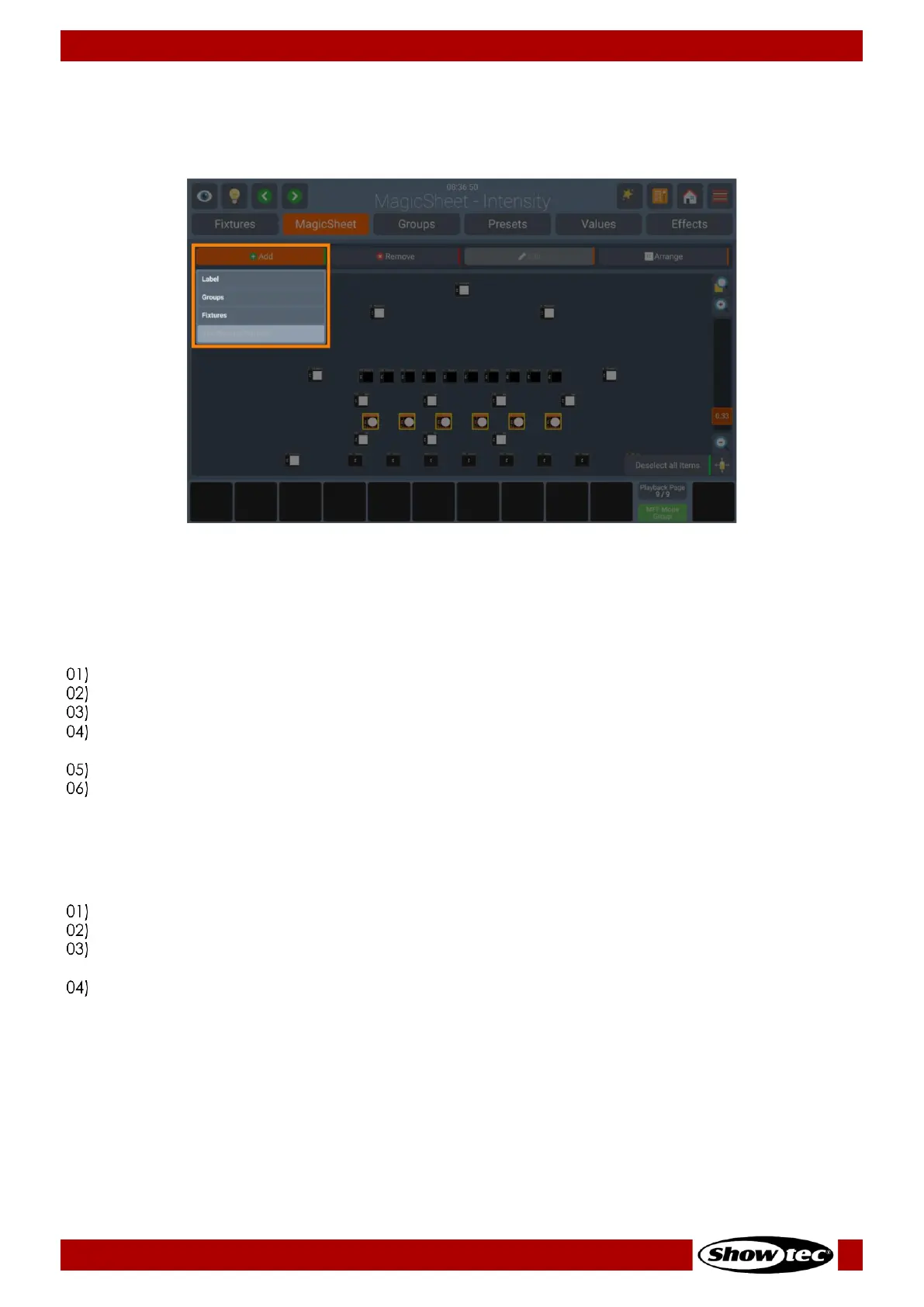
8.5.2.5. Adding Elements to the Magic Sheet View
If you would like to add Items to the Magic Sheet View, press the Magic Wand button, click on Edit Sheet.
A new toolbar will appear on the top, click on Add to display the list.
Adding Labels
Labels may be used for visual indication of different Items or to quickly select them. To add a label,
please proceed as follows:
Enable the edit mode by clicking on the Magic Wand button and on the Edit Sheet button.
Click on Label within the Add list.
Draw a rectangle on the screen by pushing and dragging your finger where the label should go.
A window to edit the Label will open. You may change the name on the text field and pick a color
for it.
Click Ok when done.
Now you have the chance to make some corrections. You may move the label by clicking and
dragging on it, and you may resize it using the handle in the lower right corner of the new label.
Adding Groups
To add a Group to the Magic Sheet View, please proceed as follows:
Enable the edit mode by clicking on the Magic Wand button and on the Edit Sheet button.
Click on Groups within the Add list.
Select the Groups you would like to add from the window that was just opened. Click on Ok when
done.
Now you have the chance to move the added groups where they should go. Do so by clicking and
dragging a group.





 To Next Page