Adding Fixtures
To add a Fixture to the Magic Sheet View, please proceed as follows:
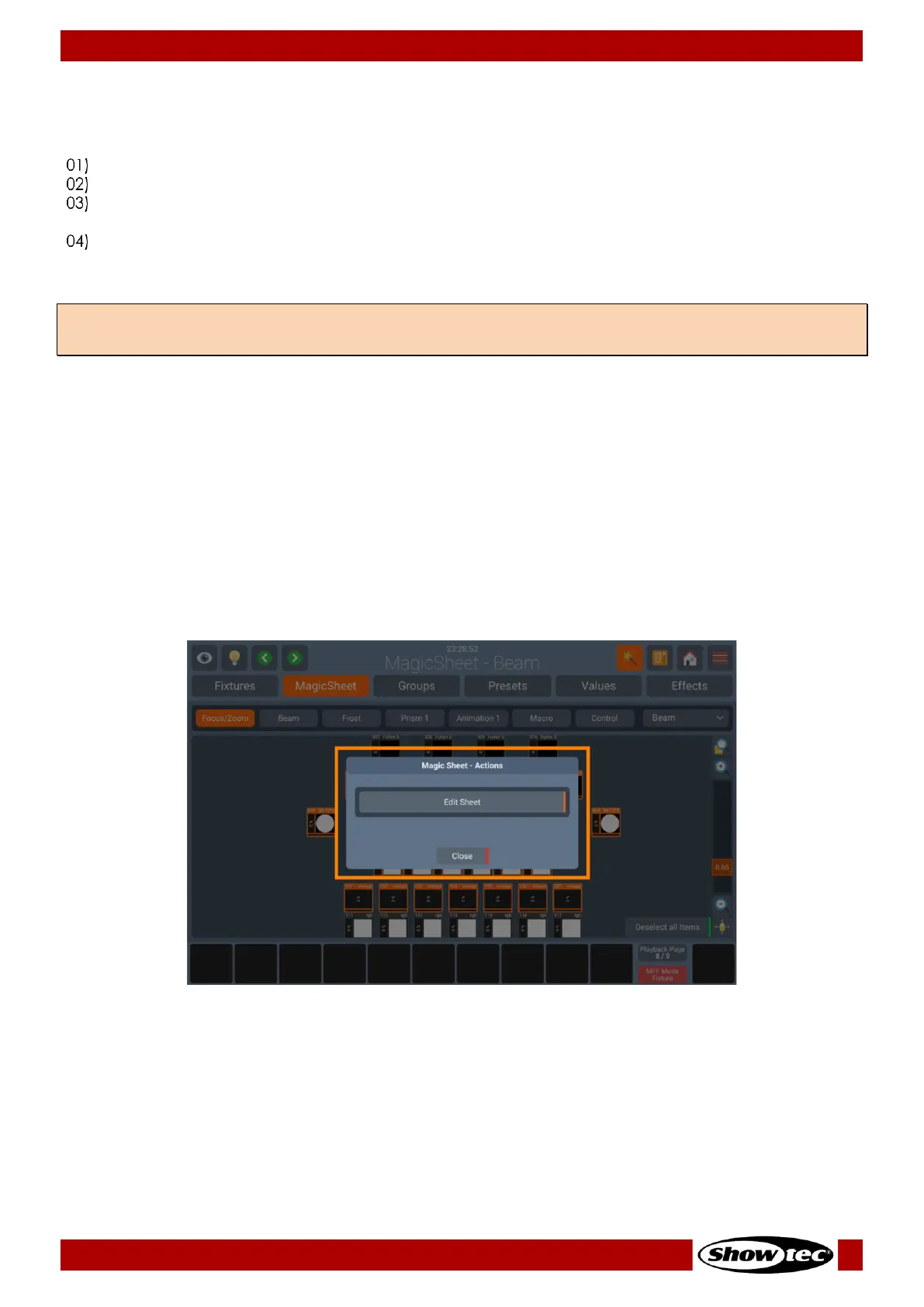
Enable the edit mode by clicking on the Magic Wand button and the Edit Sheet button.
Click on Fixtures within the Add list.
Select the Fixtures you would like to add from the window that was just opened. Click on Ok when
done.
Now you have the chance to select one of the arrange modes to place the fixtures in the view. For
more information about the different arrange modes, please see section 8.5.2.8, Arranging Existing
Elements on page 104.
8.5.2.6. Selecting and de-selecting Fixtures
You may select / deselect objects within the Magic Sheet View by clicking on them, or by “drawing” a
selection rectangle, like keeping your mouse cursor pressed while moving the mouse to select multiple
items on your computer’s desktop. You may also select items that are inside a label by clicking on the
label.
Whenever fixtures, labels, or groups are selected, a Deselect all Items button is shown on the bottom right
part of the Screen.
8.5.2.7. Editing existing Elements
If you would like to edit Items to the Magic Sheet View, press the Magic Wand button, click on Edit Sheet.
Note: It is not allowed to add the same fixture to a sheet twice. If fixtures in the show file are already in the
Sheet, the Add Fixtures Button will be greyed out.




 To Next Page