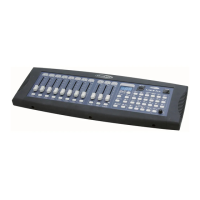
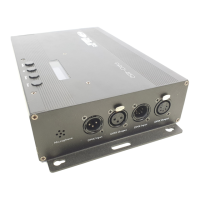
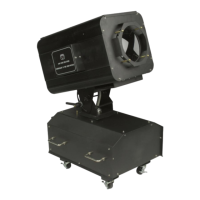
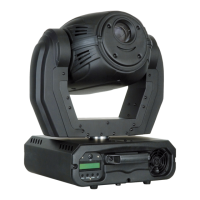
Product: 50740 / 50741 / 50742 / 50743
8.6.5. Playback View Columns
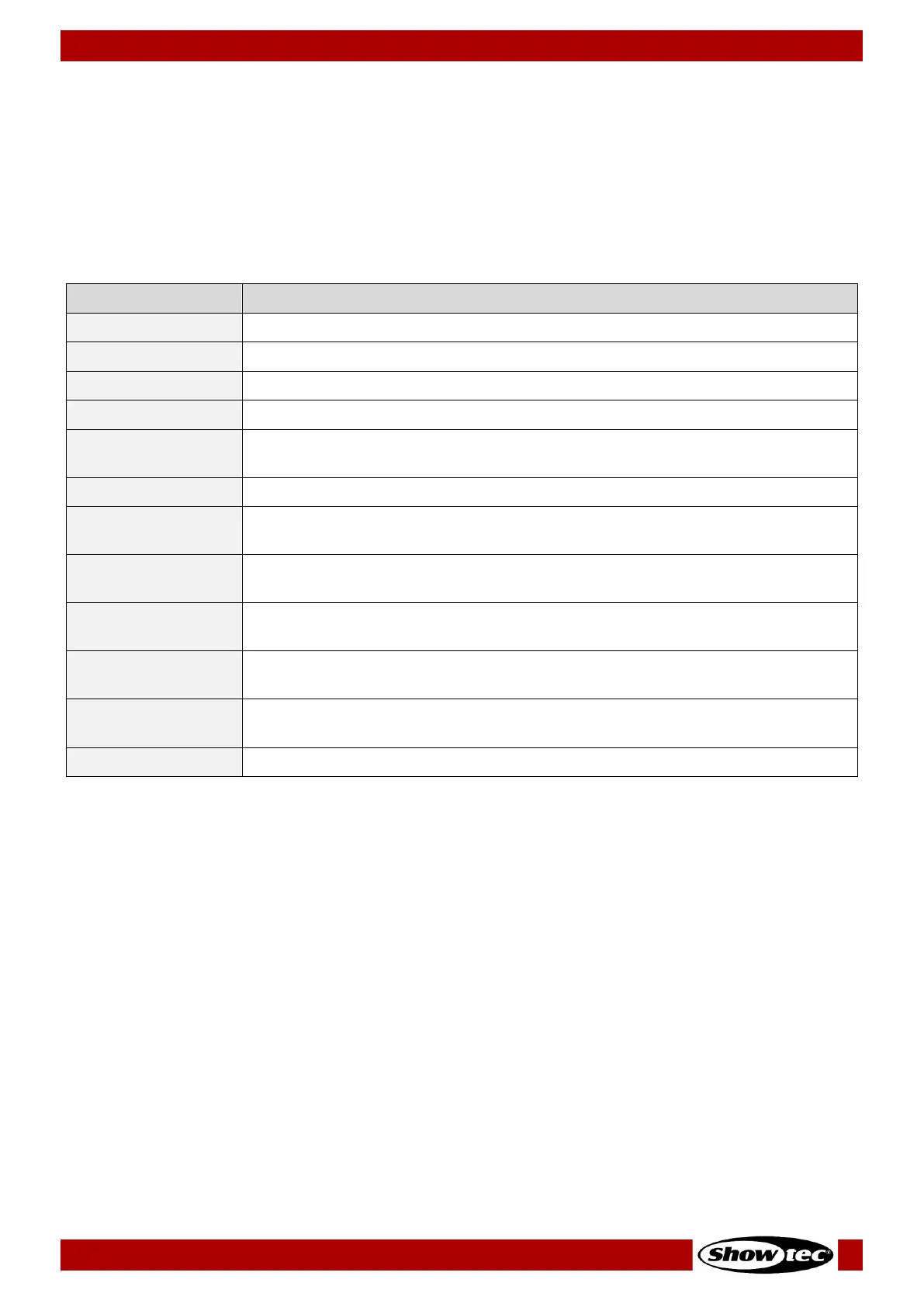
The following is a list of the columns found in the playback view and their associated functions.
As soon as the Playback View for the appropriate playback has been opened up (you may do so by
clicking on the fader label), select the cell with the value you would like to change and double, right
click or long-click.
Multiple rows across the same column may be selected, however you cannot select multiple columns at
the same time.
Used to move cues in the Cuelist by dragging and dropping.
Indicates the Cue number.
Indicates and sets the Cue name.
Indicates and sets the time after this cue will be started.
Indicates and sets the type of the trigger for this cue. More information may be
found below.
Indicates and sets the time to fade into this cue.
Indicates and sets the delay time this cue will wait to fade in after being
started.
Indicates and sets the time in which dimmer values that decrement their values
will fade down.
Indicates and sets the delay which dimmer values that decrement their values
will wait until fading down.
Indicates and sets the percentage of the fade at which “Snap” values will snap
to the new value.
Indicates and sets if this cue should be pre-set by the move in black function of
the LAMPY.
Used to load Values of a Cue into the programmer.
Sort Column
This column allows you to reorder cues by dragging and dropping the sort handle. It is not possible to
drop cues before cue 1. If you would like to do so, please reorder cue 1 instead.
Cue ID Column
The Cue ID Column indicates the number of the cue. Cues can be renumbered by double-clicking in the
cell.
Name Column
The Name Column indicates the name of a cue. It may be changed any time by double, right or long
clicking into the cell. Alternatively, you may press the [Name]-key on the front panel and select the cue
which you would like to rename from the Playback View.
Trig Time Column
This is the time that needs to pass until this cue will be started, use however depends on the trigger
selected for this cue. Find more information about the different trigger types below. It may be changed
any time by double, right or long clicking into the cell.


 To Next Page
 Loading...