Product: 50740 / 50741 / 50742 / 50743
8.3.3. Adding Fixtures to the Show file
Open the Action Menu by pressing the Magic Wand Button.
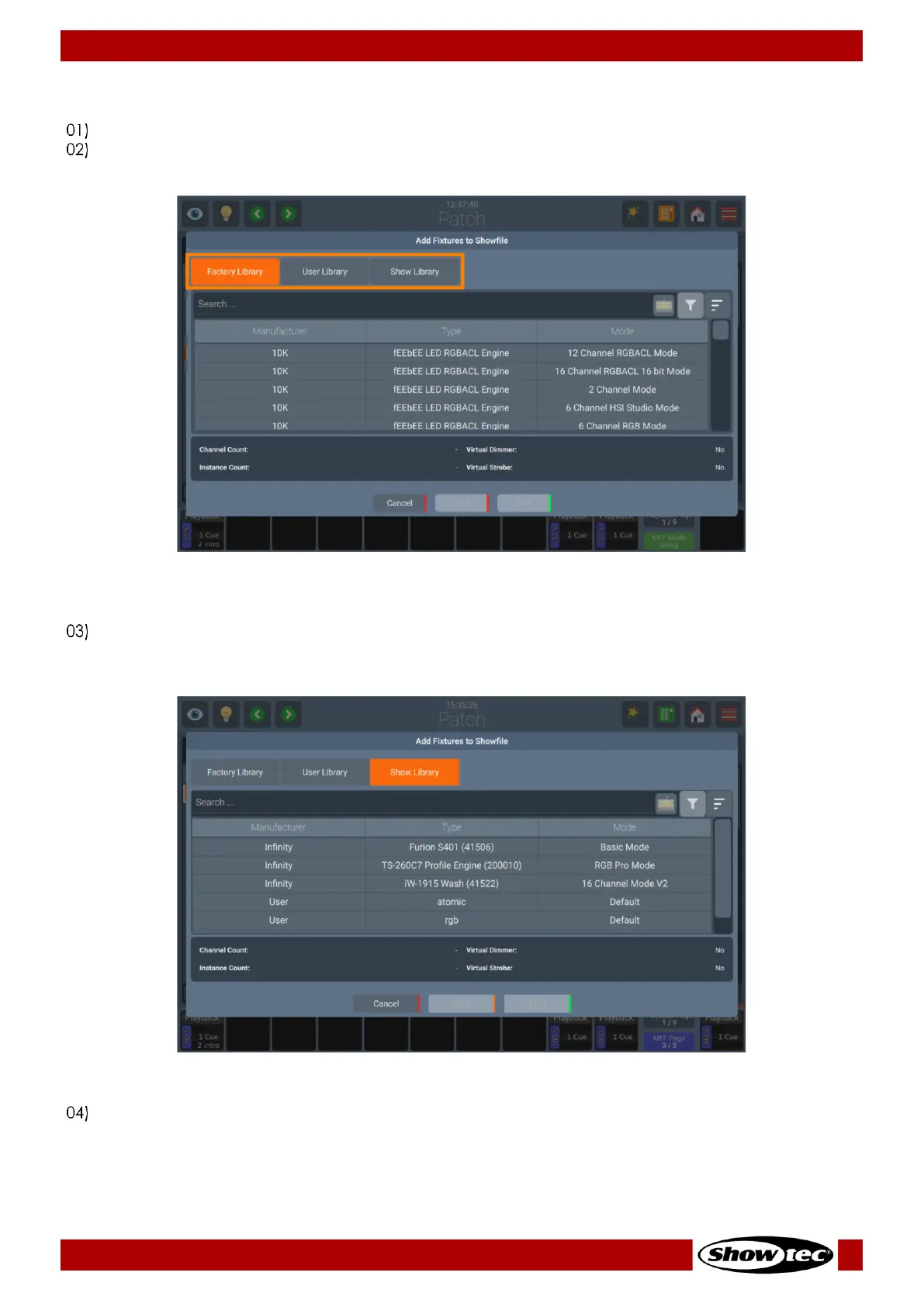
Click on Add Fixtures. A Window as pictured below is shown.
Fig. 35: Add Fixtures – Select Fixture from Show Library
To Add a Fixture from the inbuilt Library, select Factory Library. If you want to add a user created
Library, click on User Library. And, if you want to add fixtures from the show library, select Show
Library the Select-Library Dialog is shown.
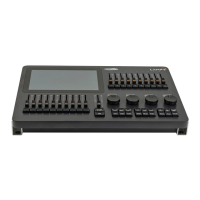
Fig. 36: Add Fixture to Show Library – Select Fixture
Select a fixture from the list. Or enter a search text into the search field by typing it on a USB
keyboard. You may also open the on-screen keyboard by clicking on the Keyboard button next to
the text field. The libraries have the Manufacturer, Fixture Type and Mode from the lists for each
fixture. You may also use the Sort button to arrange the columns in a descending or ascending order.




 To Next Page