Product: 50740 / 50741 / 50742 / 50743
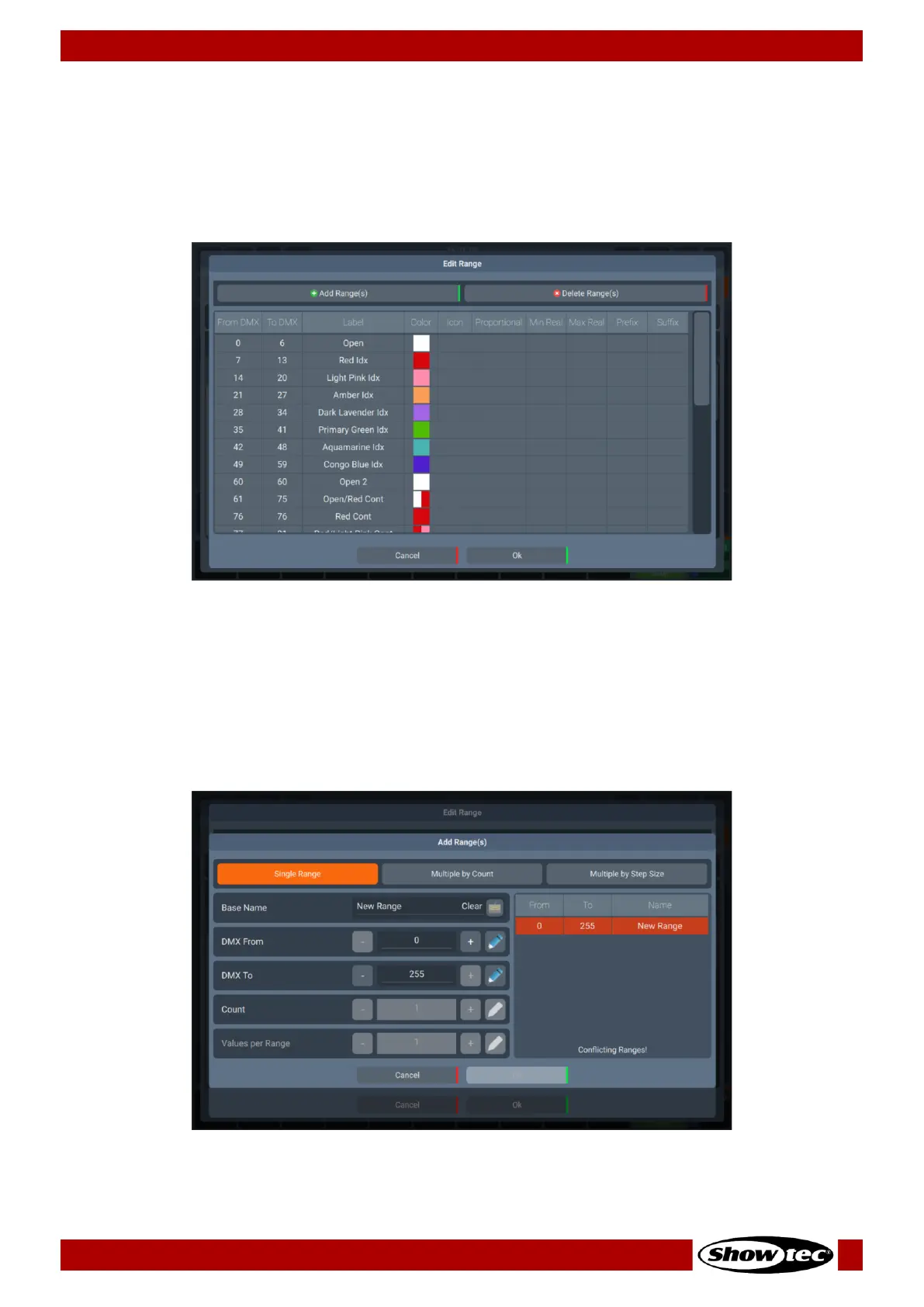
Edit Ranges Dialog
The Edit Ranges Dialog is used to specify how a Channels functions are mapped to the corresponding
DMX Values, enabling you to show the name or even icons for a specific range of values within the
Programmer and the Select Range popup that opens when you push on an encoder.
It is opened by double clicking in the Ranges cell for the appropriate parameter.
Fig. 89: Edit Fixture Library – Range Editor
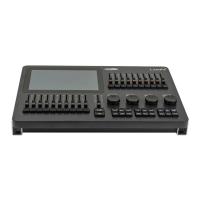
Adding Ranges
To add a single Range to the list, click on the Add Range(s) button. A new screen will be shown allowing
you to specify information about this range. You may as well add multiple Ranges to the list by clicking on
Multiple by Count or Multiple by Step Size button, in the same window. The console will show a preview of
the new ranges on the right side of the screen. If any new ranges are conflicting with existing ranges,
these will be highlighted in red.
Fig. 90: Edit Fixture Library – Adding Ranges




 To Next Page