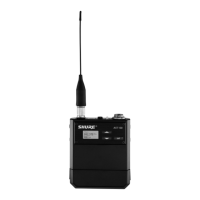
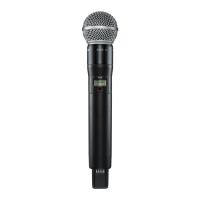
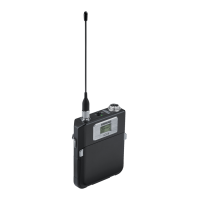
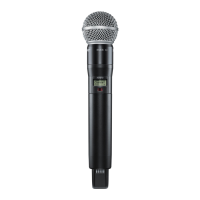
11
IR Sync
Use IR Sync to form an audio channel between the transmitter and receiver.
Note: The receiver band must match the band of the transmitter.
1. Select a receiver channel.
2. Tune the channel to an available frequency using group
scan or manually turn to an open frequency.
3. Power on the transmitter.
4. Press the SYNC button on the receiver.
5. Align the IR windows between the transmitter and the receiver so that
the IR LED illuminates red. When complete, Sync Success! appears.
The transmitter and receiver are now tuned to the same frequency.
<15 cm (6 in.)
AD4Q
Axient Digital
Wireless Receiver
POWER
PUSH
CONTROL
NAVIGATE
IR
RF
A B
OL
AUDIO
SYNC
4
RX 4RF
A B
OL
AUDIO
SYNC
3
RX 3RF
A B
OL
AUDIO
SYNC
2
RX 2RF
A B
OL
AUDIO
SYNC
1
RX 1
ULXD4
Digital Wireless Receiver
sync
Sync Success!
Note:
Any change to the encryption status on the receiver (enabling/disabling encryp-
tion) requires a sync to send the settings to the transmitter. New encryption
keys for the transmitter and receiver channel are generated on every IR sync,
so to request a new key for a transmitter, perform an IR sync with the desired
receiver channel.
Setting the Frequency Manually
The transmitter can be manually tuned to a specific group, channel, or
frequency.
1. Navigate to the Radio menu and select Freq.
2. Scroll to select G: and C: to edit the group and channel, or select
the frequency parameter (MHz). When editing the frequency, press
O once to edit the first 3 digits, or twice to edit the last 3 digits.
3. Use the ∧∨ buttons to adjust the group, channel, or frequency.
4. Press O to save, and then press X when finished.
Freq
G: 1 C:1
4
70.700 MHz
RF Mute
RF Mute prevents transmission of the audio by suppressing the RF signal,
while allowing the transmitter to remain powered-on. The home screen displays
RF MUTED in this mode.
RF Output
Mute
1. From the Radio menu, navigate to Output.
2. Choose one of the following options:
- On: RF signal is active
- Mute: RF signal is disabled
3. Press O to save.
Turning the transmitter off and on, or replacing the battery will restore Output
to On.
Power-on RF Mute
Power-on RF Mute places the transmitter in RF Mute mode immediately when
turned on.
• Starting with the transmitter off, press and hold the X button, and then switch
on the power
• Continue to hold the X button until the RF Muted message appears on the
home screen
Tip: To turn the RF Output on, navigate to Radio > Output and select On.
Input Overload
The OVERLOAD message appears when the audio input experiences a high-lev-
el signal. The power LED turns red as an additional indicator of an overload.
Reduce the input signal or enable the input pad to remove the overload
condition.
Tip: To enable the input pad, navigate to Audio > Pad and select -12 dB.
Shure
OVERLOAD
7:45



 To Next Page