6
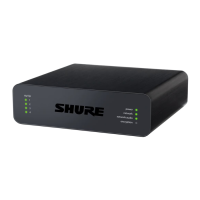
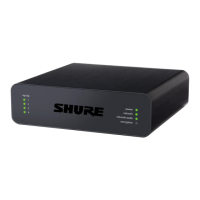
Control Software for the MXW Audio Network Interface
The MXW Audio Network Interface features a control software to mange
the analog inputs and outputs of the MXW system, in addition to the 4-port
gigabit switch on the back panel of the network interface.
By default, all MXW devices have the password 'admin' applied to the
control software. When logging in for the first time, enter 'admin' into the
field to log on as the administrator. The password can be changed from the
Preferences tab.
Note: For optimal system performance, the control software should not be
open to more than seven tabs or windows.
Operating System Requirements
To operate the control software, the computer must meet the following
requirements:
• Windows: Windows XP, Windows Vista and Windows 7
• Apple: Mac OSX 10.6 and higher (Intel Core 2 Duo processor and later)
• Latest version of Adobe
®
Flash
®
Player
Accessing the MXW Control Software
The MXW system uses a device-hosted control software that enables
comprehensive remote control of key setup, monitoring and management
functions. The software is accessible from any PC or Mac on the network, and
opens in a web-browser using Adobe
®
Flash
®
.
There are two different control interfaces for the MXW system:
• MXW System control software: Accessed from the Access Point Transceiver
and used for managing the MXW system.
• Audio Network Interface control software: Accessed from the Audio Network
Interface and used for managing that device only.
Follow these steps for accessing MXW control software:
1. Install the Shure Web Device Discovery application.
Download the Shure Web Device Discovery Application from www.
shure.com or from the USB stick supplied with the MXW Access Point
Transceiver. (The required Bonjour device discovery tool is bundled with
the application and will install automatically.)
2. Ensure the computer is on the MXW network.
The computer accesses the control software from an embedded web
server on the device. All networked devices must be connected to the
same network (set to the same subnet).
3. Turn off WiFi
Turn off the PC's WiFi to force the wired network interface.
4. Launch the Shure Web Device Discovery application.
Open the application to view all Shure devices on the network that
feature an embedded server for control software (MXWAPT, MXWANI
and SCM820). Use the Identify button to flash a device's LEDs for easy
identification.
① Tabs
The software has an Inputs/Outputs tab for managing audio and a
Preferences tab for system configurations.
② Identify Button
This button sends a command to the hardware to flash front-panel LEDs
for easy identification.
Control Bar
③ Security Level
Displays the access level of the user: Administrator, Technician, or
Guest.
④ Log Off
Logs the user out of the software.
⑤ Language Selection
Selects the language for the control software interface. This setting will
be saved to the computer.
5. Open the MXW Control Software
Double-click on any Access Point Transceiver to open the MXW
System control software. Double click on an Audio Network Interface
to open that device's software interface. The application can open the
Control Software by IP address or DNS name (selectable from the
Preferences drop-down).
6. Enter Default Password
Enter the default password 'admin' to access the control software.
7. Bookmark the Webpage (recommended)
Bookmark the IP address of the device when it is set to a Static IP
address. Bookmark the device's DNS name when the IP mode is set to
Automatic (DHCP).
⑤
③
②
①
④


 To Next Page