Shure Incorporated
9/16
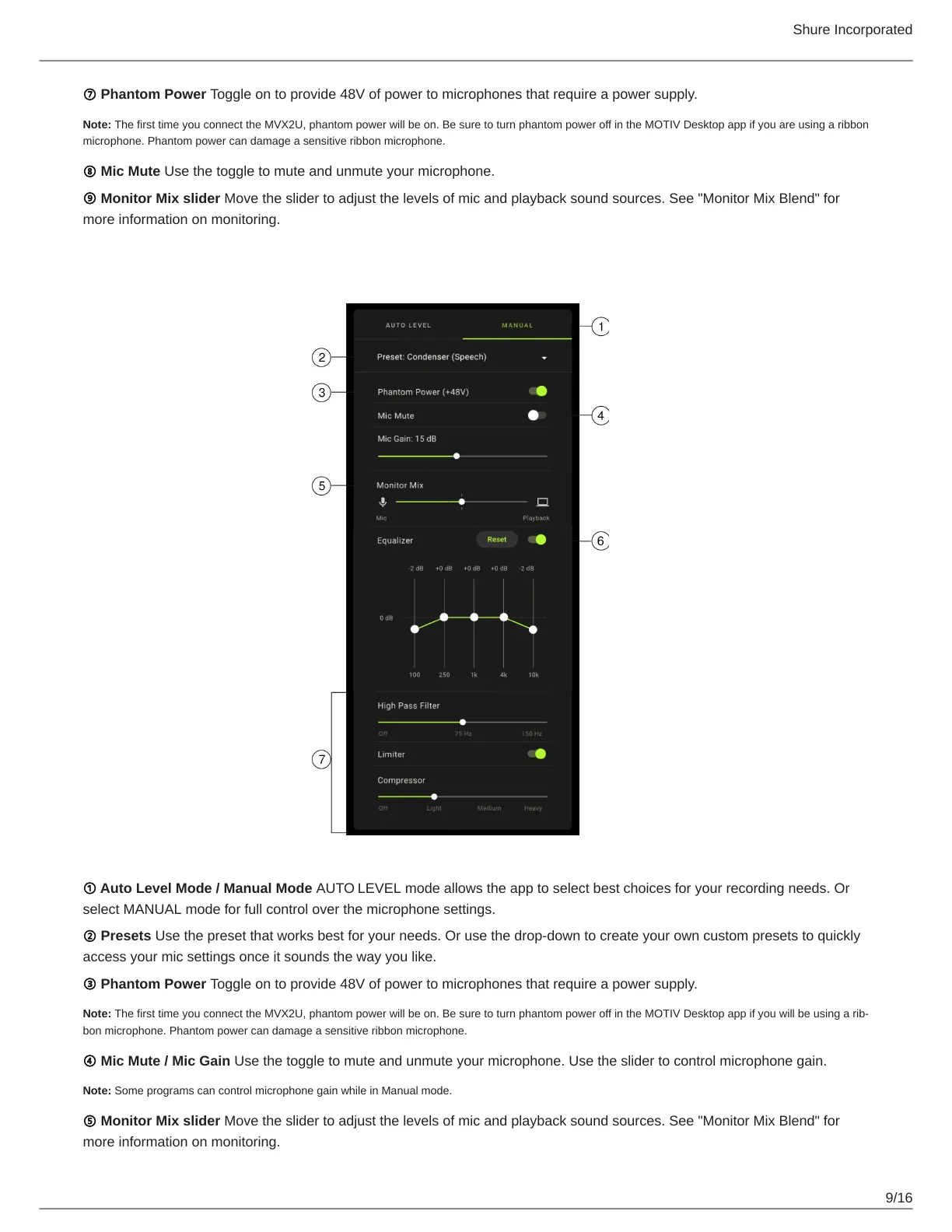
⑦ Phantom Power Toggle on to provide 48V of power to microphones that require a power supply.
Note: The first time you connect the MVX2U, phantom power will be on. Be sure to turn phantom power off in the MOTIV Desktop app if you are using a ribbon
microphone. Phantom power can damage a sensitive ribbon microphone.
⑧ Mic Mute Use the toggle to mute and unmute your microphone.
⑨ Monitor Mix slider Move the slider to adjust the levels of mic and playback sound sources. See "Monitor Mix Blend" for
more information on monitoring.
Mic Setup: Manual
① Auto Level Mode / Manual Mode AUTO LEVEL mode allows the app to select best choices for your recording needs. Or
select MANUAL mode for full control over the microphone settings.
② Presets Use the preset that works best for your needs. Or use the drop-down to create your own custom presets to quickly
access your mic settings once it sounds the way you like.
③ Phantom Power Toggle on to provide 48V of power to microphones that require a power supply.
Note: ThefirsttimeyouconnecttheMVX2U,phantompowerwillbeon.BesuretoturnphantompoweroffintheMOTIVDesktopappifyouwillbeusingarib
bon microphone. Phantom power can damage a sensitive ribbon microphone.
④ Mic Mute / Mic Gain Use the toggle to mute and unmute your microphone. Use the slider to control microphone gain.
Note: Some programs can control microphone gain while in Manual mode.
⑤ Monitor Mix slider Move the slider to adjust the levels of mic and playback sound sources. See "Monitor Mix Blend" for
more information on monitoring.



 To Next Page