2. For most applications, use the Automatic mode
(default) to let your switch or router assign an IP
address using DHCP addressing. If no DHCP server is
present, your devices will fall back to a link-local
address in the 169.254.xxx.xxx range. If you need to
assign specific IP addresses, set the IP mode to
Manual in the Network menu. Find model-specific
instructions at http://shure-
community.custhelp.com/posts/a21b97f121.
3. Open Wireless Workbench software.
4. Select a Network Interface in the pop-up window.
Choose the network that most closely matches the
Ethernet port where your devices are connected.
5. Your device will appear in the Inventory tab when the
connection is successful.
Configuration Tips
Check your firewall settings to make sure Wireless
Workbench has access to your network
Use multiple Ethernet switches to extend the network
for larger installations
For more help, visit the Help menu in Wireless Workbench
or http://www.shure.com/wwb.
Monitoring Batteries with
Wireless Workbench
Wireless Workbench provides detailed battery information
for each transmitter.
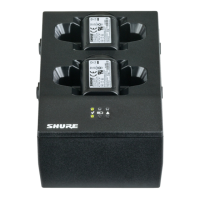
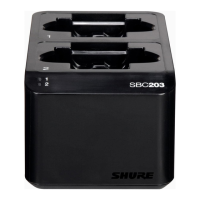
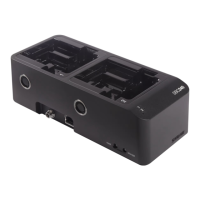
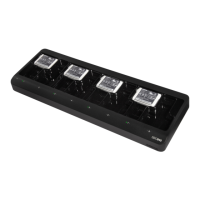
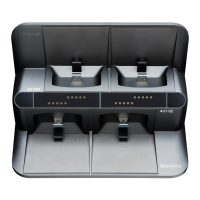
Click the Inventory tab to view the networked charging
station in Wireless Workbench.


 To Next Page