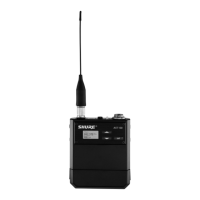
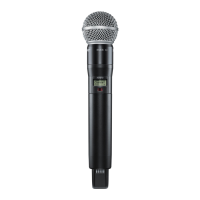
Shure UHF-R Wireless
10
Networking Receivers
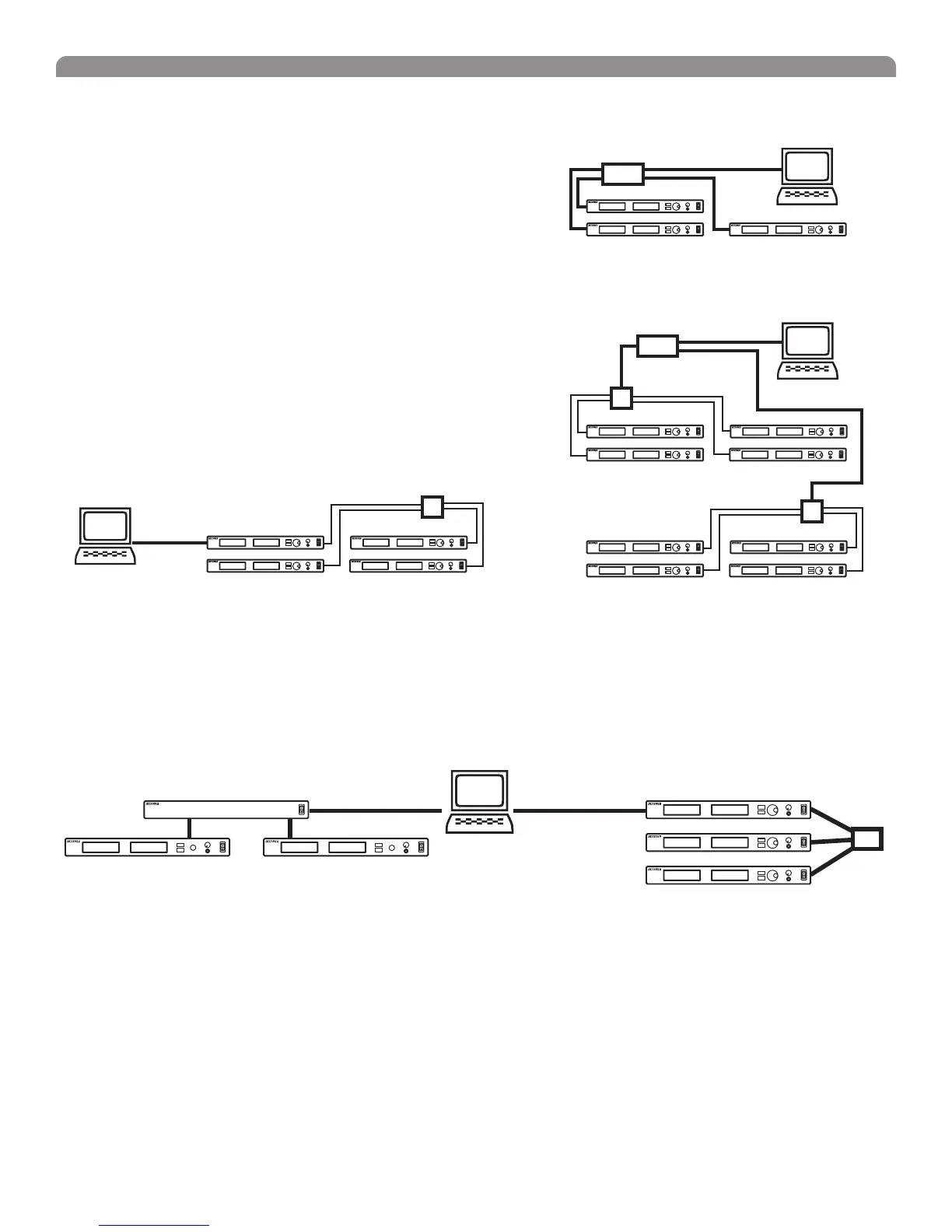
Basic Network
Connect receivers to an Ethernet router with DHCP service. Use Ethernet
switches to extend the network for larger installations.
Use the receiver’s default network setting
(Util > Network > Mode = DHCP).
Accessing the Network with a Computer
If you want to use the Wireless Workbench software, connect your computer to
the network and install the software from the CD that came with the receiver.
Make sure your computer is configured for DHCP (from Control Panel, click
Network Connections. Double-click on Local Area Connection. Select
Internet Protocol (TCP/IP) and click Properties. Select Obtain IP address
automatically and Obtain DNS server address automatically and click OK).
NOTE: Some security software or firewall settings on your computer can
prevent you from connecting to the receivers. If using firewall software, allow
connections on port 2201.
Using USB...
Connect the computer to the USB port on any of the receivers to access the
whole network.
USB
Static IP Addressing
The receiver also supports static IP addressing. Assign your own IP addresses ( Util > Network > Mode = Manual). See
“Network Parameters” on page 8.
NOTE: Dual receivers use a single IP address, which may be set through either LCD interface.
Existing UHF Network Installations
Both Shure’s UHF-R receivers and legacy UHF receivers can be networked to the same PC and accessed using the latest Wireless
Workbench software.
Router with DHCP
Computer
(optional)
Switch
Switch
Router with DHCP
Computer
(optional)
USBRS-232
U888
UHF
UHF-R



 To Next Page