840D/828D SINUMERIK Operate
Notes
Section 5
Alarm log
5.2 Vertical softkey bar
Display area Description
By pressing the VSK 1 “Display new” the actual
alarm log list will be updated.
By pressing the VSK 6 “Settings” the “Settings” in-
put mask opens, where you can limit the numbers
of entries in the log list and decide to write the log
into a file on the control.
By pressing the VSK 7 “Save log” the actual alarm
log is written to a file.
5.3 Showing and saving alarm logs
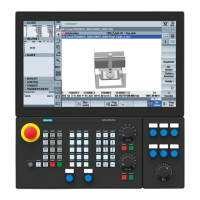
1. Press the “MENU SELECT“-key on the operator
panel and then the yellow horizontal softkey 5
“Diagnostics“. Alternatively you can press the
“Alarm”-key on the keyboard.
The operating area “Diagnostics” opens.
2. Press the VSK 3 “Alarm-log.“.
The “Alarm log” window opens with the correspond-
ing vertical softkey bar.
3. Press the VSK 1 “Display new” to update the log
list.
- OR -
3. Press the VSK 2 “Settings” to open the “Settings”-
input mask. In the “Number of entries”-field enter
values for the maximum number of entries
(maximum 32000) that shall be displayed in the log
window and in the “Write mode file” select:
“off“, iff the changes are not to be written to a
file.
“At every event“, if every change is to be written
to a file.
“Time-controlled” if the file is to be overwritten
after a particular time period. A new option field
opens where you can insert the write interval in
seconds.
Accept your inputs by pressing the VSK 8 “OK” or
abort with pressing the VSK 7 “Cancel”.
- OR -
3. Press the VSK 7 “Save log” to save the log directly
to the file:
card/user/sinumerik/hmi/log/alarm_log/alarmlog.txt
on the on the control.





 To Next Page