EasyManua.ls Logo

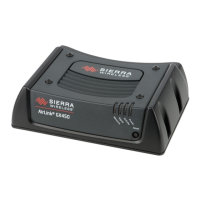
Sierra Wireless GL6100 - User Manual

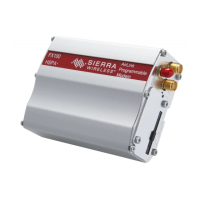
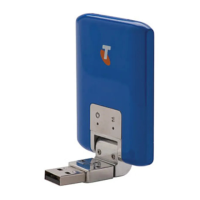
Sierra Wireless GL6100
96 pages
Print Icon
To Next Page IconTo Next Page
Loading...
WA_DEV_GL6100_PTS_001
002
May 24, 2010
AirLink GL Series
GL61x0 Product Technical
Specification and User Guide

Table of Contents

Questions and Answers

  • T
    Tracey IbarraAug 1, 2025
    Why am I receiving “ERROR” on my Sierra Wireless Modem?
    • S
      Susan BowmanAug 1, 2025
      If you're getting 'ERROR' messages from your Sierra Wireless Modem, it could be due to incorrect AT command syntax. Double-check the command syntax, referring to the Firmware 7.42 AT Commands Manual (Sierra Wireless Software Suite 2.32) for details. Alternatively, use the command AT+CMEE=1 to switch to the verbose method for error reporting, which will give you error codes. You can also re-enter the AT command to get the Mobile Equipment error code.
  • N
    navarroericaAug 7, 2025
    What to do if my Sierra Wireless GL6100 Modem GL6110 is not communicating through USB?
    • B
      brianna19Aug 7, 2025
      If your Sierra Wireless GL6110 modem isn't communicating via USB, first ensure the GL6110 is recognized by your PC and that the USB port is providing 5V. Check the USB connection. Make sure the USB device driver is correctly installed. Also, verify that your communication program's settings are compatible with the GL6110's factory settings: Data bits = 8, Parity = none, Stop bits = 1, Baud rate = 115200 bps, Flow control = hardware. Finally, close any other programs that might be interfering with the communication program.
  • R
    Robert MillerAug 15, 2025
    Why is my Sierra Wireless GL6100 Modem receiving “NO CARRIER”?
    • B
      Brian MaldonadoAug 15, 2025
      If you're receiving a 'NO CARRIER' message on your Sierra Wireless Modem, it could be due to several reasons. You can check the signal strength, verify the network registration, and ensure the antenna is properly connected. Also, check that the band selection is correct. Ensure that the semicolon (;) is entered immediately after the phone number in the AT command. e.g. ATD######;
  • J
    Jennifer ColeAug 22, 2025
    How to troubleshoot no communication with Sierra Wireless Modem GL6100 via serial link?
    • R
      Rick PowellAug 23, 2025
      If the Sierra Wireless GL6100 modem isn't communicating through the serial link, start by checking that the external power supply is connected and providing between 4.75V and 32V. Verify the serial cable connection and ensure it follows the correct pin assignments. Check that your communication program's settings are compatible with the GL6100's factory settings: Data bits = 8, Parity = none, Stop bits = 1, Baud rate = 115200 bps, Flow control = hardware. Also, close any other programs that might be interfering with the communication program.

Summary

Overview of GL61 x0

Technical Specifications

Power Supply Specifications

Specifies voltage ranges and current limits for GL6100 and GL6110 power inputs.

Interfaces and Peripherals

SIM Interface Details

Covers SIM card connection, electrical characteristics, and pinout.

8-pin Micro-Fit Connector

Details pin assignments for power and serial/USB connections on the connector.

Using the GL61 x0

Getting Started Guide

Step-by-step guide for initial setup, including connecting cables and antenna.

Communicating with the GL61 x0

Communications Testing

How to test the modem's communication setup using AT commands.

Main AT Commands for GL6100

Lists essential AT commands for device configuration and operation.

Troubleshooting the GL61 x0

Power Consumption

Safety Recommendations

Sierra Wireless GL6100 Specifications

General IconGeneral
BrandSierra Wireless
ModelGL6100
CategoryModem
LanguageEnglish

Related product manuals