- 13 -
To activate the age release you must select the option
"Parental control" in the OSD Menu under "Rating" and
enter the password (8888). You confirm your entry by pres-
sing the button "OK". Again select the option "Parental
control" and now set the desired child lock level. You confirm
your entry by pressing the button "OK".
- Set password: Here you can change the preset password
(8888) and submit your own password.
Only the numbers 0-9 can be used.
To change the password select the option "Set password"
in the OSD Menu. Enter the valid password. You confirm your
entry by pressing the button "OK". Again select the option
"Set password" and enter the new password. You confirm your
entry by pressing the button "OK".
NOTE:
In case you should forget your new password you can use
the factory default password (8888).
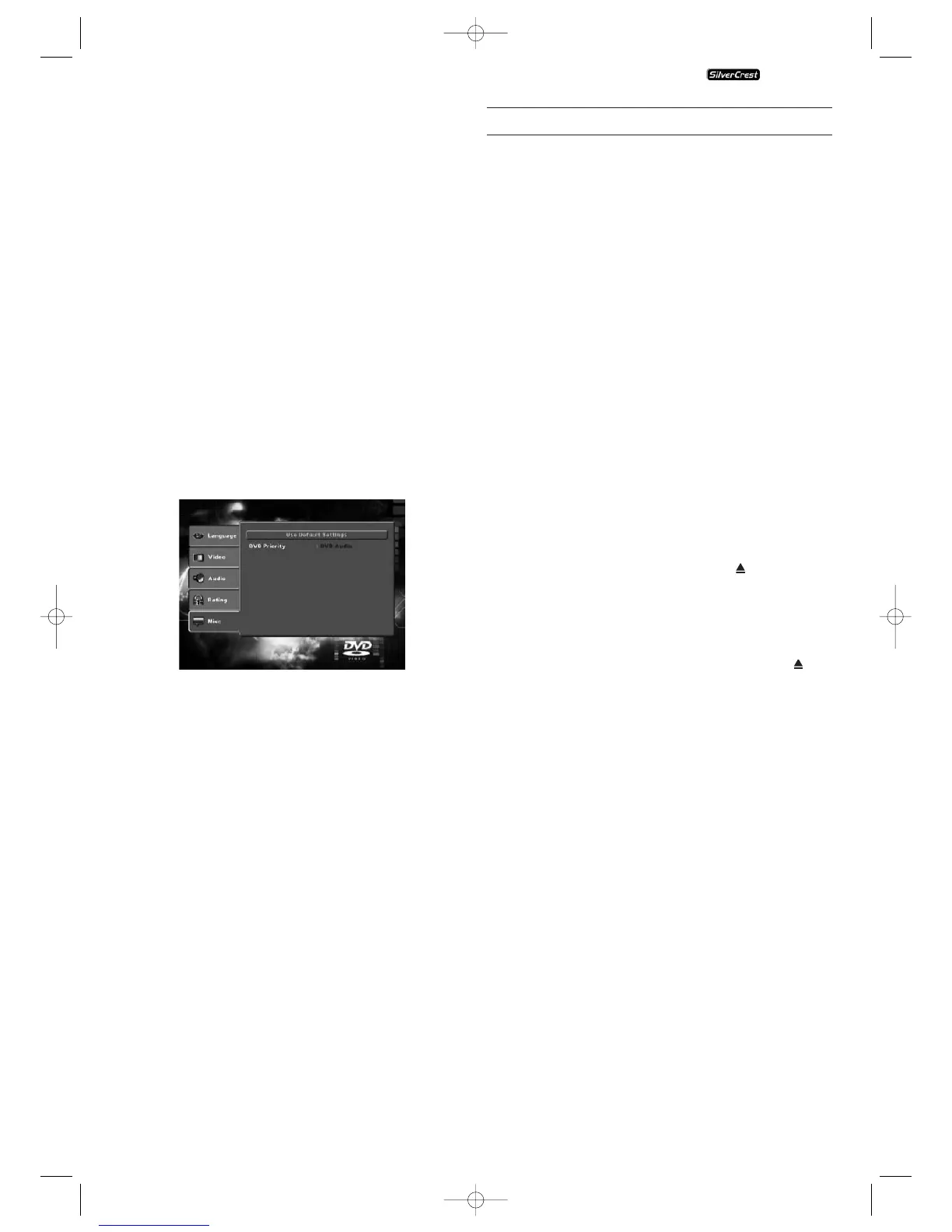
8.6. Misc settings
In this Menu you can return the DVD player to its factory
defaults and set the DVD playback priority.
- Use default
Settings: Here you reset the DVD player's factory
default settings.
- DVD-Priority: Here you make the setting to decide
whether in audio DVDs with additional
film material priority for display is given
to the music or the film material.
DVD-AUDIO: The music has display priority.
DVD-VIDEO: Film material in Dolby 5.1
has display priority.
9. Initial operation of the DVD player
After you have …
• placed the DVD player in a suitable location
• connected the DVD player to a television by one of the
designated connection options
• connected the DVD player, if desired, to a HiFi or Surround
system (analogue/digital) for example a Dolby Digital or
DTS receiver
• made the remote control ready for operation by inserting
the batteries
• become acquainted with the activation and handling of
the OSD Menu using the remote control
… the DVD player is ready for operation.
9.1. Inserting the DVD
To play a disc with the DVD player:
• Switch on your television.
• Make sure that the DVD player is ready for operation.
If the television, the DVD player and possibly other connected
devices (i.e. an audio component) are ready for operation
and are switched on and the DVD player is connected correctly
to the television you will now see the Silvercrest logo on the
TV screen
If no disc is inserted into the DVD player's disc tray:
The message "No disc" apears on the TV screen.
• Open the disc tray by pressing the button "Open/Close"
on the remote control or on the front panel of the DVD
player. "Open" will appear on the TV screen.
• Insert the disc in the disc tray with the inscribed/labled side
up. For twin-sided discs: The side you would like to play
must face down.
• After you have inserted the disc press the button
"Open/Close" on the remote control or on the front panel
of the DVD player again to close the disc tray.
• The contents of the disc will now be loaded; this may take
a few seconds. In the meantime the message "Loading"
appears on the TV screen.
9.2. Inserting memory cards/USB memory sticks with
MP3-/WMA-/DivX-/JPEG- data
NOTE:
The DVD-Player always starts in DVD mode. To read memory
cards you press the button "DVD/Card/USB" on the remote
control. The DVD player recognizes the data formats JPEG,
MP3, WMA und MPEG4 (DivX).
Always only insert one memory card in the DVD-Player. The
DVD-Player always reads the data from the bottom compart-
ment for the CF I/CF II-Card. If a memory card is inserted, the
data in the upper compartment are not read.
KH 6515/6516



 To Next Page