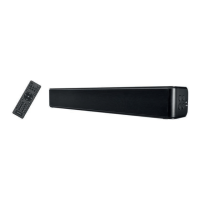
SSB 30 B1
26 - English
9.3 Selecting a mode
Press the “INPUT” button (18) to select the desired mode. Alternatively, you can toggle through the modes by briefly pressing the Source selection button (5) on
the sound bar several times. The mode selected is shown as follows on the LED display (1):
Mode Display
HDMI ARC Hd
OPTICAL OP
BLUETOOTH
®
bt
USB US
AUX AU
Now start playback on the connected device and control using the remote control. See the user manual for the playback device.
9.3.1 “HDMI ARC” mode
HDMI (ARC Audio Return Channel) is an extension to the conventional HDMI connection which allows ARC channel audio signals to be
transmitted in both directions. In order to use this functionality, all the components used must be ARC-compliant.
Most modern TV sets, games consoles and digital receivers have an ARC output. Please refer to the user manual for the device to be connected.
If the audio transmission does not work, make sure that the HDMI cable and the connection on the source device are ARC-compliant. It is possible
that only specific connections on the source device are ARC-compliant.
How to connect the sound bar to a TV set is described below:
• Using an HDMI(ARC)-compliant cable (E, supplied), connect the HDMI(ARC) jack (9) on the sound bar to an HDMI(ARC) output on the TV set. Set the
connected device to “PCM Stereo” or “Stereo 2.0”.
• Switch the sound bar on using the standby button (2, 36).
• Press the “INPUT” button (18) to select the HDMI(ARC) input on the sound bar.
• Switch the TV set on, the sound playback will start within a few seconds.
If your TV set supports the CEC protocol, the sound bar can be switched on and off using the TV remote control. If this is the case, the volume can
also be controlled via the TV remote control. See the user manual for the TV set.
9.3.2 “OPTICAL” mode
Use this operating mode to play music from the optical digital input (8) for example from a TV on your sound bar (A). The TV must have an optical digital output.
Use an optical cable (Toslink cable) to make the connection. Proceed as follows:
• Connect the Toslink cable to the optical digital output of your TV.
• Then connect the Toslink cable to the optical digital input (8) of your sound bar.
• Switch the TV set and sound bar on. Set the connected TV to “PCM Stereo” or “Stereo 2.0”.
• Start playing on the TV.
• Press the “INPUT” button (18) on the remote control to select the "OPTICAL" mode.
• You can use the volume buttons (19, 33) to adjust the volume to your requirements.
•
If you wish, you can change the audio settings using the relevant buttons on the remote control.
See the user manual for the TV set.
9.3.3 “BLUETOOTH” mode
The Bluetooth device name of the sound bar is SSB 30 B1.
If you are prompted for a PIN during the pairing process, enter "0000".
It can take a variable amount of time to establish the connection, depending on the device.
Establishing a connection
•
Press the “INPUT” button (18) on the remote control to switch to Bluetooth mode.
After switching to Bluetooth mode, the sound bar automatically connects to a paired devices (a steady “bt” is shown on the LED display (1)) or, if
no paired device is found, automatically switches to Bluetooth pairing mode (the LED display (1) shows a flashing “bt”). If the connection to a
paired device is lost, the device switches off after approx. 10 minutes.
• If your playback device has not yet been paired with the sound bar, the display flashes “bt”.
• Start Bluetooth scanning mode on your playback device (e.g. smartphone). It should then find the sound bar under the name “SSB 30 B1”.
• Now establish a Bluetooth connection between your playback device and the sound bar.
• Once a connection has been established, the LED display (1) shows “bt” and a confirmation beep sounds.


 To Next Page
 Loading...