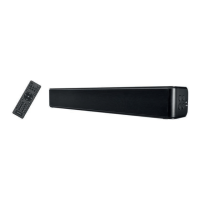
SSB 30 B1
28 - English
9.3.5 “AUX” mode
Use this mode to connect a playback device with a Cinch output, e.g. a DVD player or satellite receiver. Use the adapter cable provided (F).
• Connect the Cinch output from your playback device to the AUX jack (7) on the sound bar.
• Switch the sound bar on using the standby button (2, 36).
• Press the “INPUT” button (18) on the remote control to select the "AUX" mode.
•
You can use the volume buttons (19, 33) to adjust the volume to your requirements.
•
If you wish, you can change the audio settings using the relevant buttons on the remote control.
9.4 Volume and audio settings
Any changes to the volume and audio settings are shown on the LED display (1) for approx. 2 seconds. The display then reverts back to the
standard display for the relevant mode.
9.4.1 Adjusting the volume
You can adjust the volume during playback using the volume buttons (19, 33) on the remote control. Alternatively, you can use the volume buttons (3, 4) on the
sound bar. You can also hold the buttons down the change the setting more quickly. The volume selected is shown on the LED display (1) for approx. 2 seconds.
If you set the volume to the lowest level, “00” flashes continuously on the LED display (1).
9.4.2 Muting the sound
Press the button (12) to mute the sound temporarily. When the sound is muted, the volume level "00" flashes on the LED display (1).
9.4.3 Adjusting the treble and bass
You can adjust the treble to your requirements using the TREBLE+ (30) and TREBLE- (29) buttons.
To adjust the bass, press the BASS+ (26) and BASS- (27) buttons.
9.4.4 Selecting the audio settings
The sound bar has 6 pre-set audio settings. Press the relevant button (20, 21, 22, 23, 31, 32) to select the audio setting you want. The audio settings selected
are shown as follows for about 2 seconds on the LED display (1):
Audio setting LED display
MOVIE
E1
MUSIC
E2
DIALOG
E3
MOV.3D
E4
MUS.3D
E5
DIAL.3D
E6
9.4.5 “MOVIE” audio settings
Select these audio settings to select the sound settings to play back e.g. films or documentaries.
9.4.6 “MOV.3D” audio settings
Select these audio settings to select the sound settings to play back e.g. films or documentaries. Select this audio setting to give the current playback a virtual 3D
surround sound.
9.4.7 “MUSIC” audio settings
This setting optimises the sound settings for music playback.
9.4.8 “MUS.3D” audio settings
This setting optimises the sound settings for music playback. Select this audio setting to give the current playback a virtual 3D surround sound.
9.4.9 “DIALOG” audio settings
Select these audio settings to select the sound settings for voice playback. This setting is recommended for news programmes, among others.
9.4.10 “DIAL.3D” audio settings
Select these audio settings to select the sound settings for voice playback. This setting is recommended for news programmes, among others. Select this audio
setting to give the current playback a virtual 3D surround sound.


 To Next Page
 Loading...