You can use the keypad to enter English characters, symbols and numbers. While entering
characters or symbols, press the number key corresponding to the number over the desired
character or symbol, and then the desired character or symbol appears on the editing field, press
the
OK
to select the desired characters or symbols to the editing field.
ii
.i S
witch
input methods
Press the
key
*
may
switch
the input methods
amon
g
number,
alphabetic characters
(including capital letter and small letter),and associated English letters (including capital letter
and small letter
)
.
P
rompt mark
of
i
nput method
I
nput method
pattern
E
xplain
eng
Associated
English small
letter
Input
Ass
ociated
English small
letter
Eng
Associated
English
capital
letter
Input
Associated English capital
letter
ABC
alphabetic characters
Input
alphabetic characters
abc
alphabetic characters
Input
alphabetic characters
123
num
ber
Input number
ii
.
ii
Input
special
signs
In one of the input method patterns of
numeral,
alphabetic characters, associated
English
letters
,
press the button
#
may enter the special
sign
and
press
to move the
special
sign in the table b
y
sequence
, at this time, the sign in cursor position is show
ing
by
reverse video
.
please press
confirm it and press
or
CANCEL
exit.
ii
.
iii
English
input method introduction
ii
.
iii
.i
English input method
With English text input method, you can enter words easily and quickly with predictive
wording scheme. Press the keys carrying the desired letter, the predictive wording scheme will
present a most commonly used word. After entering all the letters, if the current word is not the
expected one, you can press the
to choose another one. Stop pressing the
until you find the expected word and then press
OK
to choose it.
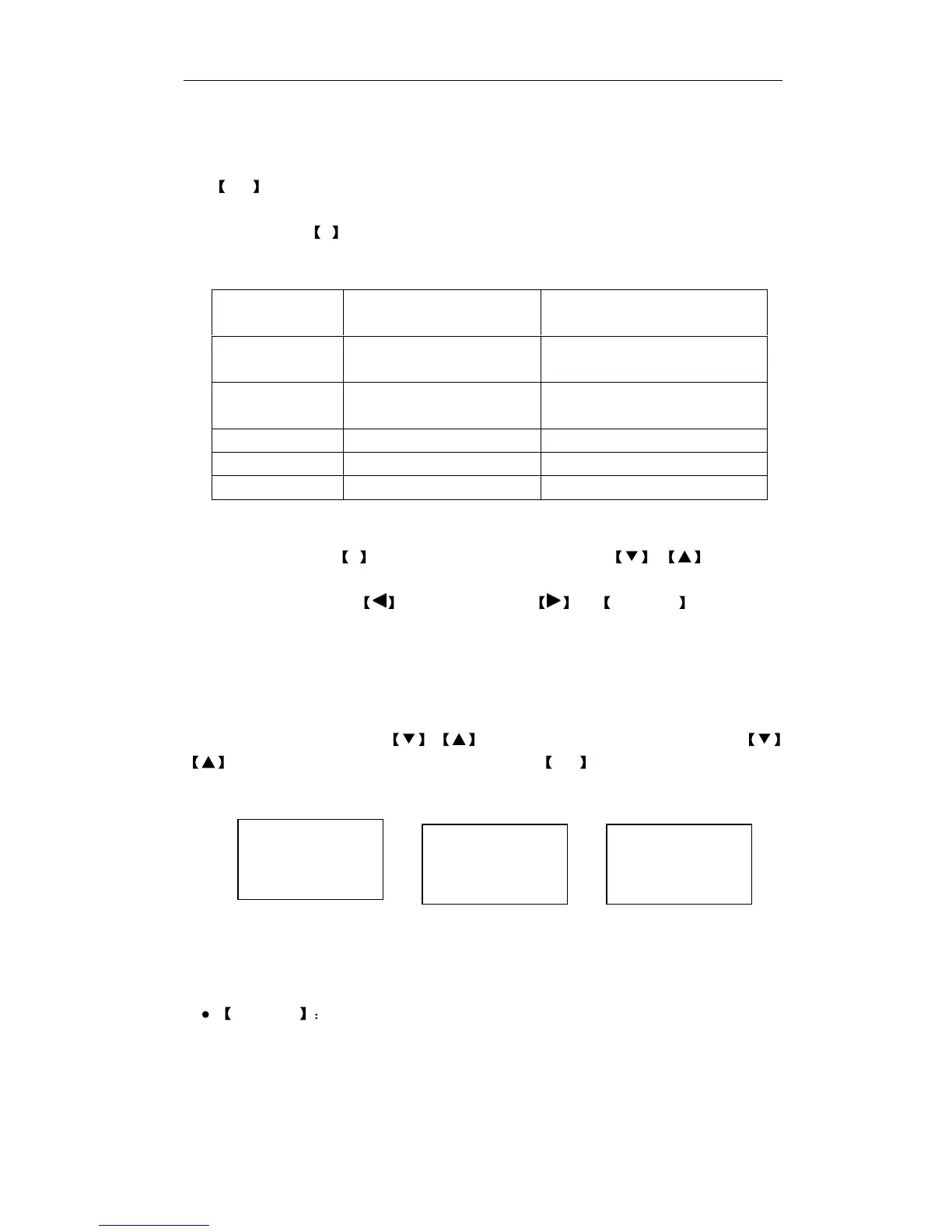
At present, there is
three
possibilities to use the English input method: telephone book
(like
chart 1),
SMS
(like chart 2)
and se
t desktopgreet (like chart 3).
Chart 1 Char2 Chart 3
ii
.
iii
.
ii
English input method related
buttons
expl
anation
When user
enter
s the English input method, he or she may see the screen which the
following chart shows, this time may operate
buttons
as follows:
CANCEL
Press this key to delete a letter or a blank space; When no letter in the
E
nglish
frame, if
there
are letter
s
before the
small cursor (note: In the information frame vertical
line, similarly hereinafter) in information frame ,then press this key to delete
the
letter
which is
in front of the small cursor. If in the information frame no
letter
in front of the small cursor
,
rear
the small cursor also no
letter
, then withdrawal input pattern. When in the letter frame
no
Input name eng
Ok Back
Edit(160)
eng
Ok Back
DesktopGreet eng
welcome
Ok Delete



 To Next Page