HomePlug AV Ethernet Adapter User’s Manual
8
Device Name
column shows the default device name, which may be user re-defined. A user can change the
name by either using the rename button or by clicking on the name and editing in-place. An
icon is usually shown with the name. By default, the icon is always accompanied by a device
name.
MAC Address column shows the Remote device’s MAC address.
Password column: by default is blank and ‘Enter Password’ button can be used to enter it.
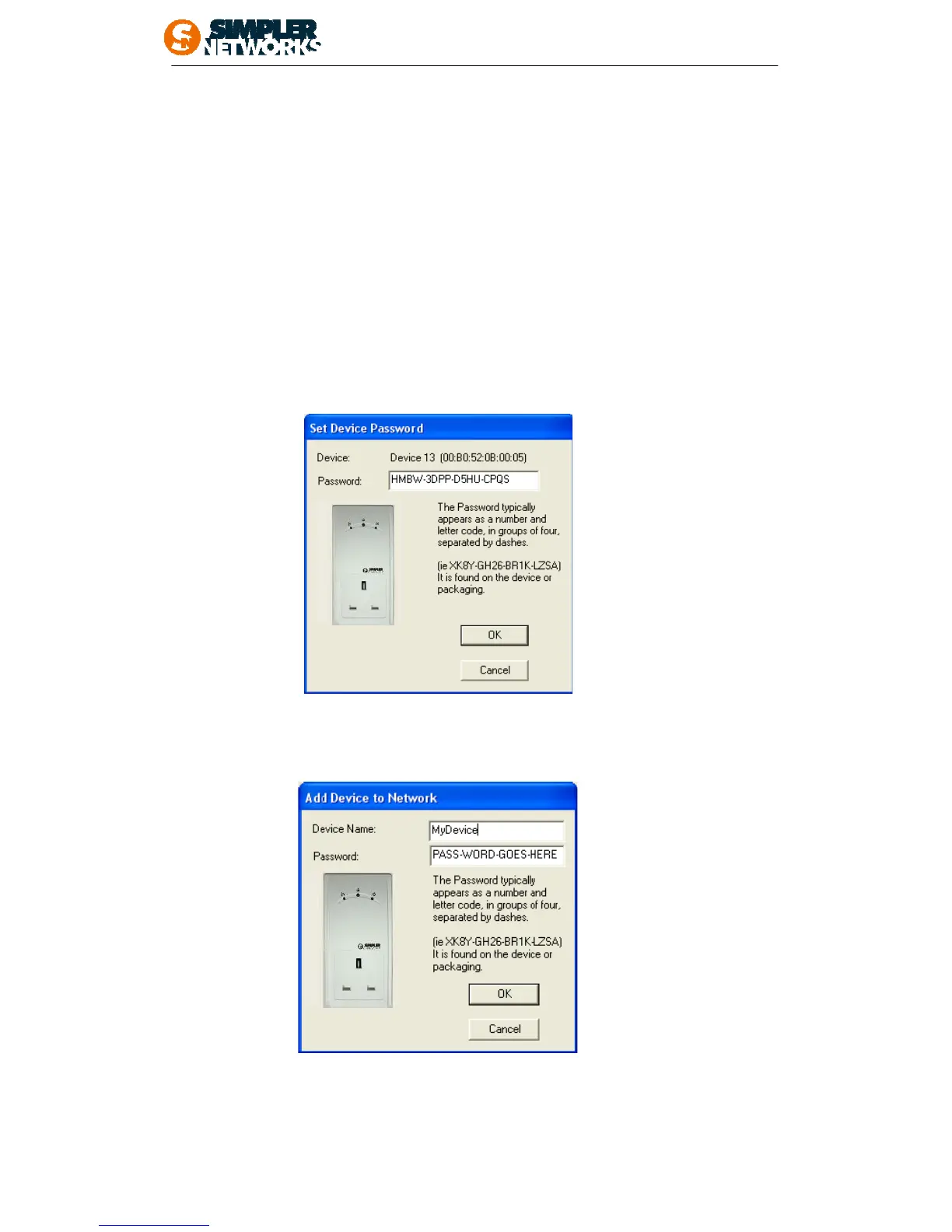
To set the Password of the device (required when creating a private network), first select the
device by clicking on its name in the lower panel and then click on the Enter Password
button. A dialog box will appear as shown in Figure 4 to type the password. The selected
device name is shown above the password field and the password can be verified by hitting
the OK button. The Password field accepts the Device password in any case formats, with or
without dashed between them. A confirmation box will appear if the password was entered
correctly. If a device was not found, the user will be notified along with the suggestions to
resolve common problems. This process might take a few seconds to get completed.
Figure4: Set Device Password
The Add button is used to add a remote device to the existing network by entering the device
password of the device. A dialog box will appear as shown below in Figure5. The dialog box
allows the user to enter both a device name and the password.
Figure 5: Add remote device
Note: The device must be present on the power line (plugged in) in order for the password to
be confirmed and added to the network. If the device could not be located, a warning
message will be shown.



 To Next Page