11.5 Configuring the Share SMB File function
11
[Web Management Tool] 11-12
Creating a Public User Box to share files
Create a Public User Box. Also, configure the setting to automatically transfer files from the Public User Box
and save them in the SMB folder.
In the administrator mode, select [Box] - [User Box List] - [New Registration], then configure the following
settings.
- This function cannot be used simultaneously with the Confidential RX function.
dReference
If files in the Public User Box are shared on the network using the Share SMB File function, you can specify
the period from the time when files are saved in the SMB folder using the Public User Box to the time when
they are deleted automatically. For details, refer to page 11-9.
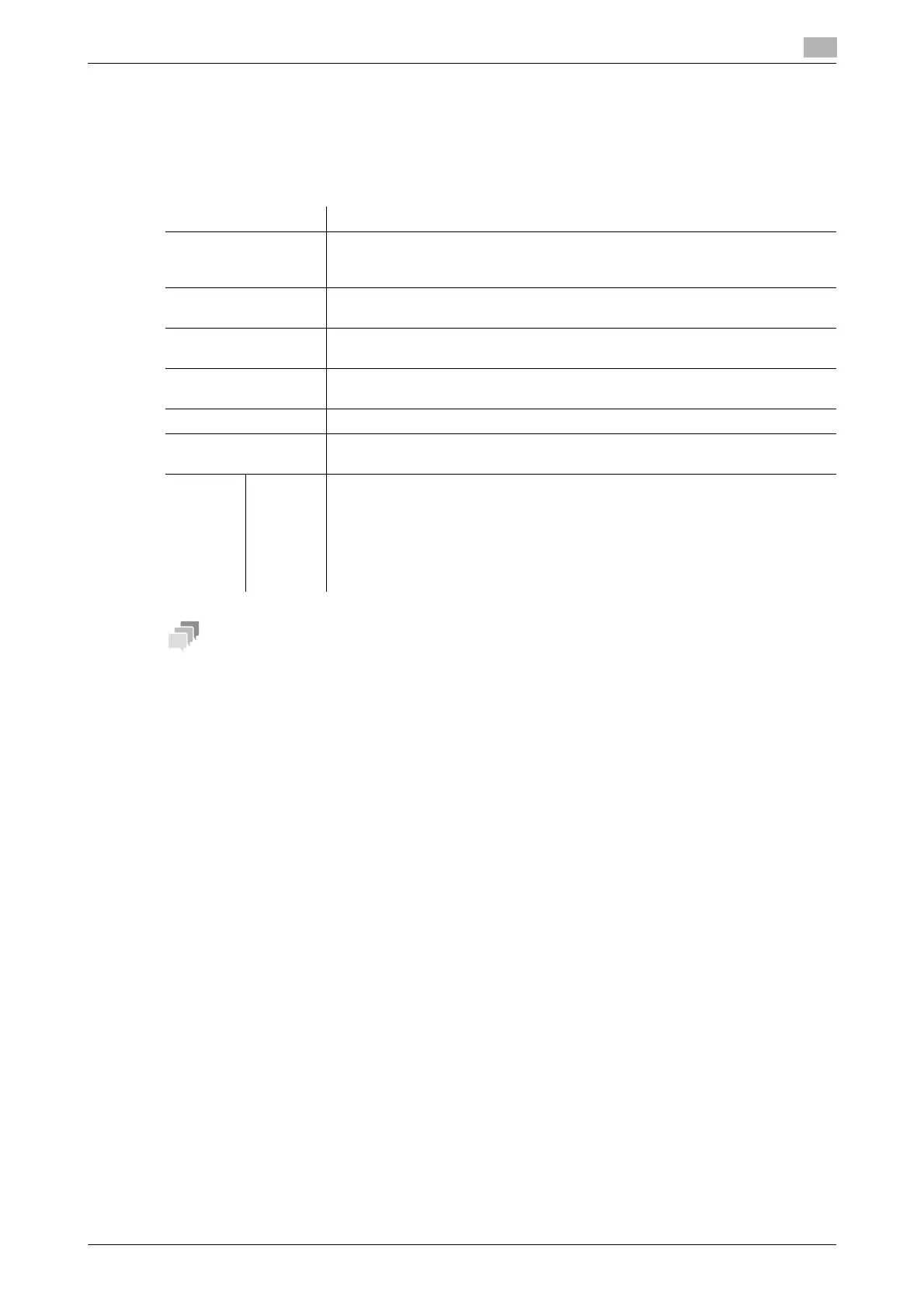
Settings Description
[User Box Number] Registration number of the box. Select [Use opening number] to automatically
assign the smallest available number. When specifying a number, select [Input
directly], and enter a value between 1 and 999999999.
[User Box Name] Enter the User Box name (using up to 20 characters).
Assign a name that helps you easily identify the User Box.
[Assign User Box
Password]
When restricting usage of User Box using a password, select this check box
and then enter a password (using up to 64 characters, excluding ").
[Index] Select a corresponding character so that a User Box can be index searched
with [User Box Name].
[Type] Select [Public] to use the Share SMB File function.
[User Box Expansion
Function]
Click [Display].
[Auto
Save
Docu-
ment to
MFP
Shared
Folder]
Select [ON] to use the Share SMB File function.
[OFF] is specified by default.


 To Next Page