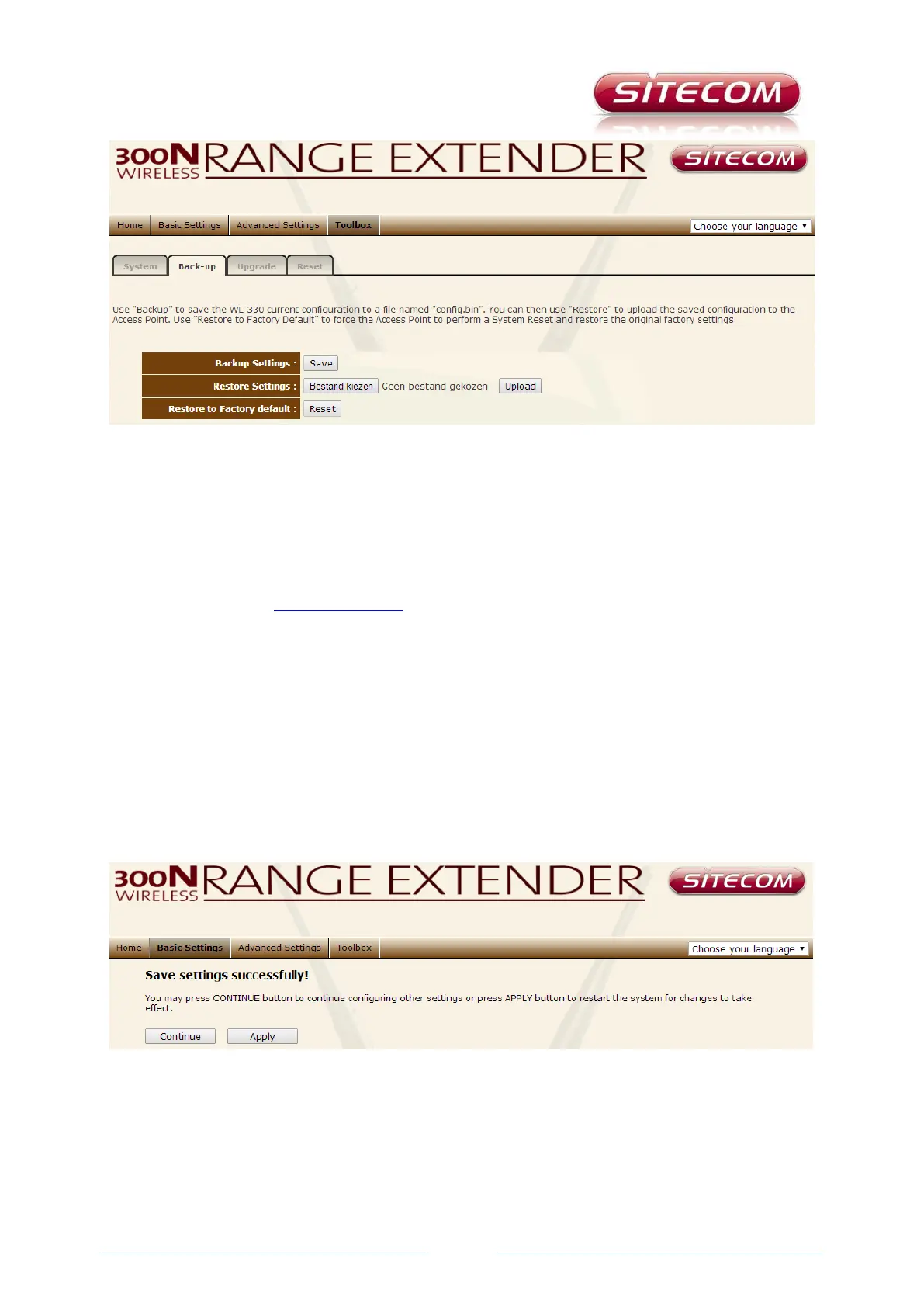
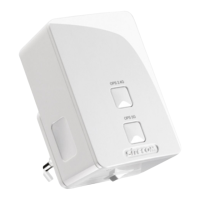
The Reset button is used to reset the WL-330 to the factory settings. You will lose all your changes,
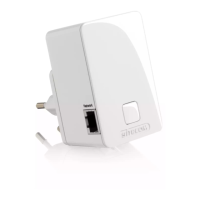
so only do this if you really must. You can also reset the WL-330 with the reset button on the device
itself. Press and hold it for about 15 to 20 seconds to do this.
After a reset you must install the WL-330 again to correctly connect it to your network.
Update sub-tab
The Update sub-tab allows you to install new firmware for your range extender. Download the
correct firmware from www.sitecom.com, and save it to your PC or laptop. Then connect it to the
WL-330 with a network cable and select the file by clicking the Browse button. Then click Apply to
perform the installation. Do not disconnect the cable until this whole process has been completed!
Otherwise you run risk that the installation will be interrupted, and the WL-330 will no longer be
usable.
Reset sub-tab
The Reset button is used to reset the WL-330 to the factory settings. You will lose all your changes,
so only do this if you really must. We therefore recommend that you first save the settings.
After a reset you must install the WL-330 again to correctly connect it to your network.
Applying changes
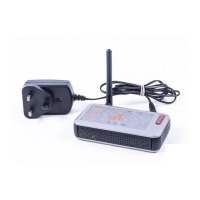
After you have changed settings and clicked Apply, in many cases the following screen will appear.
On this screen you can press Continue if you want to change additional settings, or Apply if you want
to apply the changes. After you have clicked Apply the following screen is shown.


 To Next Page