18
8. Remove and seal the sample medium.
9. Re-assemble the calibration train (see Calibration and Se ing Flow) and verify fl ow.
10. Send sample, blanks, and pertinent sampling information to a laboratory for
analysis.
Terminating a Sample and Resetting the Pump
For timed and continuous runs: from a running pump, press []. The pump is
now in Hold. Press
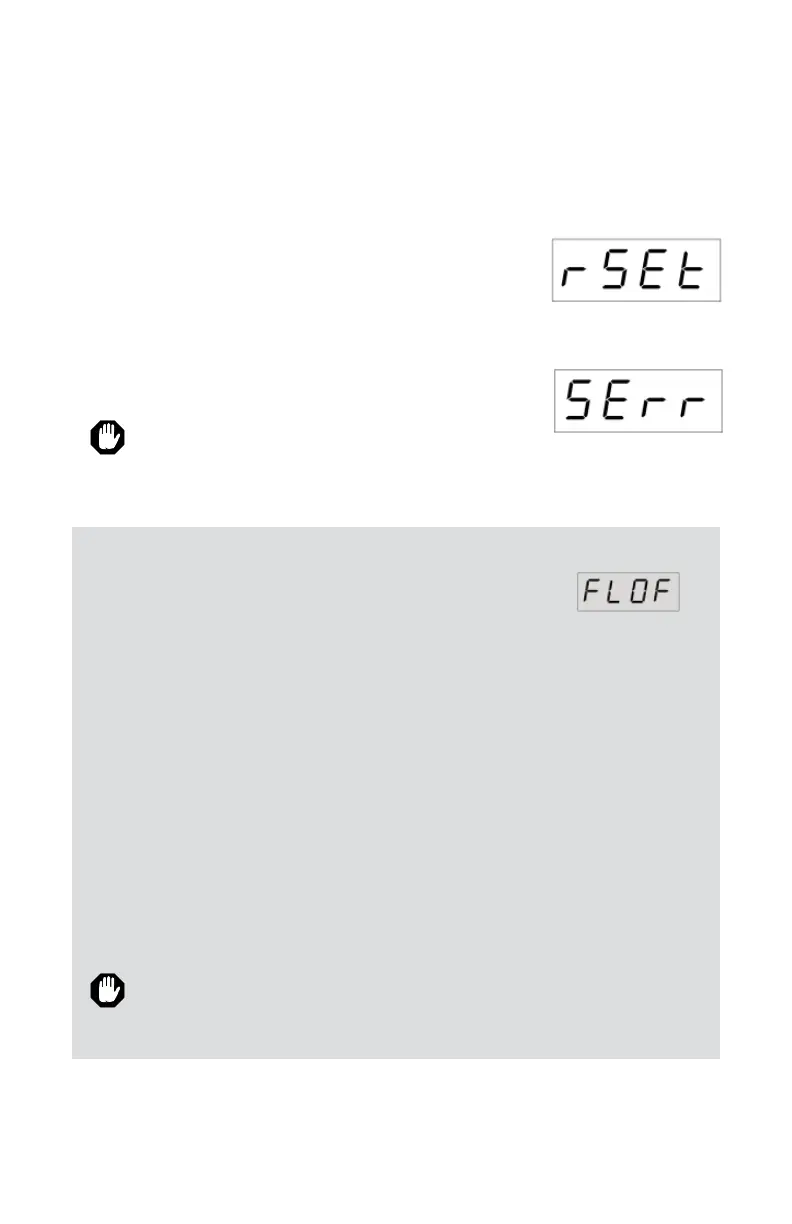
while in Hold. Sample reset (rSEt)
will display. Press [
] to zero the cumulative run time
and reset the pump.
For intermi ent sampling, there is no Hold. Press [
]
to stop the pump. The LED will display SErr (sampling
error). Press
to view cumulative run time. Press []
to return to run time presets.
Cumulative run time resets to 0 even if intermi ent
sampling is started again.
Digital display:
Terminate sample and
reset pump
Digital display:
Sampling Error
Flow Fault
Manufacturer default: enabled. User may disable feature.
If the pump is not able to compensate due to excessive back
pressure, a fl ashing FLOF will appear on the LED. If the
fault is not corrected within fi ve seconds, the pump will
beep four times and stop running.
Restoring Sampling from a Flow Fault
Fault restart (manufacturer default: enabled)
Fault restart will a empt to restart the pump every 10 seconds up to fi ve
times. Cumulative run time can be displayed by pressing
. Press again
to return to the fault (FLOF) display. If the pump does not automatically
restart, a empt to correct the fl ow blockage, then press [
] to place the
pump in Hold. Press [
] to resume sampling.
Fault restart (user disabled)
Cumulative run time can be displayed by pressing
. Press again to
return to the FLOF display. A empt to correct fl ow blockage and press
[
] to place the pump in Hold. Press [] to resume sampling.
The fl ow fault and fl ow fault restart features can be enabled or disabled by
the user as desired. See Advanced Setup, Enabling/Disabling Alarm and Fault
Features.
Digital display:
Flow fault


 To Next Page