Need help?
Do you have a question about the Sky ER110 and is the answer not in the manual?
Verify your activation date on the packaging and do not install your new Sky Hub before this date.
Connect your Sky Hub to your master phone socket for optimal speed and stability.
Disconnect all phone cables, existing broadband equipment, and splitters from your master phone socket.
Connect the Sky Master Microfilter to the phone socket and plug the DSL cable into the microfilter and Sky Hub.
Connect the grey DSL cable to the pre-filtered master socket and then to the Sky Hub's purple port.
Find your wireless network on your device, select it, and enter your Wi-Fi password in capitals.
Learn about Sky Broadband Shield for simple internet protection and online safety for your family.
Download McAfee Security Suite for advanced online protection against viruses, hackers, and spyware.
Find solutions for getting the best broadband, plugging in, and general help for your Sky Hub.
Learn about WPS for connecting devices and interpreting Sky Hub indicator lights.
Access your Sky Hub's control panel to change settings or reset the device to factory settings.
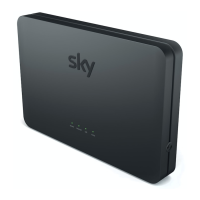
This document serves as a user guide for the Sky Hub, a device designed to provide broadband internet access. The primary function of the Sky Hub is to act as a router, connecting your home to the internet and distributing the broadband signal to your devices, both wired and wirelessly. It is intended for use in the UK, Channel Islands, and Isle of Man, and must only be used indoors.
The Sky Hub facilitates your broadband connection, ensuring optimal speed and stability when connected to your master phone socket. It acts as the central point for your home network, allowing multiple devices to connect to the internet simultaneously. The device includes ports for connecting to the phone line and for power, as well as wireless capabilities for Wi-Fi enabled devices.
The guide outlines a step-by-step setup process for the Sky Hub, starting with checking your activation date to ensure you install the device at the correct time. It emphasizes the importance of finding your master phone socket for the best performance. The master phone socket is typically a thicker phone socket with a line in the middle, possibly featuring a BT or Openreach logo. If a master phone socket cannot be found, the Sky Hub can be connected to any phone socket, though optimal performance may vary.
Before plugging in the Sky Hub, all existing broadband equipment, phone cables, and splitters must be unplugged and replaced with the new items provided. This includes replacing any old Sky Microfilters with the new ones. If your master phone socket has two different ports, it is a pre-filtered master socket, meaning you will not need to use microfilters with it.
The installation process involves plugging the Sky Master Microfilter directly into your master phone socket. If you previously removed a phone cable, Sky Box cable, or splitter, these should be plugged back into the port marked "Phone" on the microfilter. One end of the grey DSL cable is then plugged into the purple port of the Sky master microfilter, and the other purple end into the purple port of the Sky Hub. The blue end of the black power cable is plugged into the blue port of the Sky Hub, and the other end directly into the mains socket, avoiding extension blocks to prevent reduced performance.
For homes with multiple phone sockets in use, new Sky Microfilters must be fitted to all of them. This ensures that all devices connected to the phone line function correctly without interfering with the broadband signal.
For users with a pre-filtered master socket, the setup is slightly different. After unplugging your DSL cable from the socket, one purple end of the grey DSL cable is plugged into the top port of your pre-filtered master socket, and the other purple end into the purple port of your Sky Hub. If you have an Openreach modem connected to your pre-filtered master phone socket, it should be recycled as it is no longer needed. The power cable connection remains the same as for standard master sockets.
Once the Sky Hub is physically connected, you can connect your devices wirelessly. This involves finding your wireless network by clicking on the wireless icon on your device, ensuring Wi-Fi is switched on. You then select your network from the list and enter your wireless password, which is found on the underside of your Sky Hub and should be entered in CAPITALS. The guide notes that operating systems may differ, and users should refer to their device's manufacturer guide for more information on connecting.
After connecting, users are encouraged to open a browser and set up their Sky Broadband Shield for protection. The Sky Broadband Shield is a security feature available at no extra charge for Sky Broadband customers. It allows users to filter websites seen in their home across all connected devices, including smartphones, PCs, and tablets. It also helps defend against phishing and malware-infected sites, protecting devices and personal details. More information on Sky Broadband Shield is available at sky.com/shield.
For advanced online protection, users can download the McAfee® Internet Security Suite for a free trial on up to three PCs. This suite offers features such as automatic blocking, cleaning, and removal of viruses, protection against hackers, blocking and removal of spyware, safety ratings for sites and search engines, and filtering of offensive content with child internet access limits. Sky recommends that all online devices are protected by up-to-date security software at all times.
The Sky Hub also features a WPS (Wi-Fi Protected Setup) button, which can be used to connect other WPS-compatible devices. To connect using WPS, activate WPS on your device, then press the WPS button on your Sky Hub. The WPS light will flash amber, turn solid green upon successful connection, and then turn off after two minutes. If the light flashes red or solid amber, it indicates an issue.
Users can access the Sky Hub's control panel via an internet browser by typing http://192.168.0.1/ into the address bar. The default username is "admin" and the password is "sky" (unless changed). This panel allows users to control various settings, including changing the network name and password.
The guide provides information on maintaining optimal performance and troubleshooting common issues. It recommends leaving the Sky Hub permanently switched on for best performance. It also notes that the Sky Hub may feel warm, which is normal and not a cause for concern.
For troubleshooting, the guide advises connecting the Sky Hub to the master socket for the strongest broadband signal. It reiterates the importance of fitting Sky Microfilters to all phone sockets in use if you have a standard master phone socket, and replacing all old microfilters with new ones. If you have a pre-filtered master phone socket, microfilters are not needed.
The guide also explains how to reset the Sky Hub to factory settings. This is done by ensuring the Sky Hub is plugged in and switched on, then pressing and holding the reset button on the back of the device until the power light begins to flash green (which can take up to 10 seconds). It is crucial not to unplug or switch off the Sky Hub during this process. The power light will flash amber and then return to solid green once the reset is complete.
All lights on the Sky Hub should be solid green when it is working properly. If any lights are solid or flashing amber or red, users can find out how to fix the issue by visiting sky.com/help.
For fibre customers, it is noted that broadband service may take up to an hour to become active. If issues persist after following all setup steps, users are directed to sky.com/help or can call Sky support at 03442 410 515.
The guide also addresses how to plug in a telephone splitter: it should be plugged into the microfilter port marked "Phone," and then your phone, Sky Box, or other devices can be connected to the splitter. For additional Sky Microfilters, customers can call Sky or visit www.sky.com/shop.
Overall, the Sky Hub is designed for ease of use, with clear instructions for setup, connection, and basic troubleshooting, ensuring a reliable broadband experience.
 General
| Wireless | No |
|---|---|
| Power over Ethernet | No |
| Storage Temperature | -40°C to 70°C |
| Input Voltage | 100-240V AC, 50/60Hz |
| Jumbo Frame Support | 9K bytes |
| Operating Humidity | 10% to 90% non-condensing |

 To Next Page