Step 10
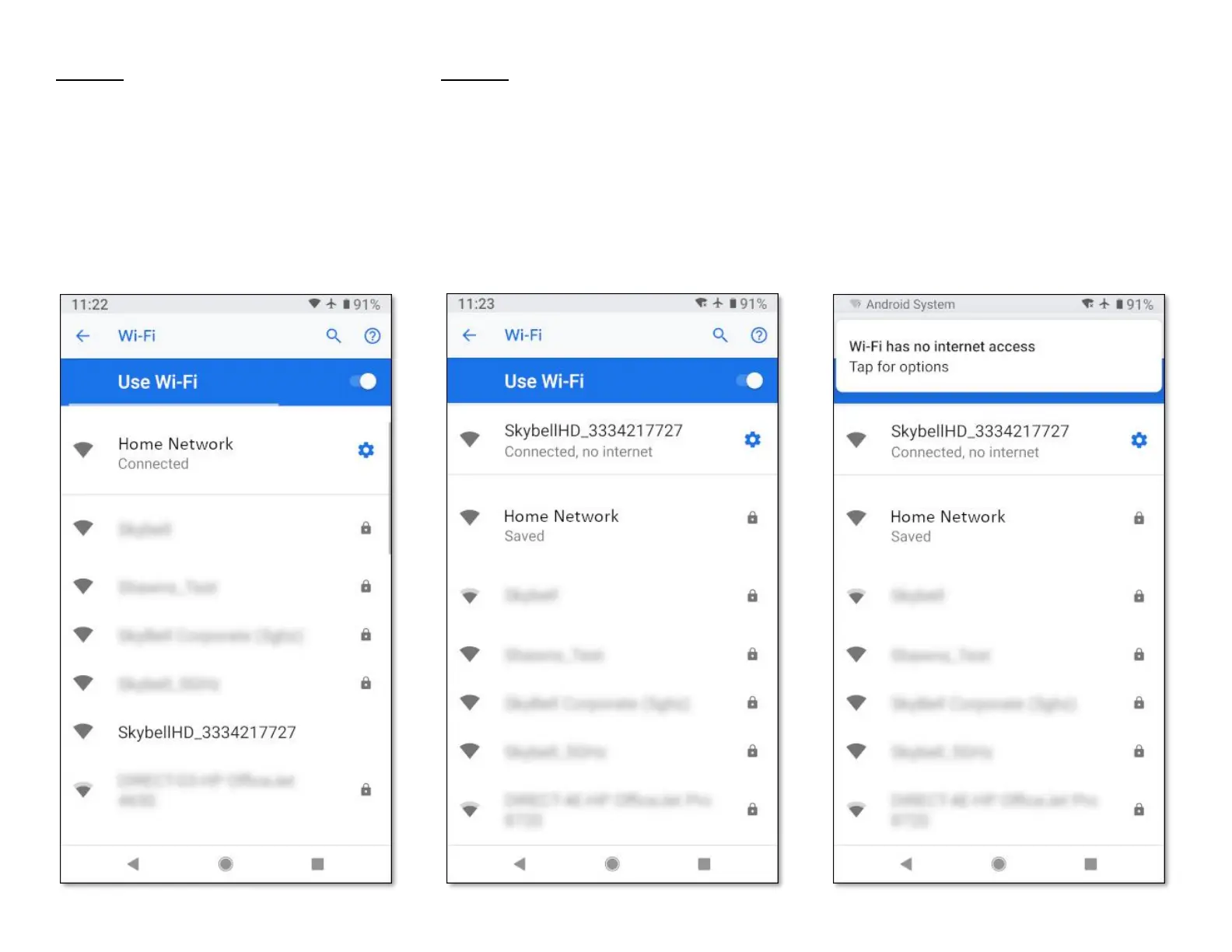
A similar screen to the one below will be
displayed.
• Tap the SkyBellHD_XXXXXXXX network. The
numbers after SkyBellHD_ will be different to
the ones shown.
This will connect your smart device to the SkyBell
device's Wi-Fi network.
Step 11
A similar screen to the one below will be
displayed.
• Verify that the SkyBellHD_XXXXXXXX network
is selected (at the top of the screen). The
status of this network will be shown as
Connected, no internet.
• Return to the SkyBell app by pressing the Back
button on your smart device.
Your device may display a notification that the
Wi-Fi network has no internet access. This is
normal and expected at this point in the syncing
process.
Please ignore this notification.
• As stated in Step 11, return to the SkyBell app
by pressing the Back button on your smart
device.


 To Next Page