SkyCaddie® TOUCH User Guide
©2015 SkyHawke Technologies, LLC. All Rights Reserved. v.1.1
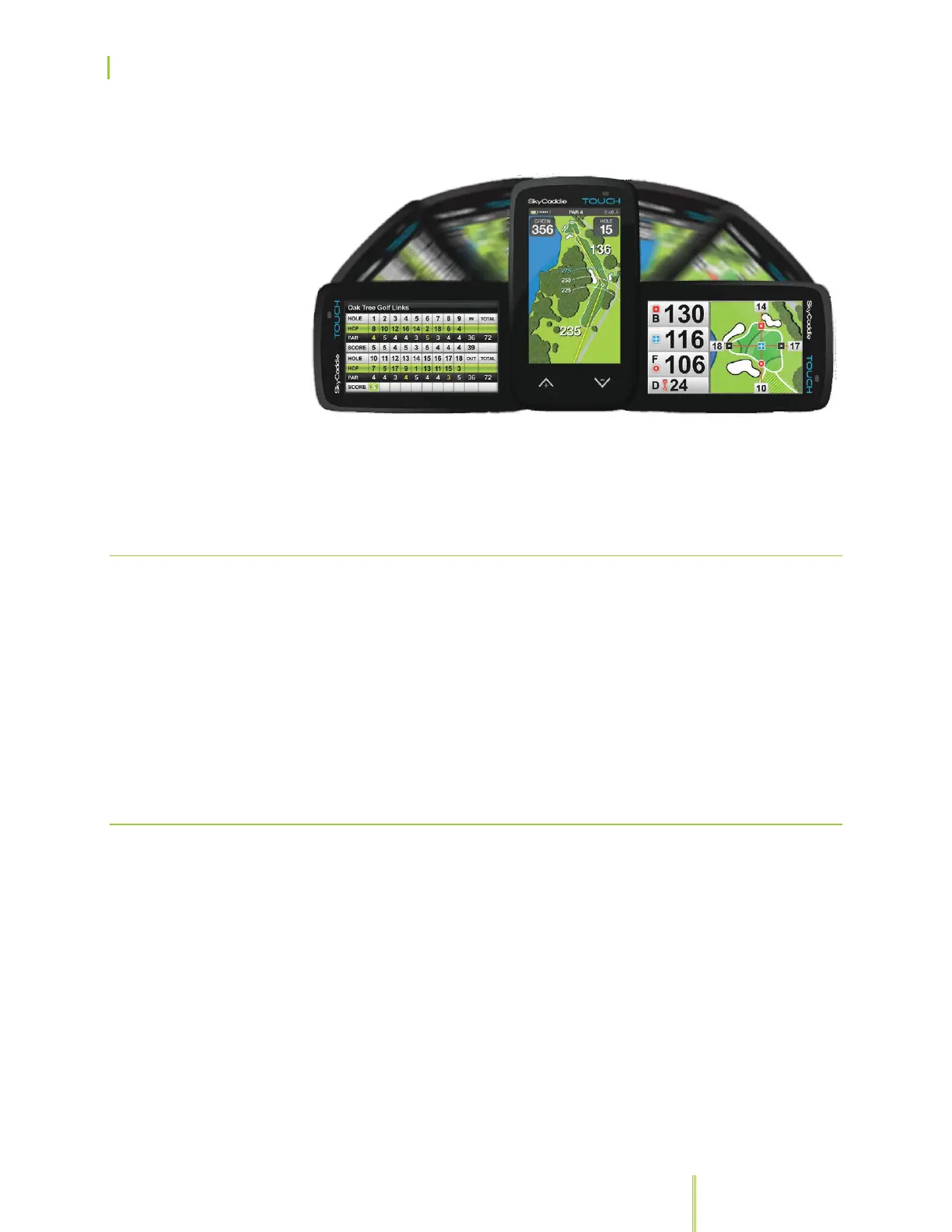
Returning the TOUCH to a portrait orientation will return you to the
previous Golf view.
Your SkyCaddie TOUCH will automatically revert to portrait view after
a few moments as a reminder that your TOUCH should be upright for
maximum GPS accuracy.
3.2.2 CHANGING AUTOVIEW SETTINGS
1. In the Main Menu, press on the “Settings” button.
2. Press on “Views”.
3. Press on AutoView to toggle between On or OFF to enable or
disable Landscape View.
4. Press the “Back” button or the Menu button to return to the Main
Menu.
3.2.3 ADJUSTING AUTOVIEW SENSITIVITY
You can also adjust the sensitivity of AutoView (“AutoView Sens”).
This controls the level of rotation needed to trigger the accelerometer
to switch between portrait and landscape positions. By default, the
sensitivity is set to medium.
1. In the Main Menu, press on the “Settings” button.
2. Press on “Views”.
3. Press on “AutoView Sens” and toggle to the desired sensitivity.
4. Press the “Back” button or the Menu button to return to the Main
Menu.


 To Next Page