6.1.8 Unlock Record
1. APP connect with smart lock: Please read "E. Connect smart lock” instruction
2. Check unlock record:
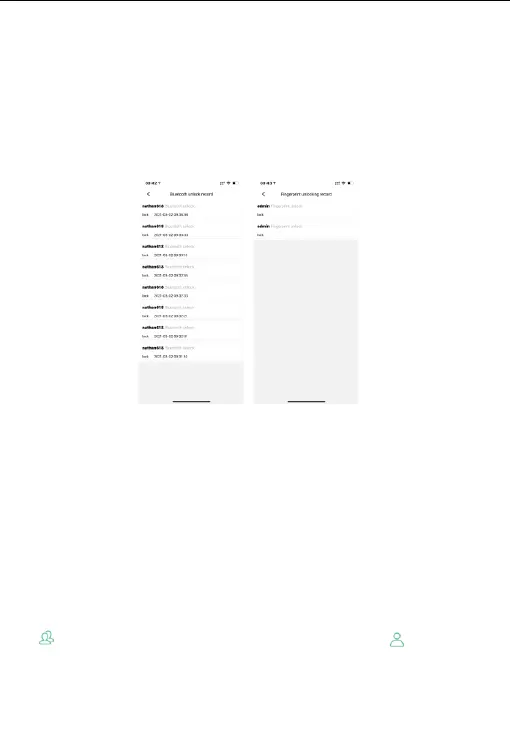
<a> Click "BT unlock record" to check record of user, unlock time, unlock method, etc.
(Fig. 13)
<b> Click “Fingerprint unlock Record”. It can check record of the unlock user (Fig. 14)
Fig. 13 Fig. 14
6.1.9 Fingerprint Management
A. Factory experience mode:
Press fingerprint sensor once by any fingerprint, the blue indicator light is on and
smart lock is unlocked
6.1.10 Register fingerprint
1. APP connect with smart lock: Please read "E. Connect smart lock” instruction.
2. Enter user management: After waking up the smart lock, click "user management"
to enter the fingerprint adding interface.
3. Add fingerprint: Click the "+" icon in the upper right corner of the user management
interface (Fig. 15) to enter the add fingerprint interface (Fig. 16-17).
The first 2 fingerprints added for the first time are administrator fingerprints
( ), and the subsequent fingerprints are normal user fingerprint ( ),
after successfully added (Fig. 18)
10


 To Next Page