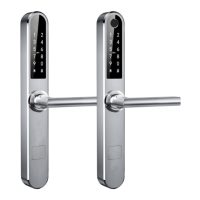
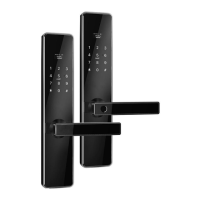
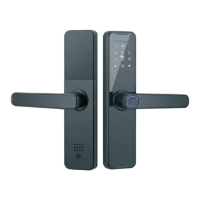
6.2 Keypad menu management settings
6.2.1 Registering the administrator user
1. Press the number key to wake up the system and press " ", then press " ", enter
the administrator's password set on the App (read 6.1 App setting), and press " "
key to confirm.
2. According to the voice prompt, press "1" and then press " ". Register a new
administrator Password.
3. Enter the 6-digit Password for the first time and press " " to confirm.
4. Enter the Password the second time and press " " to confirm. Remember it, it's
the new administrator's keypad password .
5. Register your fingerprint according to the voice prompts.
6. Press the fingerprint for the first time.
7. Press the fingerprint a second time.
8. Press the fingerprint for the third time and the fingerprint registration is successful.
9. The administrator has successfully registered, press " " to exit system.
6.2.2 Register the general user password
1. Press the number key to wake up the system and press " ", then press " ", enter
the new administrator's keypad password (read 6.2.1) and press " " key to confirm.
2. According to the voice prompt, press “2” and then press " " according to the voice
prompt. Register a new general user Password.
3. Enter the 6-digit Password for the first time and press " " to confirm.
4. Enter the Password the second time and press " " to confirm.
5. The general user password is successfully registered, press " "to exit the system.
6.2.3 Register the general user fingerprint
1. Press the number key to wake up the system and press " ", then press " ", enter
the administrator's keypad password and press " " key to confirm.
2. According to the voice prompt, press "2" and then press " ". Register a new
general user fingerprint.
3. Press the fingerprint for the first time.
4. Press the fingerprint a second time.
5. Press the fingerprint for the third time and the fingerprint registration is successful.
6.The genneral user fingerprint is successfully registered, press " " to exit the system.
6.2.4 Delete the all general users
1. Press the number key to wake up the system and press " ", then press " ", enter
the administrator's keypad password and press " " key to confirm.
12


 To Next Page