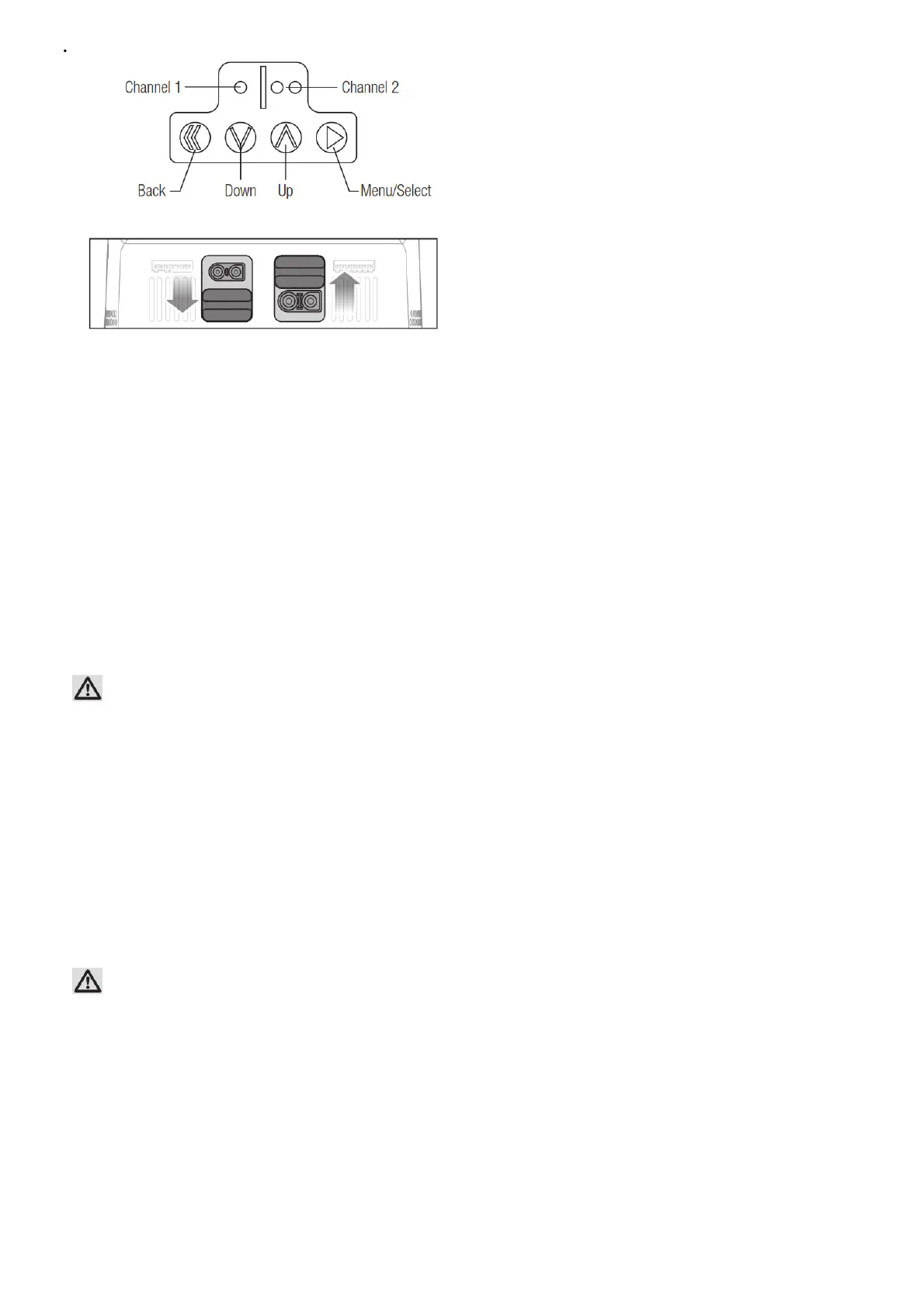
Slide the port cover up to use the IC5 connector.
Operating the Charger
Before operating the charger, know your battery’s specifications and any battery-specific safety warnings.
1. Connect the AC power cord to the charger and to an appropriate power supply.
2. Power on the charger. The charger will initialize and display the home screen, indicating the charger is ready to be used.
3. Connect the battery to the port on the front of the charger.
4. Connect the battery balance lead, if available, to the left side of the balance port (labeled 26S).
Smart Batteries: If charging a Spektrum Smart Battery, the Battery Cell Count, Battery Type, Battery Charge Current Rate and Battery Capacity are set automatically and the
charger will begin charging automatically when the battery and the balance lead (if available) are connected to the charger..
5. Press and release the menu button to display the Charger Settings list:
Charger Settings
Task Select Charge, Discharge, or Storage
Battery (Type) Select the appropriate battery chemistry
Cells (Cell Count)
Set the number of cells in the battery (this value auto-detects if using a Spektrumim Smart battery or if the
battery balance lead is connected to the balance port)
Current Set the charge current
Start Start the charge cycle
Smart Battery Settings Configure the settings on your Smart battery
System Settings Charger settings
Charger History Displays number of charger cycles on the day, total number of cycles, charger temperature, and input power
6. Select the desired Task.
7. Confirm the settings are correct for the battery being charged.
WARNING: Always check charging parameters before initiating the charge process. Charging any battery with improper settings, including charging a battery in the wrong
mode, can result in property damage and fire.
8. Scroll to the Start menu item.
9. Press and release the Select button to begin charging.
During the charging process:
1. While the battery is charging the main screen will provide:
• Charged percent
• Battery data
• Charge rate
• Capacity charged
• Charge time remaining (Smart batteries only)
• Total charge time
2. Scroll to the next screen to see additional cell voltage information.
3. Scroll to the last screen to see the battery’s internal resistance.
4. When the fast charge cycle is complete, the charger will beep once and the Battery Bar will change to green. The charger is balancing the battery cells.
To stop the charging cycle:
1. Press and release the back button during the charge or press and hold the menu button.
2. Select the Stop menu item. The charger will return to the home screen.
WARNING: Always stop the charging cycle or remove power supplied to the charger if you notice any irregularities (like a swollen battery) during charging.
Screen Icons



 To Next Page