1. Main Menu
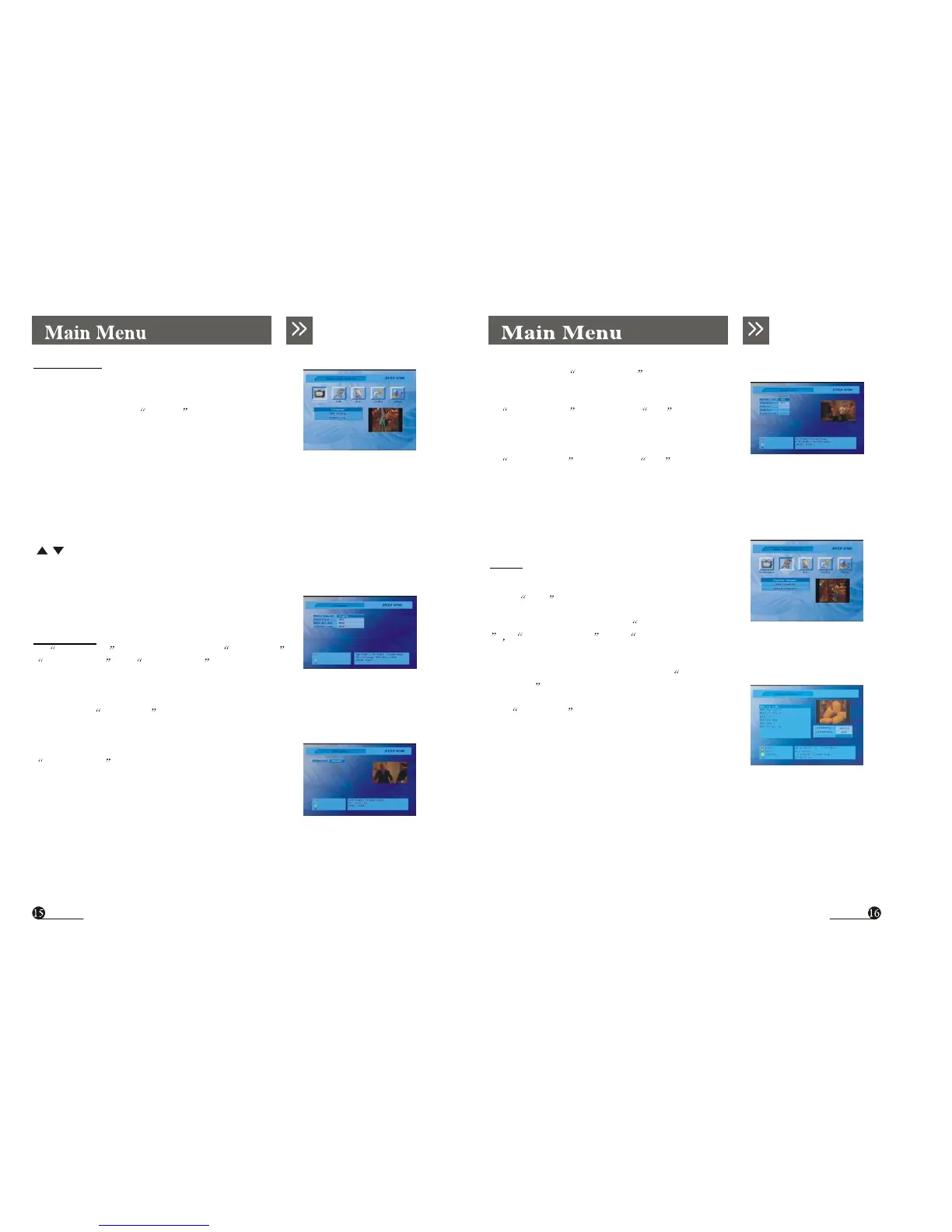
The STB contains a facilitated user interface, this function
is to make user easy to call all device functions. Operation
Steps: Press MENU ,you can see this main
menu.
When no menu is appeared on the screen, you press the
[MENU] key that will display the main menu. The focus
is stopped in the first item until the user select it.
Fig1.1
2.3 Parent Lock
When you select Parent Lock menu (Fig 2.3),
you can set lock function or modify your Pin code.
If Parent Lock item is set to ON ,you must
input the correct Pin code when you change to a locked
channel.
If Install Lock item is set to ON ,you must
input the correct Pin code when you want to enter the main menu.
Fig2.3
When menu is appeared on the screen, you press the [MENU] key that will return to
the up-level menu.
[OK] key: When you press the key that will go to current sub-level menu item.
The default Pin code is 8866.
[ ] Key: The focus will move up or down.
[EXIT] key: Close all menu.
2. Preference
In Preference menu user can select Language ,
OSD Setting and Parent Lock settings.
2.1 Language
User can use Language menu(Fig 2.1) to set the language type
2.2 OSD Setting
OSD Setting menu(Fig 2.2) let user select the color
of menu.
Fig2.1
3. Edit
Use the main menu, you can press left or right key to
select Edit icon (see Fig 3.1).
From this menu, we can select Channel Manger
Add Favorites and Favorite Manger items.
3.1 Channel Manager
You can edit channel information in the Channel
Manager Menu (Fig 3.2).
Use TV/Radio key to view TV or radio channel list.
With the help of menu, you can set the channel status.
Fig3.1
Fig3.2
Fig2.2



 To Next Page