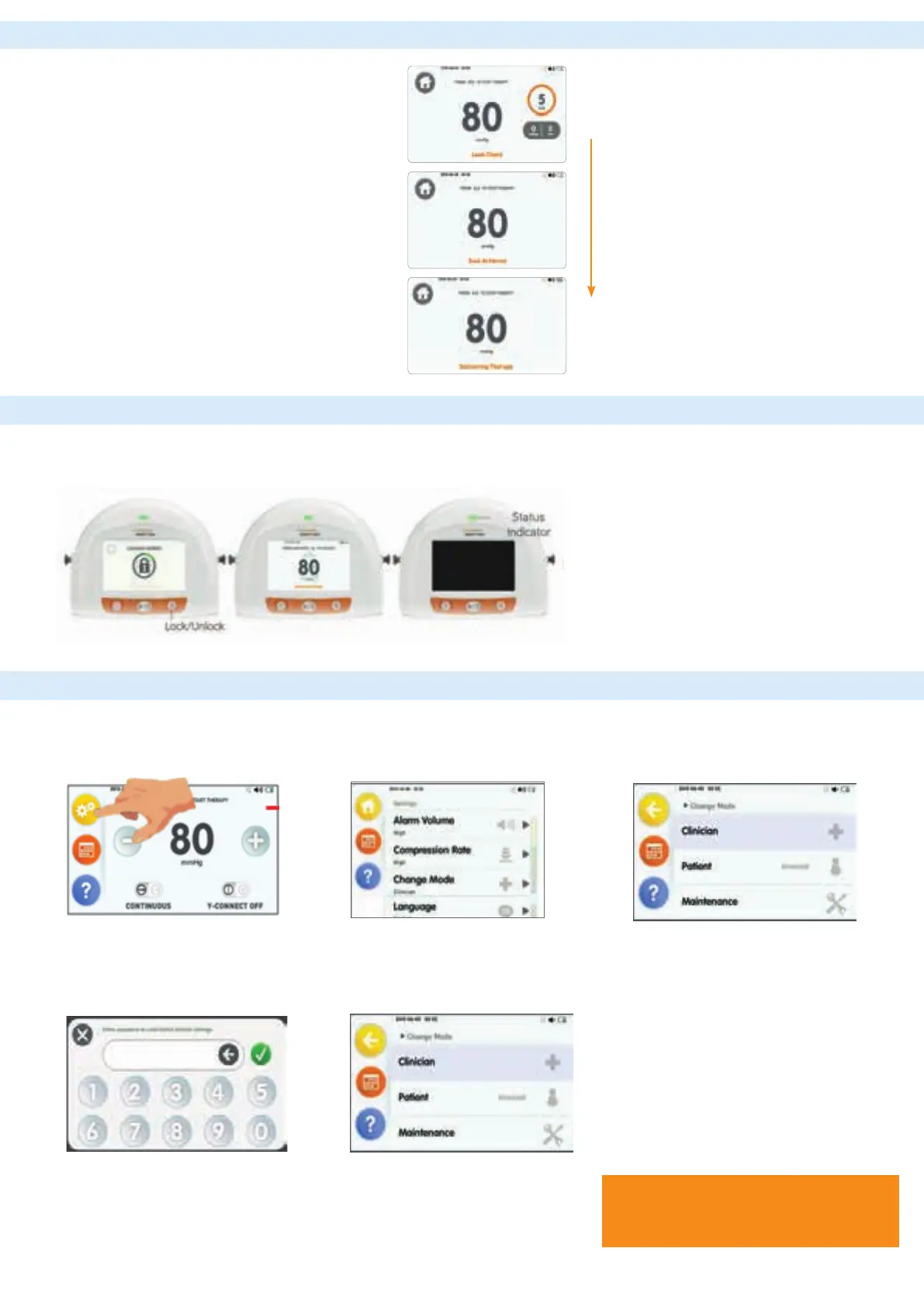
4. Checking for a seal
6. Switching the device between patient and clinician mode
Step 1: Press the Yellow settings
button to access the settings screen
Step 2: Press the change mode
option from the menu
Step 3: Select which mode
(Clinician/Patient) required
Step 4: Please enter the password
(3141) and press the green tick to
switch modes
Step 5: Press yellow button on screen
twice to return to the home screen
5. Locking the screen
Follow on screen seal checking instructions, once seal is
achieved the screen will display ‘seal achieved’ and then
display ‘delivering therapy’
Look for “raisin-like” appearance
Listen for a “hissing” sound, indicating a leak
Feel the dressing, which should be hard to the touch
Possible site of leak
• Wrinkle or crease
• Skin fold or crevice
• Where drain exits lm (where applicable))
Intervention
Seal lm edges with lm dressing
If hole found in transparent lm, patch with adhesive
transparent lm. Pinch paste around drain (if using a
RENASYS™ drain option)
The Lock function locks the touchscreen and Start/Pause therapy icon – Power icon is not locked. The
status indicator continues to illuminate green to indicate the device is still delivering therapy
Supporting healthcare professionals for 150 years
www.smith-nephew.com/uk
™Trademark of Smith & Nephew
©April 2016 Smith & Nephew
72345
24hr Technical Support Freephone Number:
UK: 0800 9155394
Ir
eland: 1800 30 36 22
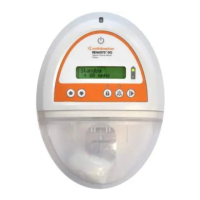
When delivering therapy, the screen will go
dark, to view screen, press either play or lock
pad button.
In the event of an alarm, the device will
automatically unlock and the alarm screen will
display
The device will automatically lock and enter
Sleep mode after 5 minutes without user
interaction
Smith & Nephew
Croxley Green Business Park
Building 5, Lakeside
Hatters Lane, Watford
Hertfordshire WD18 8YE
T +44 (0) 1923 477100
F +44 (0) 1923 477101



 To Previous Page