V: 12/19/2024 - 1 ©2024 Snom Technology GmbH 18/19
Short User Manual
Software update
Manual update
Auto provisioning
For more information, see our web page.
1. Go to Snom's Firmware Update Center and find
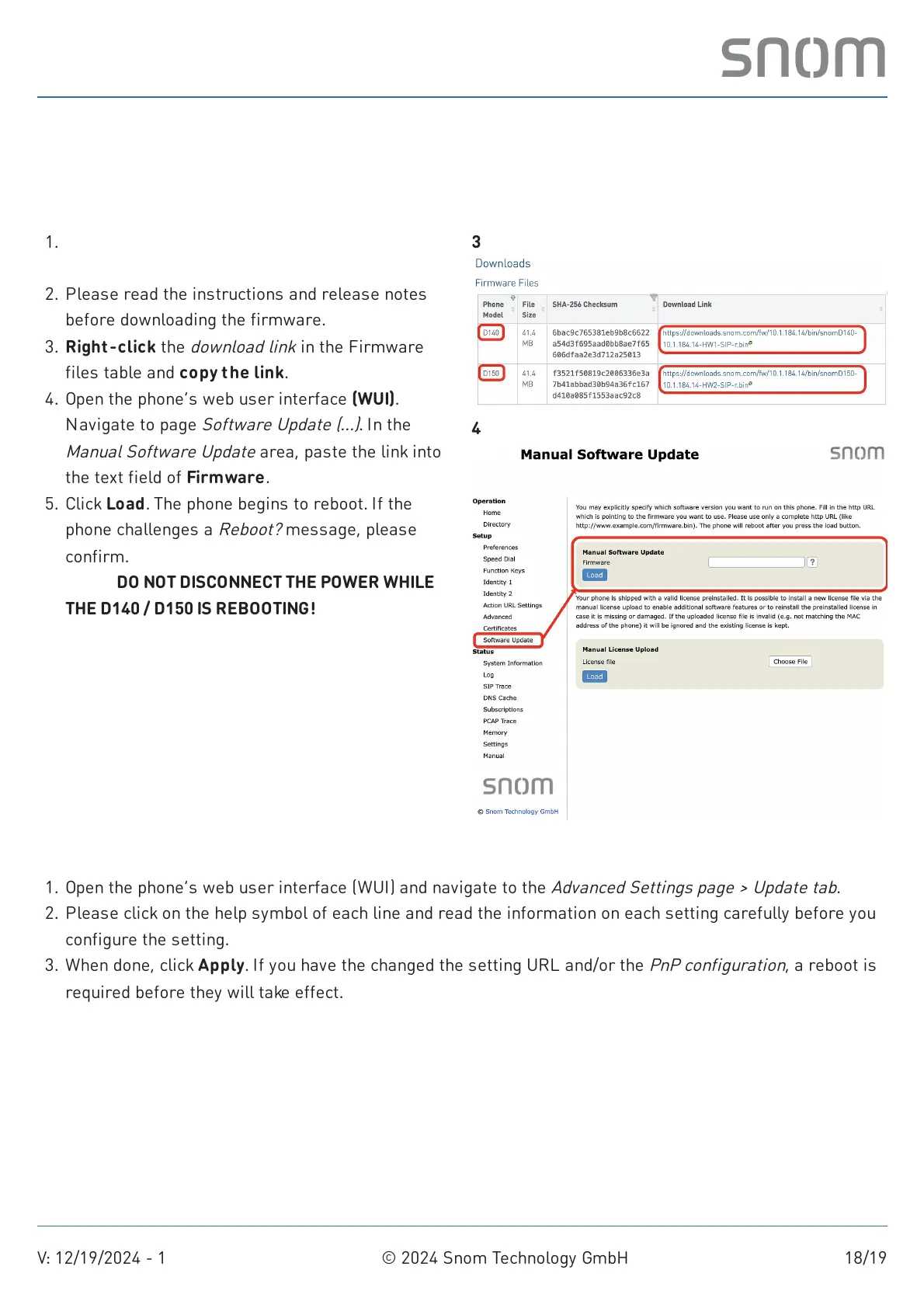
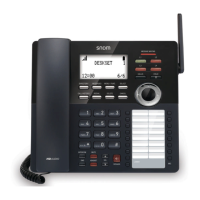
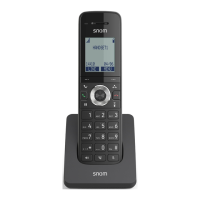
the latest firmware version for your D140 / D150.
2. Please read the instructions and release notes
before downloading the firmware.
3. Right-click the
download link
in the Firmware
files table and copy the link.
4. Open the phone’s web user interface (WUI).
Navigate to page
Software Update
(...)
. In the
Manual Software Update
area, paste the link into
the text field of Firmware.
5. Click Load. The phone begins to reboot. If the
phone challenges a
Reboot?
message, please
confirm.
Note: DO NOT DISCONNECT THE POWER WHILE
THE D140 / D150 IS REBOOTING!
3
4
Open the phone’s web user interface (WUI) and navigate to the
Advanced Settings page > Update tab
.1.
Please click on the help symbol of each line and read the information on each setting carefully before you
configure the setting.
2.
When done, click Apply. If you have the changed the setting URL and/or the
PnP configuration
, a reboot is
required before they will take effect.
3.


 To Next Page