52 • EN
Return to contents
4.4 Home
To set up and use this function was explained in Section 3.3 earlier in
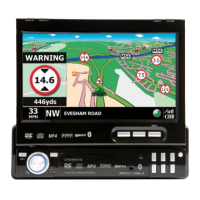
the manual. When this function is accessed from the ‘My Favourite’
menu, you are able to change the ‘Home’ location (for example if you
move house) or to delete the ‘Home’ location.
4.4.1 To change the home location
Press the centre of the screen to access the ‘Navigate to’ menu.
Press ‘My Favourite’ at the top of the display.
Press the ‘Home’ icon.
Press the ‘Change’ button.
You can now search for the new ‘Home’ location using the following options displayed:
Find address by city
Find address by post code
Find by POI
Find by recently used
Save using current point
To find out how to use these options please refer to the applicable sections in this user manual.
Once you have entered your ‘Home’ location details you also have the facility to name your destination.
Press ‘Name’ and a keyboard will be displayed with the road name of the destination you selected.
Press the ‘Arrow’ key to erase this data then input the new name using the keyboard.
Press ‘Save’ once you have entered the name.
Please note: You can enter a new name for the favourite using up to a maximum of sixteen characters.
4.4.2 To delete the home location
Press the centre of the screen to access the ‘Navigate to’ menu.
Press ‘My Favourite’ at the top of the display.
Press the ‘Home’ icon.
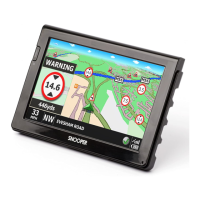
Press the ‘Delete’ button – an information box will be displayed with
‘Delete home?’ and the options of ‘OK’ and ‘Cancel’.
Press the ‘OK’ button and the ‘Home’ location will be deleted.





 To Next Page