58
6 | SETUP FOR WINDOWS MOBILE
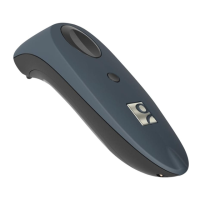
This chapter explains how to install and use 1D models of the Socket Bluetooth Cordless
Hand Scanner (CHS) Series 7 (v3) with any of the following devices running Windows
Mobile 6 or later:
Socket SoMo 650 or 655
Device running Windows Mobile 6 or later with Broadcom Bluetooth stack v1.8.0.6501
or v1.9.3
Before you begin the instructions in this chapter, make sure you have installed the
batteries and charged the CHS, as described in Chapter 2, “Scanner Setup”
Other devices running Windows Mobile 6 with the Microsoft Bluetooth stack may be
compatible.
CONNECTION OPTIONS
For Windows Mobile, the CHS offers two different connection options.
Bluetooth
Mode
Pros Cons
HID
Instructions
on next
page
No SocketScan 10 software installation
needed
Limited configuration options
Limited to printable ASCII and some non-
printable characters
Less efficient data communications for
barcodes containing lots of data
Compatible only with SoMo
SPP
Instructions
on page 39
Many configuration options
Broad character set, including non-
printable ASCII, international
keyboards
More efficient data communications
for barcodes containing lots of data
Requires installation of SocketScan 10
software or application made with
SocketScan 10 SDK
Socket highly recommends that you use the CHS in SPP mode. To learn more, read
our white paper: http://www.socketmobile.com/pdf/techbrief/socketscan-10-
sdk_white-paper.pdf.














 To Next Page