INSTRUCTIONS: Scan command barcode(s) to quickly congure the barcode scanner.
Many of the command barcodes only work with a scanner in a particular Bluetooth mode as indicated
by the header row of each table.
Note: This procedure will put the scanner in discoverable mode.
Step 1: Unpairing the scanner: Delete the Bluetooth Pairing
If the scanner is paired with a device, unpair it before trying to
connect to a different device.
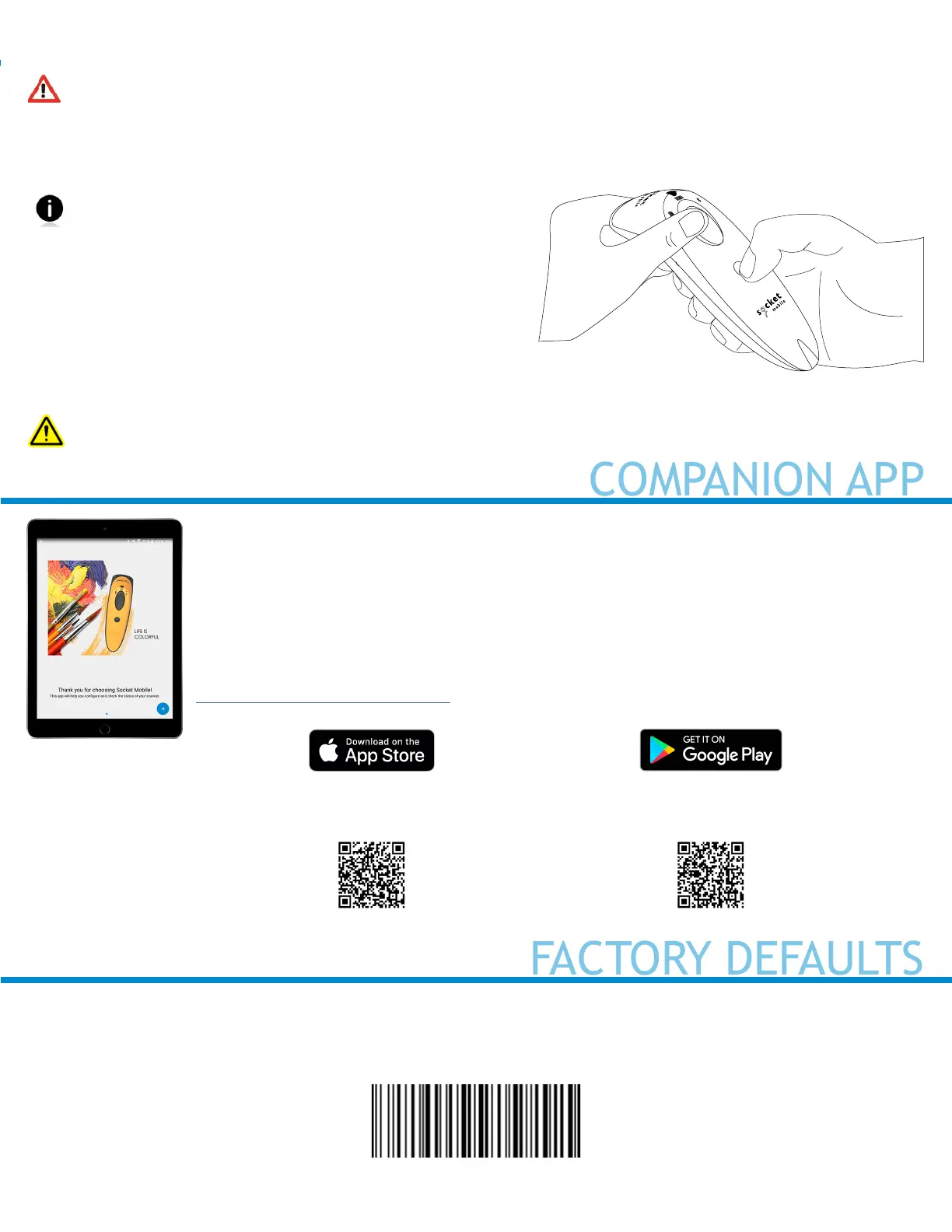
1. Power on the scanner.
2. Press and hold the scan button, then press and hold
the power button.
The scanner will unpair and automatically power off.
The next time you power on the scanner, it will be discoverable.
Step 2: Remove or forget the scanner from the Bluetooth list on the host device
Important: Both steps above must be done to complete the unpairing.
3
Factory Reset
Congures the scanner to revert all settings to factory defaults. The scanner will power off after scanning
this barcode.
#FNB00F0#
Scan this QR code with your mobile
device to download our new app!
Scan this QR code with your mobile
device to download our new app!
To assist in scanner setup & conguration. Download the Companion App for free!
Socket Mobile Companion App will help you congure and check the status of your Socket Mobile
Barcode scanners.
• Easy to follow instructions for pairing scanners in Application Mode
• Verify scanner status
• Check warranty and register scanners
Learn more about Application Mode.



 To Next Page