EasyManua.ls Logo

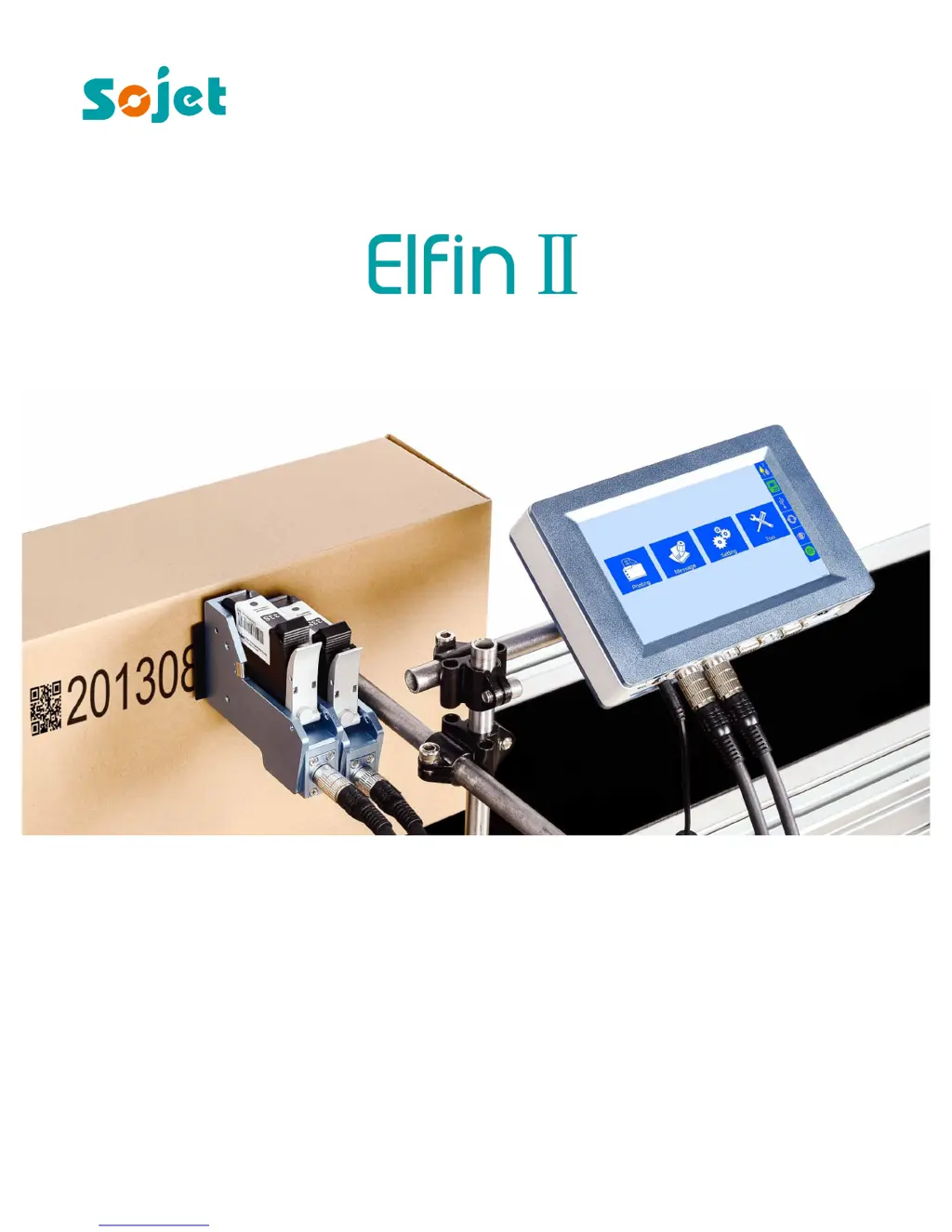
Sojet Elfin II - User Manual

Default Icon
38 pages
Print Icon
To Next Page IconTo Next Page
Loading...
Edition: C20140715A
High Resolution Inkjet Printer
User Manual
XiaMen Sojet Electronics Co.,Ltd.

Table of Contents

Questions and Answers

  • C
    Craig SanchezAug 8, 2025
    What to do if Sojet Printer cannot be switched on?
    • W
      wshannonAug 8, 2025
      If your Sojet Printer won't turn on, first ensure the AC power input to the adapter is correct and the DC output from the adapter is properly connected to the printer. Check if the power adapter's light is on. If the light is dead, dim, or blinking, replace the adapter. Also, verify that the printer's power switch is turned ON.
  • M
    Michael FranklinAug 14, 2025
    How to fix broken or white lines in Sojet Elfin II Printer print?
    • V
      vasquezelizabethAug 14, 2025
      If your Sojet Printer is producing prints with broken or white lines, it could be due to a nozzle blockage or damage. Try wiping and cleaning the nozzle plate with a Non-woven, referring to Section 6.2 for Ink Cartridge Care and Maintenance. Alternatively, purge the nozzles using the 'Clean Printhead' option as described in Section 5.4.3. It may also be caused by the cartridge not making good contact with the printer. Remove the cartridge and re-insert it to ensure proper contact.
  • H
    Howard TorresAug 21, 2025
    What to do if Sojet Elfin II is unable to identify ink cartridge?
    • J
      Justin PerryAug 21, 2025
      If your Sojet Printer is unable to identify the ink cartridge, it might be due to a connectivity problem, defect or damage on the printer. Remove the cartridge and re-insert it. It could also be due to a cartridge dealer code mistake. Remove the cartridge and re-insert it.
  • B
    Bob VelezAug 27, 2025
    Why does Sojet Printer print completely at first, then incompletely?
    • J
      Joseph AguilarAug 27, 2025
      If your Sojet Printer starts printing completely but then becomes incomplete, it may be due to ink starvation or air bubbles blocking the nozzles. Check the status bar to see if there's a low ink alarm.
  • M
    Miss Kelsey WilliamsNov 1, 2025
    Why Sojet Elfin II does not print?
    • A
      Andrew GreenNov 2, 2025
      Your Sojet Printer might not be printing because the printing process hasn't started, or there is no data to print. Ensure the printing status is active and a file is selected with the 'Start printing' button clicked. The printing delay value could also be too high, so check if it is set to a normal value. Verify that a cartridge is installed and not used up or damaged, checking its status in Section 5.7 for ink levels and dealer code correctness. If the photocell isn't working, cover it up as described in section 5.2.2 to see if the print output quantity varies in the printing report. If you're using an encoder, make sure it and its connection wire are in good condition, and that the production line is running smoothly. Test the encoder via the encoder signal test interface to see if it w...

Summary

IMPORTANT

Safety Precautions

Instructions and guidelines for safe operation and maintenance of the printer to prevent accidents and damage.

Warning Signs

Explanation of symbols used to indicate caution, potential damage, or important operational notes.

Chapter One: Important Precautions for Using Elfin II

1.1 Important Setup Precautions

Guidelines for proper installation, including power supply, mounting, environment, and grounding to ensure optimal performance and safety.

1.2 Important Operation Precautions

Essential rules for operating the printer, covering touch screen usage, photocell, ink cartridges, and cleaning procedures.

Chapter Two: Installation and Setup Instructions

2.1 Printheads Adjustment and Installation

Detailed steps for adjusting and installing the printer's printheads for different printing configurations.

Chapter Four: How to Use the Printer and the Check Work before;after Use

4.1 How to Use the Printer

Step-by-step guide on basic printer operation, including cartridge installation, turning on, starting, stopping, and switching off.

Chapter Five: Printer Operation Instructions

5.2 Printing Management

Overview of features for managing printing tasks, including finding data, starting/stopping, and setting printing delay.

5.3.1 New;Edit Data

Guide on creating, modifying, importing, and deleting print data messages, including file naming conventions.

5.4.1 System Setting

Configuration options for system language, time, screen saver, unit, daylight saving, and calendar type.

5.4.3 Printing Options

Settings for line speed, DPI, and build-in photocell configuration for optimal printing performance.

5.5.6 System Reset

Procedure for restoring printer settings to default values, including clearing data and resetting parameters.

Chapter Six: Care and Maintenance

6.1 Printer Care and Maintenance

Guidelines for routine care and maintenance of the printer to ensure its longevity and proper functioning.

6.2 Ink Cartridge Care and Maintenance

Instructions for proper handling, storage, and cleaning of ink cartridges to maintain print quality and extend lifespan.

Chapter Seven: Troubleshooting

7.1 Troubleshooting for Ink Cartridge

Common problems related to ink cartridges and their solutions, including nozzle issues, contact problems, and identification errors.

7.2 Troubleshooting for Printer

Solutions for common printer issues such as failure to switch on, not printing, and problems with photocell or encoder.

Sojet Elfin II Specifications

General IconGeneral
TechnologyThermal Inkjet
Print Resolution600 dpi
Resolution600 dpi
Ink CompatibilityWater-based, Solvent-based
User Interface5-inch Touchscreen
InterfaceEthernet, USB
Power Supply100-240V AC, 50/60Hz

Related product manuals