EasyManua.ls Logo

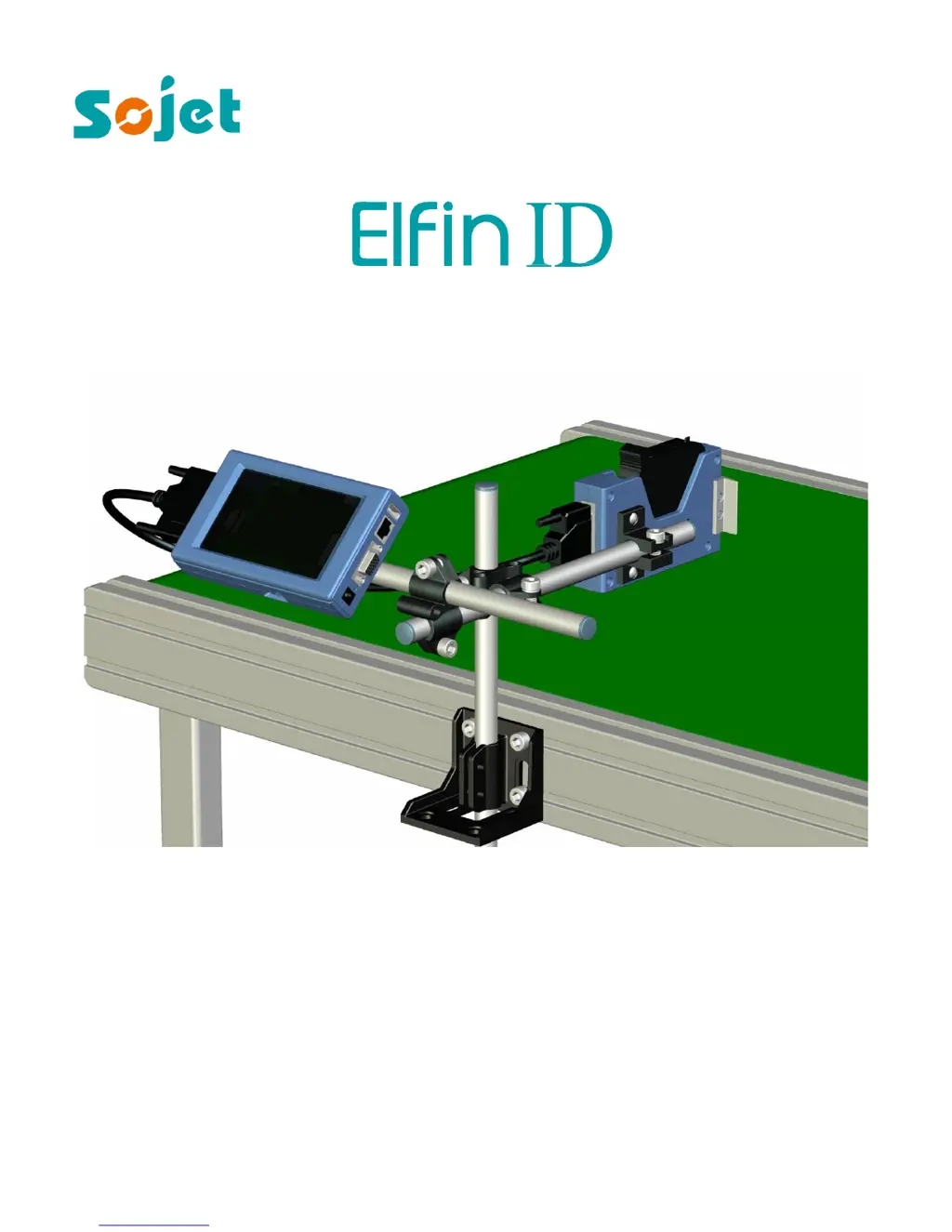
Sojet ELFIN ID - User Manual

Sojet ELFIN ID
37 pages
Print Icon
To Next Page IconTo Next Page
Loading...
Edition: E1D20150415
High Resolution Inkjet Printer
User Manual
XiaMen Sojet Electronics Co.,Ltd.

Questions and Answers

  • J
    Joel BassAug 1, 2025
    Why is my Sojet Printer not printing?
    • T
      Thomas BurtonAug 1, 2025
      If your Sojet Printer doesn't print, first, ensure that you've initiated the printing process by clicking the “Start printing” button and that a file has been selected for printing. Verify that the printing delay value is appropriate. Check that a cartridge is properly installed. If the cartridge is installed, verify its status to ensure that the ink isn't depleted or the cartridge dealer code is correct; replace the cartridge if necessary. Test the photocell by covering it to observe any changes in the print output quantity in the printing report, referring to section 5.2.2. Finally, inspect the encoder and its connection wire for any damage, and confirm that the production line is functioning correctly.
  • R
    Robert LittleAug 7, 2025
    How to fix a Sojet Printer that will not switch on?
    • H
      Hannah VillaAug 7, 2025
      If your Sojet Printer won't turn on, verify that the AC power input to the adapter is correct and the DC output is securely connected to the printer. Check the power adapter's indicator light; if it's off, dim, or blinking, replace the adapter. Also, ensure that the printer's power switch is in the ON position. If these steps don't resolve the issue, there may be equipment damage, and you should contact your local dealer or after-sale service.
  • Y
    ystewartAug 11, 2025
    How to fix broken lines on Sojet Printer print?
    • A
      Aimee McdonaldAug 11, 2025
      If your Sojet Printer is showing broken or white lines on the print, it could be due to a nozzle blockage or damage. Try wiping and cleaning the nozzle plate with a non-woven material, referring to Section 6.2 for Ink Cartridge Care and Maintenance. Additionally, you can purge the nozzles using the “Clean Printhead” option, as described in Section 5.4.3. Another potential cause is that the cartridge is not making good contact with the printer. In this case, remove the cartridge and then re-insert it to ensure a proper connection.
  • B
    Barbara BishopAug 17, 2025
    What to do if Sojet Printer print becomes incomplete?
    • H
      Heather NguyenAug 17, 2025
      If the print from your Sojet Printer starts complete but then becomes incomplete, it might be due to ink starvation or air bubbles blocking the nozzles. First, check the status bar to see if there's a low ink warning. If the issue persists, consider sending the printer back to our company for testing.
  • M
    Melanie BrownAug 21, 2025
    Why Sojet Printer is unable to identify ink cartridge?
    • B
      Brian VangAug 21, 2025
      If your Sojet Printer is not identifying the ink cartridge, try removing the cartridge and re-inserting it. This can resolve connectivity problems or issues with the cartridge dealer code.
  • J
    Jon HernandezAug 27, 2025
    What to do if Sojet Printer prints totally blank pages?
    • Y
      yaguilarAug 27, 2025
      If your Sojet Printer is producing totally blank prints, it may be due to the ink being used up or a total nozzle blockage. Check the ink status in Section 5.7 to see if the ink is depleted.

Summary

Chapter One: Important Precautions for Using

1.1 Important Setup Precautions

Crucial steps for safe and effective printer installation and setup.

1.2 Important Operation Precautions

Essential safety guidelines and practices for daily printer operation.

Chapter Two: Installation and Setup Instructions

2.1 Parts List

Detailed inventory of all components included in the printer package.

2.2 Device Installation

Step-by-step guidance for mounting and physically installing the printer unit.

Chapter Three: Device Introduction

3.1 Controller Introduction

Overview of the printer's control unit, its ports, and user interface.

3.2 Printer Head Introduction

Description of the printer head component, including connections and features.

3.3 Technical Specifications

Comprehensive list of technical details, performance values, and features.

Chapter Four: How to Use the Printer and Check Work

4.1 How to Use the Printer

Fundamental procedures for operating the printer, including startup and shutdown.

4.2 Check Work Before Use

Essential checks to perform before operating the printer to ensure proper function.

4.3 Check Work After Use

Required checks and procedures to follow after the printer has been used.

Chapter Five: Printer Operation Instructions

5.1 Main Interface

Introduction to the printer's main screen layout and navigation icons.

5.2 Printing Management

Managing print jobs, setting print delays, and reviewing printing reports.

5.3 New;Edit Data

Creating, editing, and managing print data, text, logos, and barcodes.

5.4 System Management

Configuring system settings like language, time, screen saver, and units.

Chapter Six: Care and Maintenance

6.1 Printer Care and Maintenance

Routine procedures for maintaining the printer's operational condition.

6.2 Ink Cartridge Care and Maintenance

Proper methods for handling, storing, and cleaning ink cartridges for optimal performance.

Chapter Seven: Troubleshooting

7.1 Troubleshooting for Ink Cartridge

Solutions for common problems encountered with ink cartridges.

7.2 Troubleshooting for Printer

Diagnostic guidance and fixes for general printer operational issues.

Appendix 1: Terms and Definitions

Sojet ELFIN ID Specifications

General IconGeneral
BrandSojet
ModelELFIN ID
CategoryPrinter
LanguageEnglish

Related product manuals