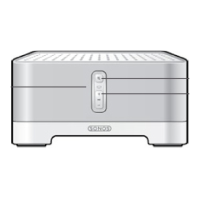
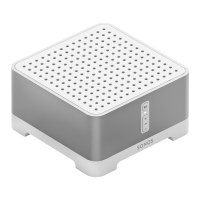
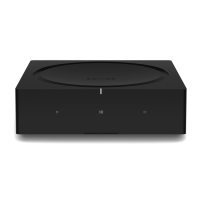
Sonos S16
11
2. Tap TV.
Program your remote control
During setup, you’ll program your remote control.
You can program a different remote control any time.
1. Open the app and tap > Settings > Room Settings.
2. Choose the room.
3. Tap TV > Remote control setup.
Note: Some TVs show unnecessary messages when you adjust the volume. You may be able to turn these
off. See
Turn off volume control messages.
Using your TV remote
Once programmed, S16 works with you TV remote by default. You may want to disable this feature if you
originally configured S16 to work with your TV and then moved it to a different location.
1. Tap > Settings > Room Settings and select the room.
2. Tap Remote > Use IR.
Enhance TV sound
When you’re watching TV, the Now Playing screen in the app includes sound enhancement features. These
features are only visible when you’re looking at the room where S16 is located.
Speech Enhancement
Makes TV dialog easier to hear.
Tap on the Now Playing screen to turn on or off.
Night Sound
Enhances quiet sounds and reduces the intensity of loud sounds. Turn on to reduce the volume while still
experiencing proper balance and range.
Tap on the Now Playing screen to turn on or off.
Additional room settings
Tap > Settings > Room Settings to see more room settings you can change, such as:
• Recalibrate audio (Android)
• Turn off the speaker status light
• Disable speaker touch controls
•Enable Wi-Fi
• Change room names
•Adjust EQ


 To Next Page