Entering text
You can enter letters, numbers and special characters using the on-screen keyboard,
alphanumeric keypad or handwriting recognition. You can switch between these input
methods.
To enter text
1
Tap any text input field. For example, select Menu > Messaging > New message
and tap in the area of the screen under the To field.
2
A text input window opens. Tap and select an option:
•
Mini QWERTY keyboard – keyboard in portrait mode.
•
Fullscr. QWERTY keyboard – keyboard in landscape mode.
•
Alphanumeric keypad – traditional keypad.
•
Handwriting – handwriting recognition.
3
Use your fingertips or the stylus to enter text.
Handwriting
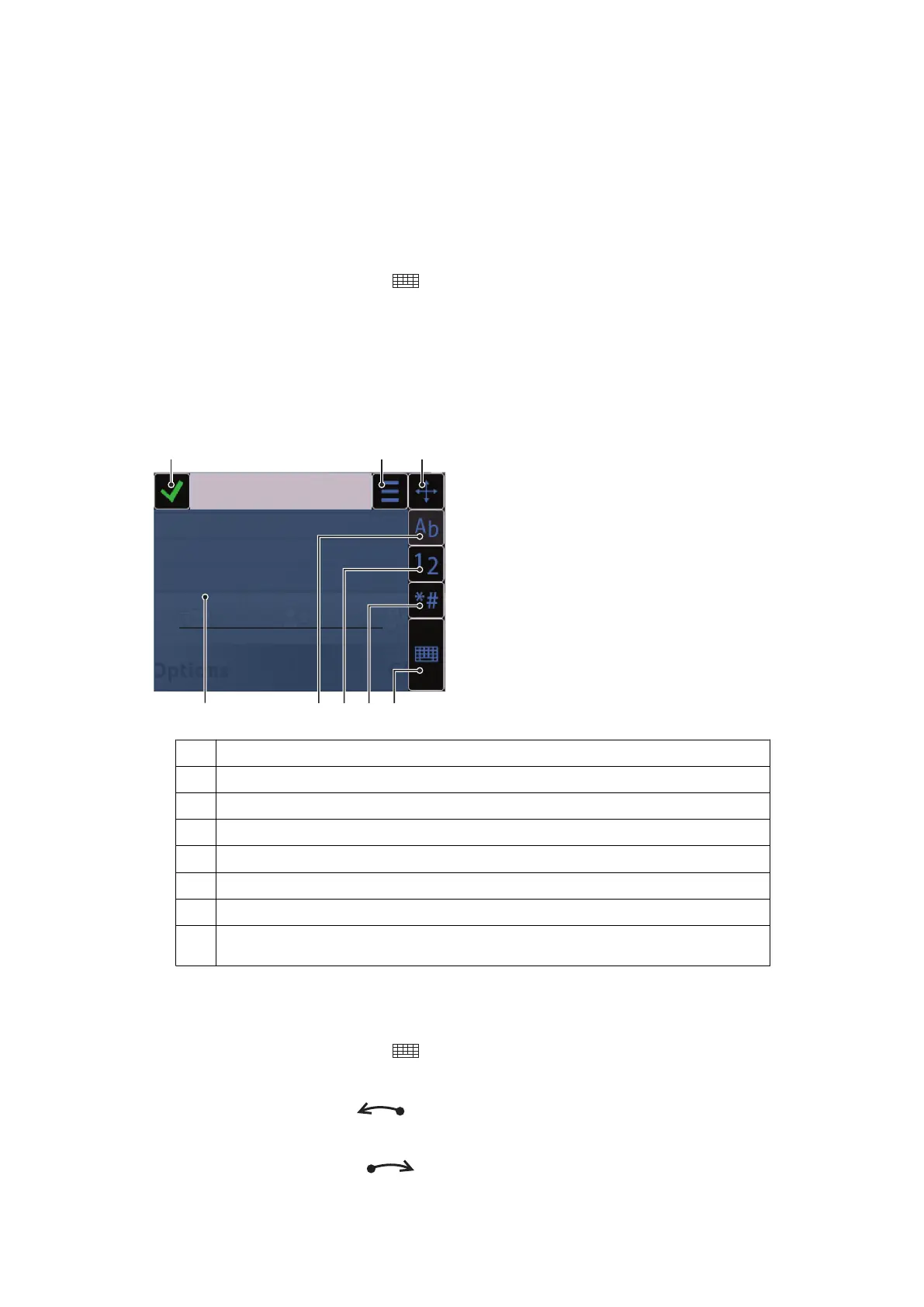
1 Close – tap to accept the text in the input window and close the on-screen keyboard view
2 Options – tap to view options for handwriting
3 Dock – drag and drop to move the handwriting window around the screen
4 Handwriting area
5 Letter mode – tap to switch to alphabetic input mode
6 Number mode – tap to switch to number input mode
7 Symbol – tap to open the symbol table
8 Input options – tap to change to another input method: Mini QWERTY keyboard, Fullscr. QWERTY
keyboard or Alphanumeric keypad
To open the handwriting window
1
Tap any text input field. For example, select Menu > Messaging > New message
and tap in the area of the screen under the To field.
2
A text input window opens. Tap
and select Handwriting.
To delete text
•
Draw a short line leftwards
.
To insert a space
•
Draw a short line rightwards .
18
This is an Internet version of this publication. © Print only for private use.








 To Next Page