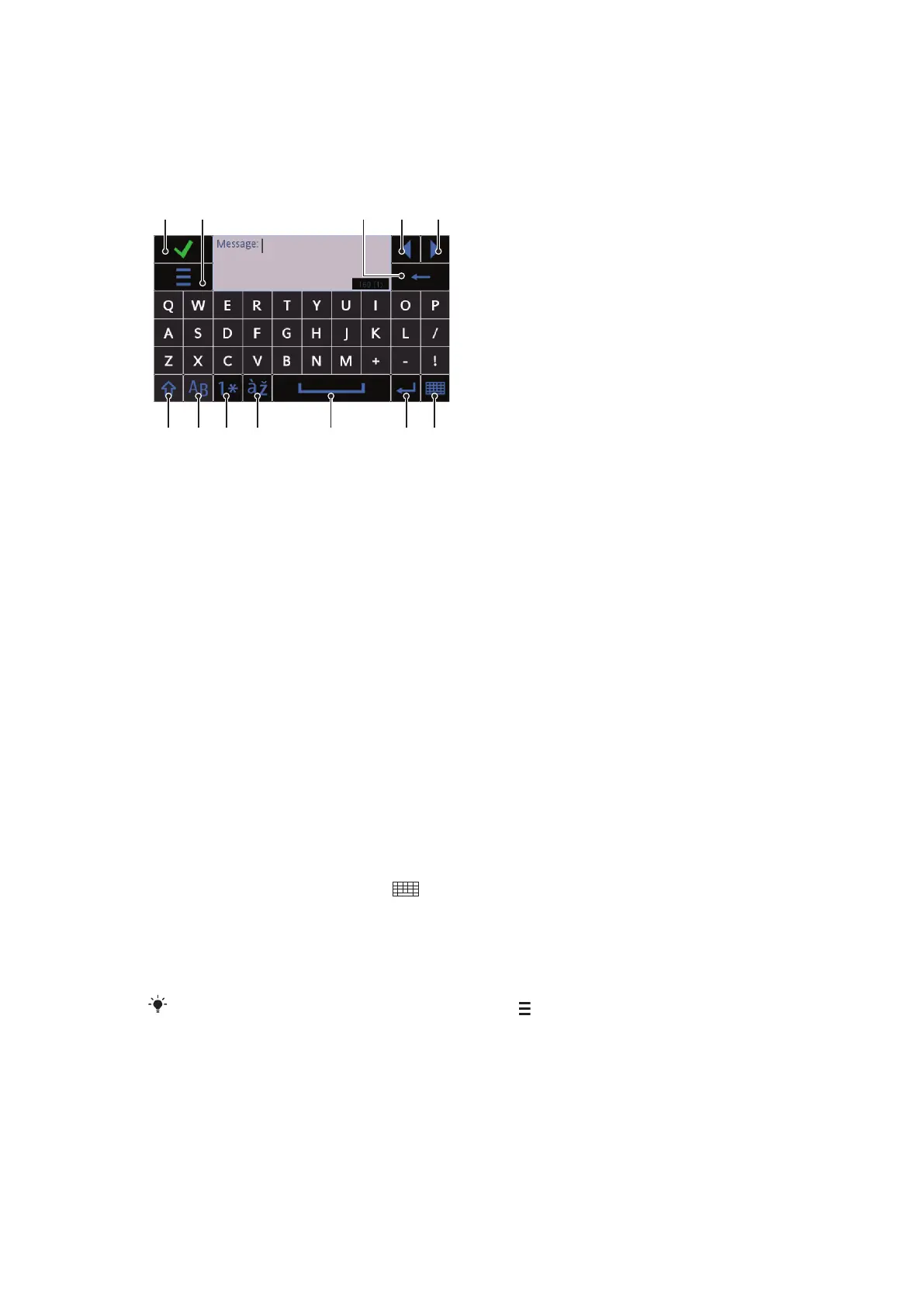
10 Carriage return – tap to enter a carriage return
11 Input options – tap to change to another input method: Fullscr. QWERTY keyboard, Alphanumeric
keypad or Handwriting
Full screen QWERTY
1 Close – tap to accept the text in the input window and close the keyboard view
2 Options – tap to open the input options menu to change, for example, the Writing language or view
Help
3 Backspace – tap to delete a letter to the left of the cursor
4 Left – tap to move the cursor to the left
5 Right – tap to move the cursor to the right
6 Shift and Caps Lock – tap to change the character case
7 ABC – tap to display alphabet letters and most-used symbols
8 Number mode – tap to display digits and most-used symbols
9 Accented letter – tap to display accented letter ranges
10 Space – tap to enter a space
11 Carriage return – tap to enter a carriage return
12 Input options – tap to change to another input method: Mini QWERTY keyboard, Alphanumeric
keypad or Handwriting
To activate QWERTY keyboards
1
Tap any text input field. For example, select Menu > Messaging > New message
and tap in the area of the screen under the To field.
2
A text input window opens. Tap
and select an option:
•
Fullscr. QWERTY keyboard – keyboard in landscape mode.
•
Mini QWERTY keyboard – keyboard in portrait mode.
To change the writing language
•
Select Options > Writing language.
When the text input window is open, you can also tap
and select Writing language.
21
This is an Internet version of this publication. © Print only for private use.







 To Next Page