15Getting to know the phone
To change the phone language
1 From stand-by select Menu
} Settings } General tab } Language
} Phone language.
2 Select a language.
Entering letters and characters
Enter characters using:
• Multitap text input
• T9™ Text Input
To change the text input method
• When you enter letters, press and hold
down .
Options when entering letters
• Select More.
To enter letters using multitap input
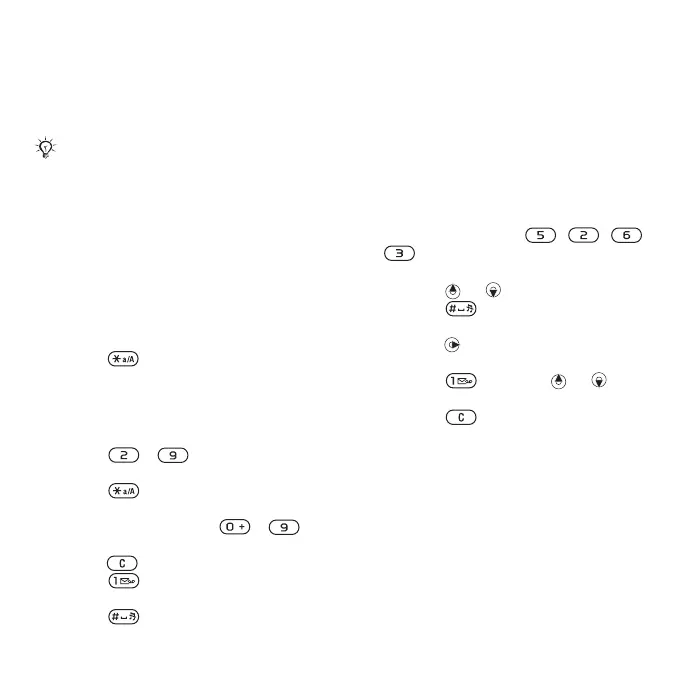
• Press - repeatedly until
the desired character appears.
• Press to shift between capital
and lower-case letters.
• Press and hold down -
to enter numbers.
• Press to delete letters or numbers.
• Press for the most common
punctuation marks.
• Press to add a space.
T9™ Text Input
The T9 Text Input method uses a built-
in dictionary.
To use T9™ Text Input
1 From stand-by select Menu
} Messaging } Write new } Text
message.
2 Press each key only once, even if the
desired letter is not the first letter on
the key. For example, to write the
word “Jane”, press , , ,
. Enter the full word before
looking at the choices.
• Press or for word choices.
• Press to accept a word and
add a space.
• Press to accept a word without
adding a space.
• Press and then or to
enter a punctuation mark.
• Press to delete the last letter
entered.
To add words to the T9 Text Input
dictionary
1 When entering letters, select More
} Spell word.
2 Edit the word by using multitap input.
3 Select Insert.
Most SIM cards automatically set the
menu language to the country where
you bought your SIM card. If not,
the predefined language is English.
This is the Internet version of the User's guide. © Print only for private use.




 To Next Page