23
GB
Using the Menu
Sound Adjustment menu
1 Press OK to select “Sound Effect”.
2 Press m/M to select one of the following sound effects, then press OK.
• Natural: Enhances clarity, detail, and sound presence by using “BBE High definition Sound
System
*1
.”
• Dynamic: Intensifies clarity and sound presence for better intelligibility and musical realism by
using the “BBE High definition Sound System.”
• Dolby Virtual
*2
: Uses the TV speakers to simulate the surround effect produced by a multi
channel system.
• Off: Flat response.
Tips
• You can change sound effect by pressing 9 repeatedly.
• If you set “Auto Volume” to “On”, “Soud Effect” changes to “Natural”.
*1
Licensed by BBE Sound, Inc. under USP4638258, 4482866. “BBE” and BBE symbol are
trademarks of BBE Sound, Inc.
*2
Manufactured under license from Dolby Laboratories. “Dolby” and the double-D symbol
are trademarks of Dolby Laboratories.
Adjusts higher-pitched sounds (Treble), adjusts lower-pitched sounds (Bass), and
emphasizes left or right speaker balance (Balance).
1 Press OK to select the option.
2 Press </, to set the level, then press OK.
Resets the “Treble,” “Bass” and “Balance” settings to the factory settings.
1 Press OK to select “Reset”.
2 Press m/M to select “OK,” then press OK.
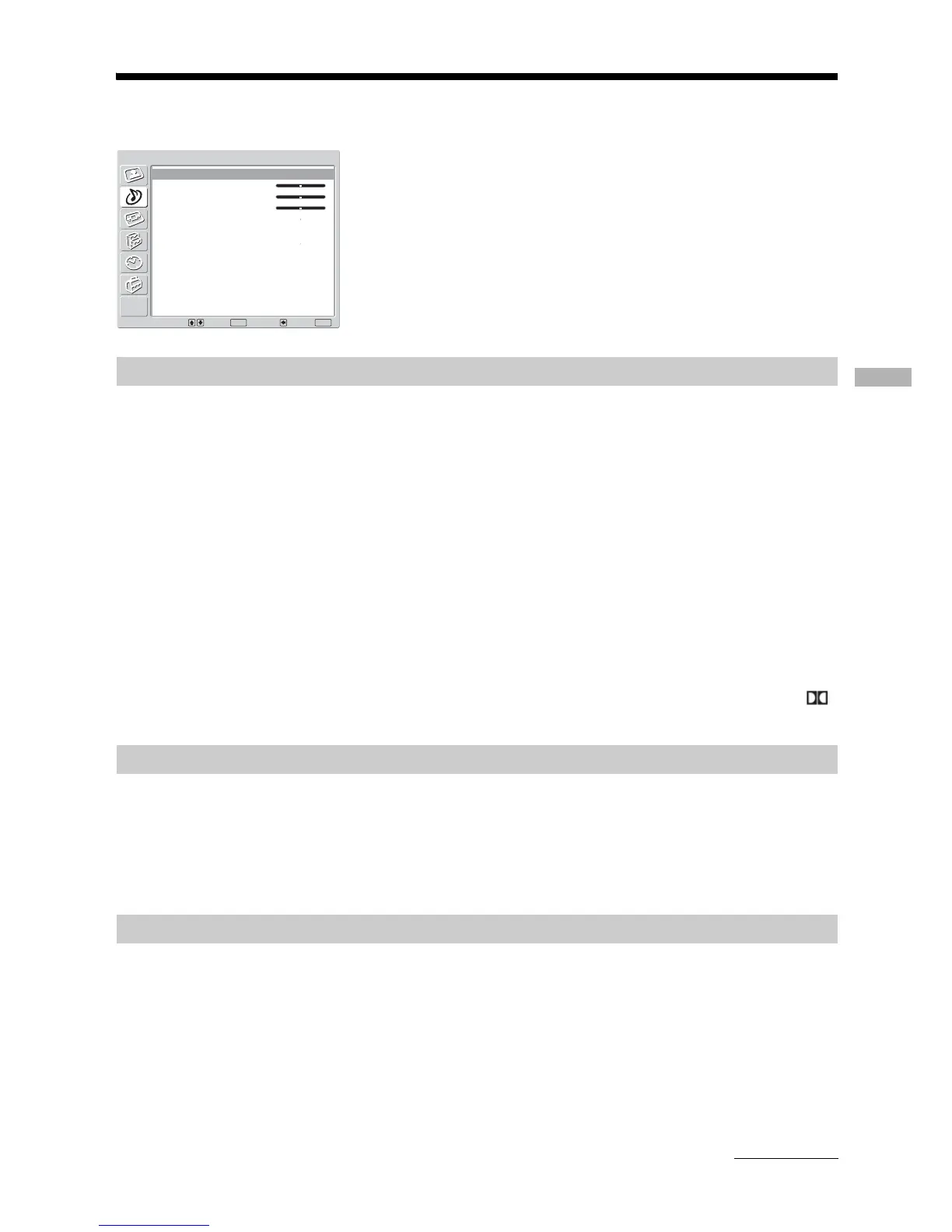
You can select the options listed below on the Sound
Adjustment menu. To select options, see “Navigating
through menus” (page 19).
Sound Effect
Treble/Bass/Balance
Reset
Select: Set: Back:
OK
End:
MENU
Sound Effect:
Treble:
Bass:
Balance:
Reset
Dual Sound:
Auto Volume:
Dynamic
0
0
0
A
Off
Sound Adjustment
Continued









 To Next Page