Using your Bluetooth® Remote
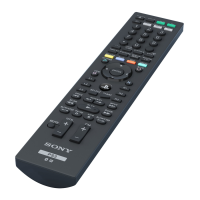
Using your Bluetooth® Remote as a remote control
Use your Bluetooth® Remote to control a connected Android™ device wirelessly
from a distance, for example, a tablet or a smartphone. You can use the navigation
keys of the Bluetooth® Remote to browse the Home screen or navigate between
applications on the connected device. You can also create a shortcut to a favourite
application on your Android™ device.
To wake up the screen of your Android™ device
•
Press any key on your Bluetooth® Remote.
If your screen is locked, you need to unlock it by hand.
To open an application on your Android™ device
1
Android™ device: Make sure that the screen is active and unlocked.
2
Bluetooth® Remote: Using the navigation keys, browse to the application that
you want to open, then press the Selection key.
3
Bluetooth® Remote: To close the application, press the Back key.
To play a video or music file on your Android™ device
1
Android™ device: Make sure that the screen is active and unlocked.
2
Bluetooth® Remote: Using the navigation keys, browse to the media file that
you want to play.
3
Bluetooth® Remote: To play the file, press the Selection key.
4
Bluetooth® Remote: To pause the file, press the navigation keys to locate the
pause icon on the screen of your Android™ device, then press the Selection
key.
To go to the Home screen of your Android™ device
1
Android™ device: Make sure that the screen is active and unlocked.
2
Bluetooth® Remote: Press the Home key.
To set a shortcut to a favourite application
1
From the main application menu of your Android™ device, find and tap Smart
Connect > BRH10 > Edit settings > App Key.
2
Select an application.
By default, the App key is set to open the TV launcher application.
To access a favourite application using the App key
1
Android™ device: Make sure that the screen is active and unlocked.
2
Bluetooth® Remote: Press the App key.
Finding your Bluetooth® Remote
In case you forget where you left it, you can locate your Bluetooth® Remote by
activating the ringer remotely.
To find your Bluetooth® Remote
1
Make sure that your Bluetooth® Remote is connected to your Android™
device.
2
From the main application menu of your Android™ device, find and tap Smart
Connect > BRH10 > Edit settings > Find BRH10.
3
Tap Search. Your Bluetooth® Remote starts to ring loudly.
You can press any key on your Bluetooth® Remote to mute the ringing.
9
This is an Internet version of this publication. © Print only for private use.



 To Next Page