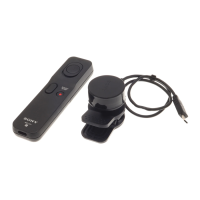
Getting started
Preparing an Android™ device
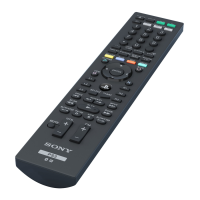
Before you can start using your Bluetooth® Remote with an Android™ device, you
need to do the following:
•
Install the Smart Connect application from Google Play on your Android™ device.
•
Pair the Bluetooth® Remote with the Android™ device manually (using Bluetooth®)
or automatically (using NFC).
•
Install the Remote and Handset BRH10 application from Google Play on your
Android™ device.
After successful pairing, the Bluetooth® Remote connects automatically to your
Android™ device as soon as the Bluetooth® Remote is turned on and within range.
appears in the status bar of your Android™ device after a connection is established.
The Smart Connect application is pre-installed at purchase on all Android™ devices from
Sony Mobile.
To install the Smart Connect application on an Android™ device
1
From the main application menu of your Android™ device, find and tap Play
Store to open the Google Play™ application.
2
Tap the search icon at the top right corner and enter "Smart Connect" in the
search field, then tap the search icon again.
3
Tap Smart Connect.
4
Tap Download, then tap Accept & Download.
5
Follow the instructions that appear on the screen of your Android™ device to
install the application.
You can only install the Smart Connect application on an Android™ device, for example, a
phone or a tablet.
To install the BRH10 application
1
Make sure you have the Smart Connect application installed on your Android™
device.
2
Pair the Bluetooth® Remote with your Android™ device.
3
Android™ device: Follow the instructions that appear on the screen to install
the BRH10 application.
To manually pair your Bluetooth® Remote with an Android™ device
1
Android™ device: Make sure the Bluetooth® function is turned on.
2
Turn off your Bluetooth® Remote.
3
Bluetooth® Remote: Press and hold down the power key until a cyan-coloured
notification light starts flashing.
4
Android™ device: Scan for Bluetooth® devices, then select BRH10 in the list of
available devices.
5
Android™ device: Follow the pairing instructions that appear on the screen.
The Bluetooth® Remote automatically enters pairing mode when it's powered on for the first
time.
7
This is an Internet version of this publication. © Print only for private use.



 To Next Page