.....
I
<O
Basic Menu Operations
The various functions and operating conditions of the
BVM-14EIE/14EIU/14FIE/14FIU or BVM-20EIE/
201EU/20FIE/20FIU can be set with on-screen
menus. Menu operations are performed with an
optional control unit such as the BKM-IOR Monitor
Control Unit or a built-in control unit monitor such as
the
BVM-14E5E/14E5U/14F5E/14F5U.
Herein, the operating procedures for the BKM-IOR
will be described.
The names of buttons and adjustrMnt knobs may vary
depending on the ,·ontro/ unit or monitor vou use, Consult
the OJ"rating manual for your control unit or monitor, and
use tht' buttons and knobs with the same junctions as /hose
described here.
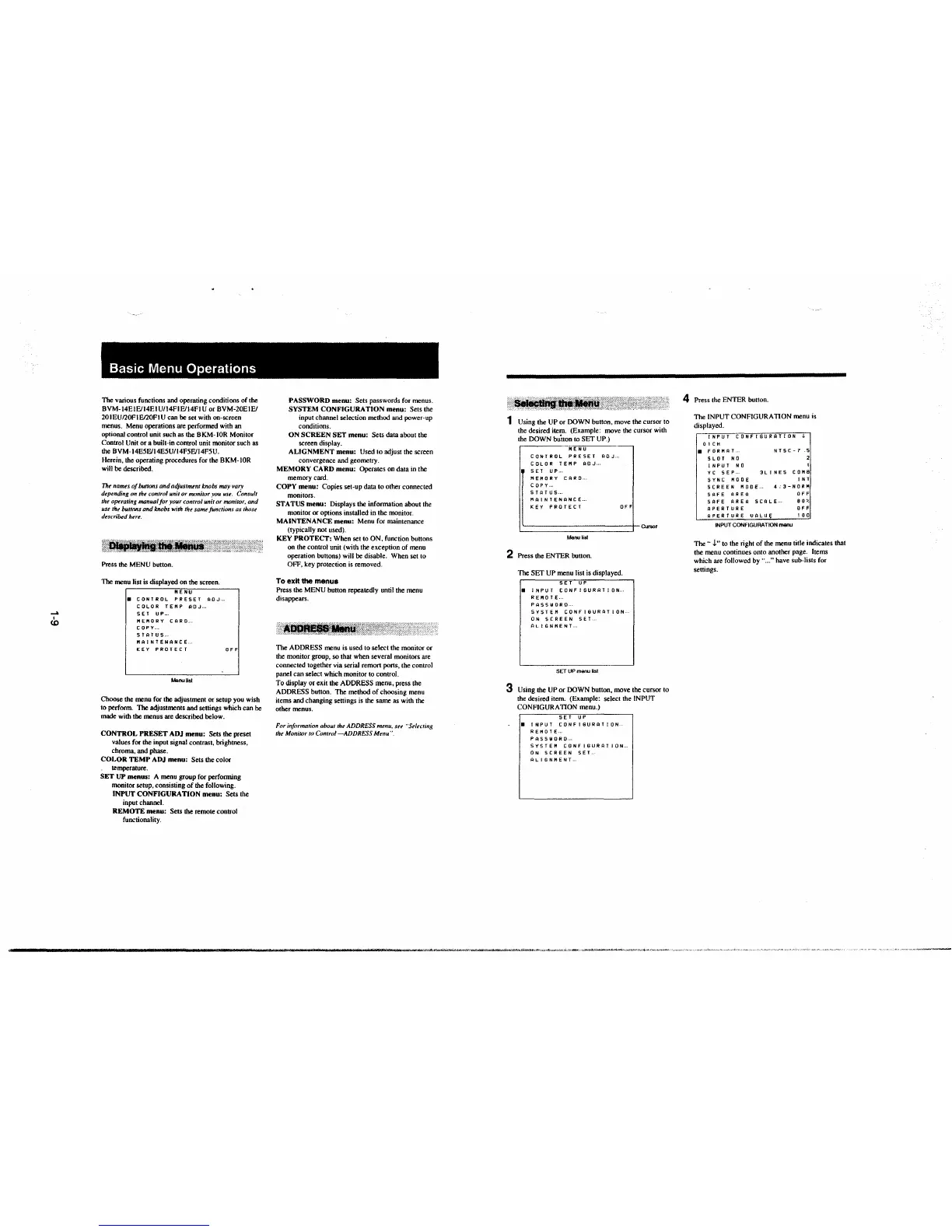
Press the MENU button.
The menu list is displayed on the screen.
MENU
8 CONTROL PRESET ADJ,_
COLOR TEMP ADJ ...
SET UP ...
MEMORY CARD ...
C
OPV ..
ST AT U $ ..
MAINTENANCE ...
KEY PROTECT
MenuUst
OFF
Choose the menu for the adjustment or setup you wish
to perform.
The adjustments and settings which can be
made with the menus are described below.
CONTROL PRESET ADJ menu: Sets the preset
values for the input signal contrast, brightness,
chroma, and phase.
COLOR TEMP ADJ menu: Sets the color
temperature.
SET UP menus: A menu group for perfonning
monitor setup, consisting of the following.
INPUT CONFIGURATION menu: Sets the
input channel.
REMOTE menu: Sets the remote control
functionality.
PASSWORD menu: Sets passwords for menus.
SYSTEM CONFIGURATION menu: Sets the
input channel selection method and power-up
conditions.
ON SCREEN SET menu: Sets data about the
screen display.
ALIGNMENT menu: Used to adjust the screen
convergence and geometry.
MEMORY CARD menu: Operates on data in the
memory card.
COPY menu: Copies set-up data to other connected
monitors.
STATUS menu: Displays the information about the
monitor or options installed in the monitor.
MAINTENANCE menu: Menu for maintenance
(typically not used).
KEY PROTECT: When set to ON, function buttons
on the control unit (with the exception of menu
operation buttons) will be disable. When set to
OFF, key protection is removed.
To exit the menus
Press the MENU button repeatedly until the menu
disappears.
;r'iiiitl~JMl2!t0'.~i,i*'W::
The ADDRESS menu is used to select the monitor or
the monitor group, so that when several monitors are
connected together via serial remon ports, the control
panel can select which monitor to control.
To display or exit the ADDRESS menu, press the
ADDRESS button. The method of choosing menu
items and changing settings is
the same as with the
other menus.
For information about the ADDRESS menu, see "Sele,·ting
the Monitor to Control -ADDRESS Menu".
i'SAJl~;--;;~~i
1 Using the UP or DOWN button, move the cursor to
the desired
item. (Example: move the cursor with
the DOWN
button to SET UP.)
MENU
CONTROL PRESET ADJ ...
COLOR TEMP AOJ ..
' SET UP-
HEHORY CARD-
COPY ..
STATUS ..
MAINTENANCE ..
KEY PROTECT OFF
~~:.-_::_-_::_::_::_::_::_::_::_::_::_::_::_::_::_::_::_-_::_::_::_::_::_j-Cursor
Menu list
2 Press the ENTER botton.
The SET UP menu list is displayed.
SET UP
• INPUT CONFIGURATION ...
REl'IOTE--
PASSIIIORQ ..
SYSTEM CONFIBURATION ..
ON SCREEN SET ..
ALIGNMENT ..
SET UP menu llsl
3 Using the UP or DOWN button, move the cursor to
the desired item.
(Example: select the INPUT
CONFIGURATION menu.)
SET UP
• INPUT CONFIBURATJON
REMOTE ..
PASSIIJORO ..
SYSTEM CONFIGURATION ..
ON
SCREEN SET ..
ALIGNMENT ..
------------------------------------------------=""-''*'"----~,.,--~~'"'--"'"'-· ,.,.,.,,..,. .. ,:..s,,j~""''-""'"'--"-'"
4 Press the ENTER button.
The INPUT CONFIGURATION menu is
displayed.
INPUT CONFIGURATION !
OICH
a FORMAT... NTSC-7 .S
SLOT NO
2
INPUT NO 1
YC SEP.. 3LINES COMB
SYNC MODE INT
SCREEN
MOOE ... 4:3-NORH
SAFE AREA OFF
SAFE AREA SCALE ...
APERTURE
APERTURE VALLI£
INPUT CONFIGURATION menu
80%
OFF
100
The •· J." to the right of the menu title indicates that
the menu continues onto another page. Items
which are followed by·· ... " have sub-lists for
settings.


 To Next Page
 Loading...