17
Getting started
EN
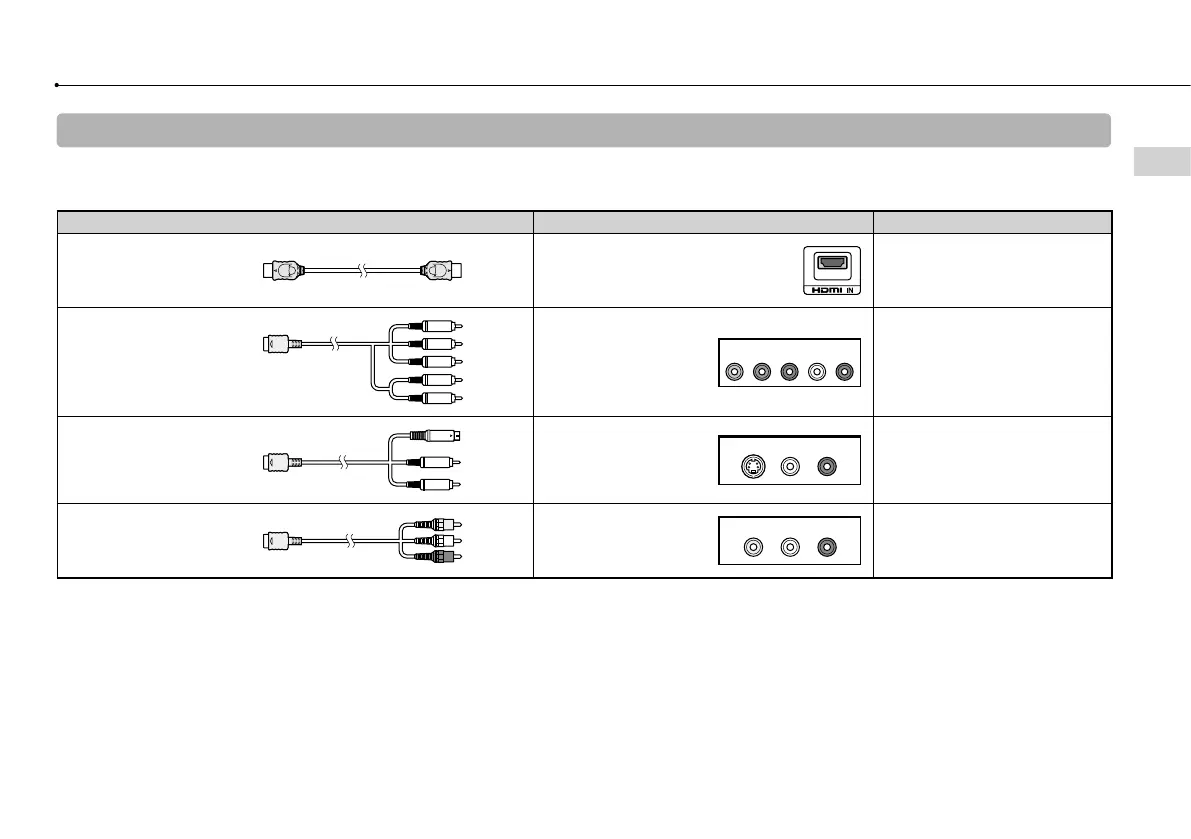
Video output cable types
The resolution displayed on the TV varies depending on the input connectors on the TV and the type of cable in use. Select a cable to match the TV
in use.
Cable type Input connector on the TV Supported video modes*¹
HDMI Cable*²
(sold
separately)
HDMI IN connector
1080p, 1080i, 720p, 480p / 576p
Component AV Cable *
5
(sold separately)
Component VIDEO IN
connector
Y L RPR/CRPB/CB
COMPONENT VIDEO IN AUDIO IN
1080p, 1080i, 720p, 480p /
576p, 480i *
3
/ 576i *
4
S VIDEO Cable
(sold separately)
S VIDEO IN connector
480i *
3
/ 576i *
4
AV Cable
(supplied)
VIDEO IN connector
(composite)
480i *
3
/ 576i *
4
*
1
Depending on the type of TV or content to be played, some video modes may not be supported.
If a device that is not compatible with the HDCP (High-bandwidth Digital Content Protection) standard is connected to the system using an HDMI cable, video and/or
audio cannot be output from the system.
Copyright-protected Blu-ray video discs can only be output at 1080p using an HDMI cable connected to a device that is compatible with the HDCP (Highband-width
Digital Content Protection) standard.
*
2
Connect the system to the TV using an HDMI cable (sold separately). An HDMI cable can output both video and audio and enables you to enjoy digital-quality
video and audio.
*
3
The video output setting on the system will display as [Standard (NTSC)].
*
4
The video output setting on the system will display as [Standard (PAL)].
*
5
When the PS3™ system is connected to a TV using a component AV cable, analogue high-definition output is restricted to comply with the copyright protection
technology used by Blu-ray™ (AACS). BD video software (BD-ROM) and BDs recorded with copyright-protected video content are output at interlaced standard
definition (SD) resolution.



 To Next Page