38
US
To search for a scene using the
time code (DVD VIDEO and
DVD-VR mode only)
1 In Step 2, select [TIME/TEXT].
[T **:**:**] (playing time of the current title)
is selected.
2 Press .
[T **:**:**] changes to [T --:--:--].
3 Input the time code using the number
buttons, then press .
For example, to find the scene at 2 hours, 10
minutes, and 20 seconds after the beginning,
just enter [2:10:20].
Ti
• When the Control Menu display is turned off, you can
search for a chapter (DVD VIDEO/DVD-R/DVD-
RW) or track (VIDEO CD/Super Audio CD/CD) by
pressing the number buttons and .
Note
• You cannot search for a scene on a DVD+RW/
DVD+R using the time code.
You can divide the screen into 9 subscreens and
find the desired scene quickly.
1 Press PICTURE NAVI during playback.
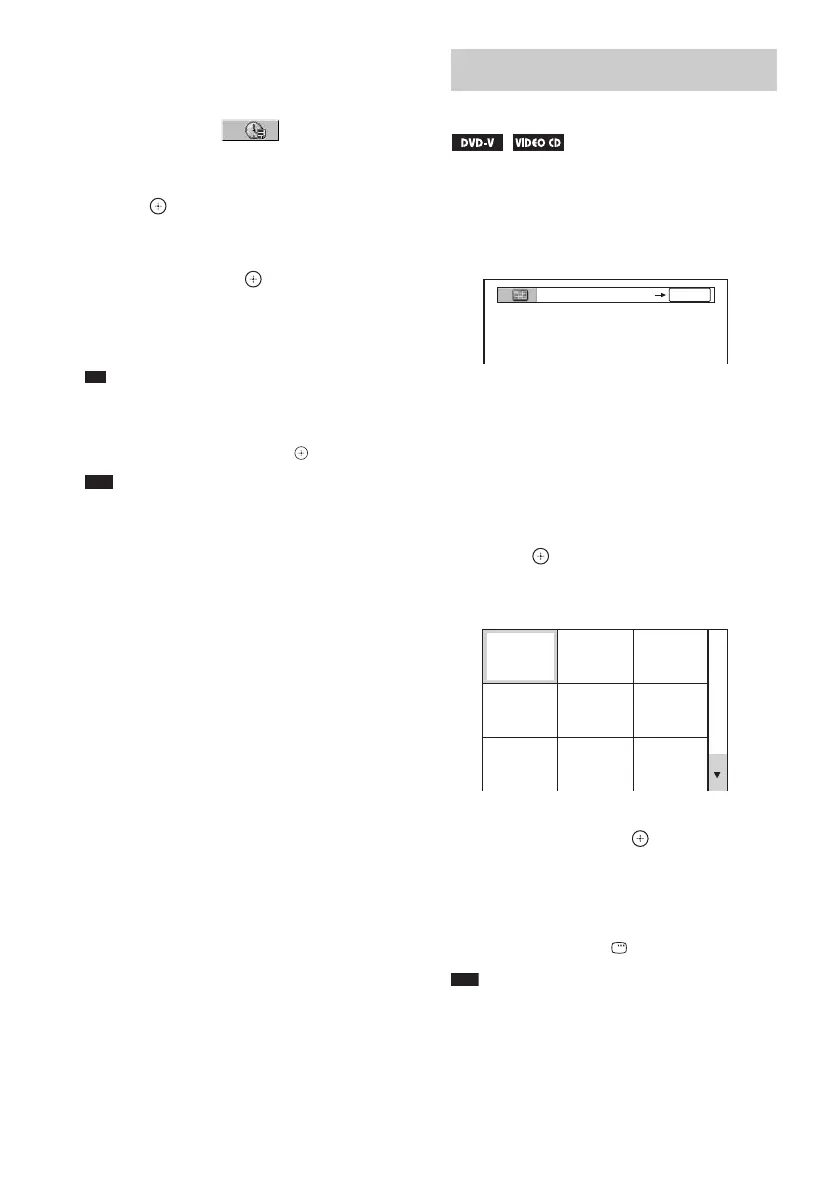
The following display appears.
2 Press PICTURE NAVI repeatedly to
select an item.
• [TITLE VIEWER] (DVD VIDEO only)
• [CHAPTER VIEWER] (DVD VIDEO
only)
• [TRACK VIEWER] (VIDEO CD/
Super VCD only)
3 Press .
The first scene of each title, chapter, or
track appears as follows.
4 Press C/X/x/c to select a title, chapter,
or track, and press .
Playback starts from the selected scene.
To return to normal play during
setting
Press O RETURN or DISPLAY.
Note
• Depending on the disc, you may not be able to select
some items.
Searching by Scene
(Picture Navigation)
CHAPTER VIEWER
ENTER
1
4
7
2
5
8
3
6
9



 To Next Page