Viewing images recorded on a tape with your computer
- For Windows users
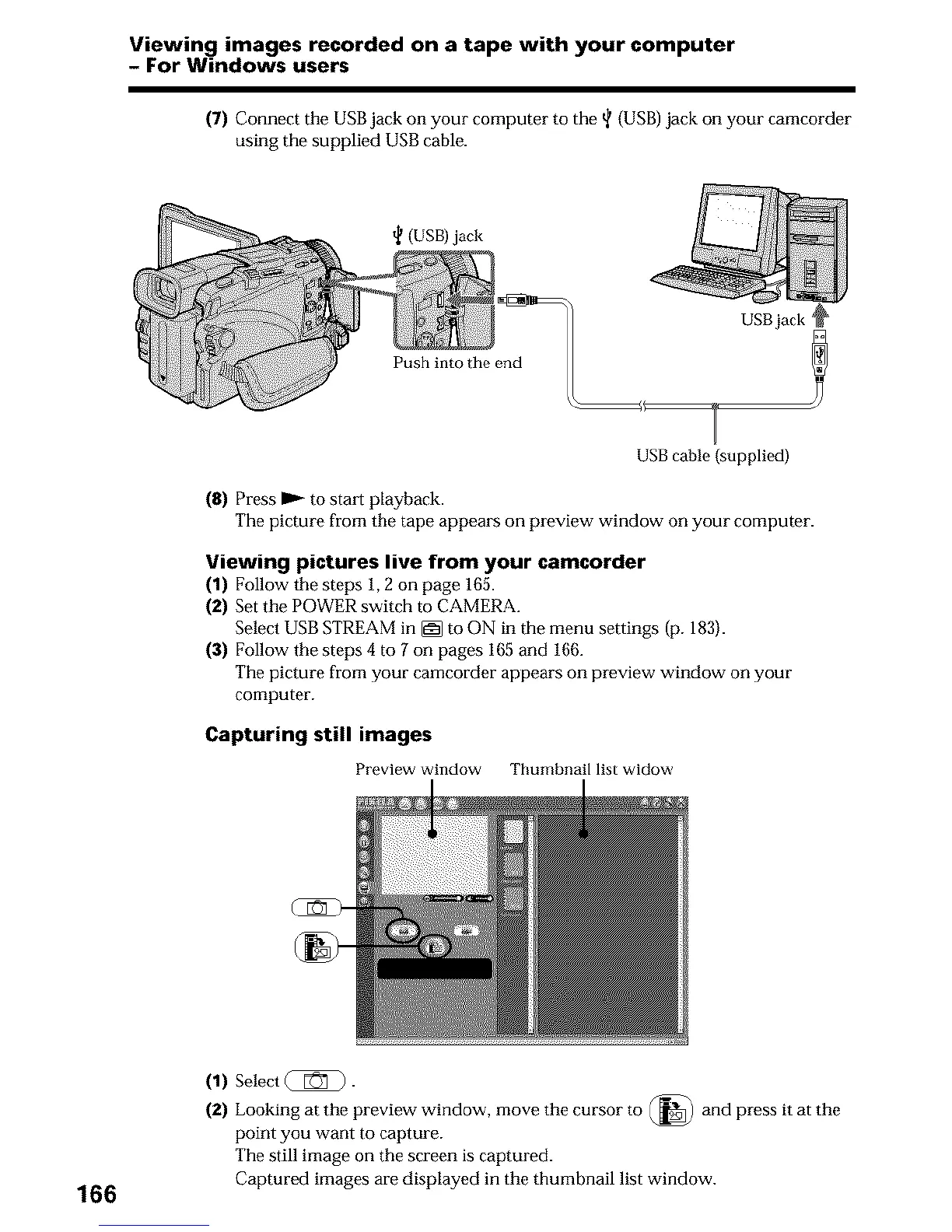
(7) Connect the USB jack on your computer to the _ (USB) jack on your camcorder
using the supplied USB cable.
(USB)jack
Push into the end
USB jack _
USB cable {supplied)
(8) Press I_ to strut playback.
The picture from the tape appears on preview window on your computer.
Viewing pictures live from your camcorder
(1) Follow the steps 1, 2 on page 165.
(2) Set the POWER switch to CAMERA.
Select USB STREAM in [] to ON in the menu settings (p. 183).
(3) Follow the steps 4 to 7 on pages 165 and 166.
The picture fl-om your camcorder appears on preview window on your
computer.
Capturing still images
Preview window Thumbnail list widow
166
(1) Select (_).
(2) Looking at the preview window, move the cursor to (_) and press it at the
point you want to capture.
The still image on the screen is captured.
Captured images are displayed in the thumbnail list window.



 To Next Page