Homescreen Settings
Use the Home Settings shortcut to adjust some basic settings on your Homescreen.
For example, you can set your Homescreen to auto-rotate and adjust the size of
icons.
To Set Your Homescreen to Auto-Rotate
1 Touch and hold an empty area on your Homescreen until the device vibrates,
then tap Home Settings.
2 Drag the slider beside Auto rotation to the right.
To Adjust the Size of Icons on Your Homescreen
1 Touch and hold an empty area on your Homescreen until the device vibrates,
then tap Home Settings.
2 Tap Icon size, then select an option.
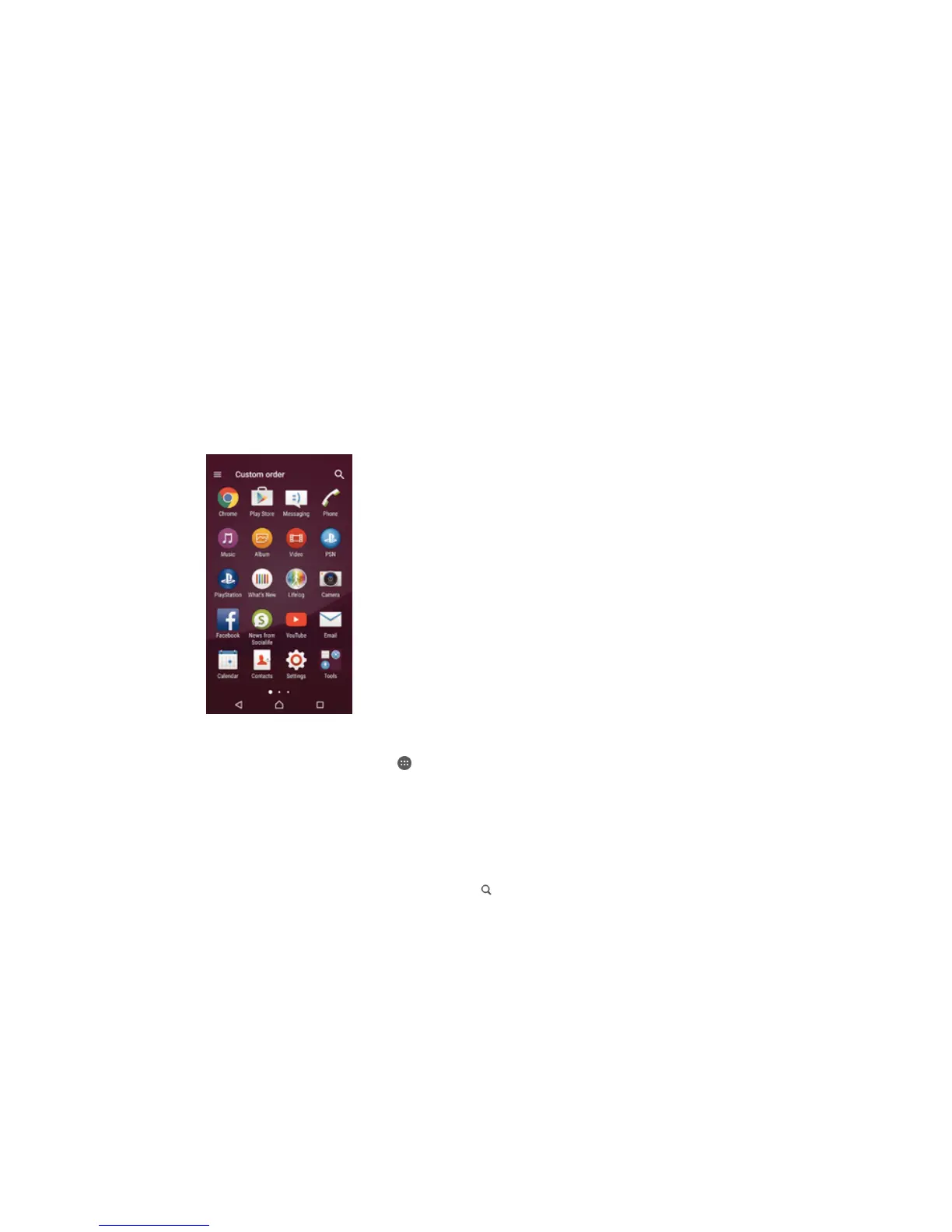
Application screen
The Application screen, which you open from the Homescreen, contains the
applications that come pre-installed on your device as well as applications that you
download.
To view all applications on the Application screen
1 From your Home screen, tap
.
2 Flick left or right on the Application screen.
To open an application from the Application screen
• Flick left or right to find the application, then tap the application.
To Search for an Application from the Application Screen
1 When the Application screen is open, tap
.
2 Enter the name of the application you want to search for.
To open the Application screen menu
• When the Application screen is open, drag the left edge of the screen to the
right.
To Move an Application on the Application Screen
1 To open the Application screen menu, drag the left edge of the Application
screen to the right.
2 Make sure Custom order is selected under SHOW APPS.
3 On the Application screen, touch and hold the application until it's selected,
then drag it to the new location.
18
This is an Internet version of this publication. © Print only for private use.








 To Next Page