• The status bar
• The Notification panel
• The lockscreen
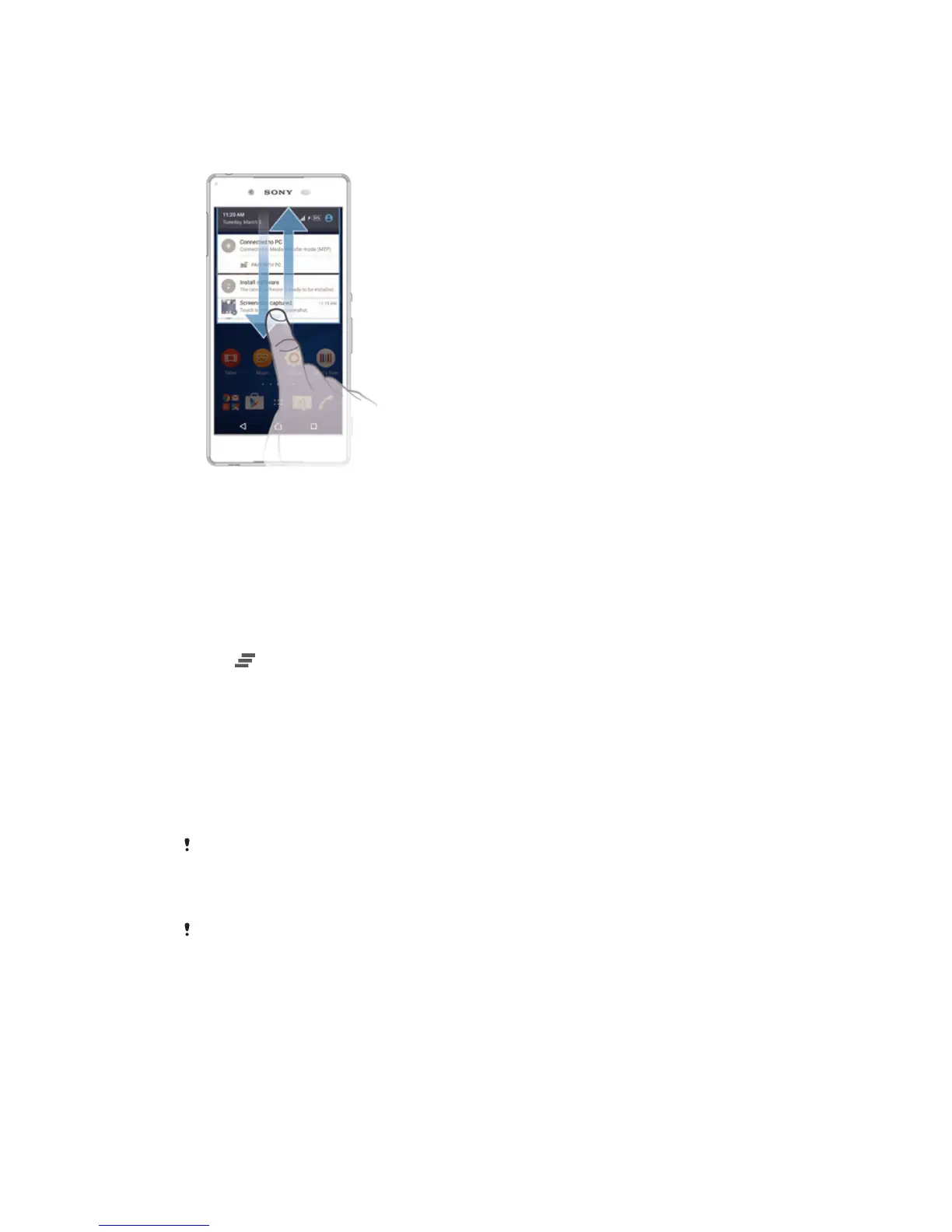
To open or close the Notification panel
1 To open the Notification panel, drag the status bar downward.
2 To close the Notification panel, drag the panel upward.
To Take Action on a Notification in the Notification Panel
• Tap the notification.
To dismiss a notification from the Notification panel
• Place your finger on a notification and flick left or right.
To Clear all Notifications from the Notification PanelS
• Tap
.
To Take Action on a Notification from the Lockscreen
• Double-tap the notification.
To dismiss a notification from the lockscreen
• Place your finger on the notification and flick left or right.
To Expand a Notification on the Notification Panel
• Drag the notification downward.
Not all notifications are expandable.
To Expand a Notification on the Lockscreen
• Drag the notification downward.
Not all notifications are expandable.
Quick settings for interruptions
There are three modes available for interruptions on your device: Silent, Priority, and
Sound. Within each mode, you can determine how and when notifications can
interrupt you, if at all. For example, you can set your device to only show you priority
notifications during the hours you’re at work or block all notifications while you’re
taking a nap. You can get quick access to the basic interruption and sound settings
by pressing the volume key up or down.
26
This is an Internet version of this publication. © Print only for private use.








 To Next Page